SCFLicense: Extension Licensing on Sketchucation
-
i need to buy license for animator.....how to purchase it...please reply me
-
@bentaclas Log in to SketchUcation.com. Go to URL: https://sketchucation.com/purchase-smart.php?plugin=Animator
Press the "Buy Now" button -
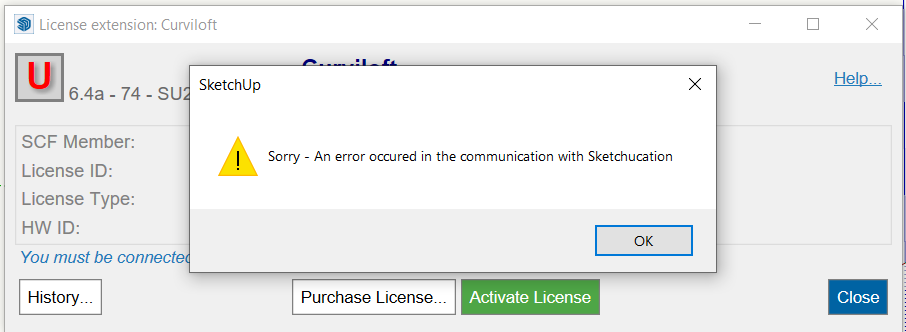
Hello can someone help me with solving this error please?
-
First you need to update your extensions because License Version 6.4a-74 is outdated.
Please upgrade Sketchucation Tools: https://sketchucation.com/plugin/696-sketchucationtools
Please upgrade Libfredo: https://sketchucation.com/pluginstore?pln=LibFredo6Regarding your error message you need to whitelist *.sketchucation.com on your network or switch to a less strict network.
-
[Success] How to purchase and activate the Animator SCF License in SketchUp Make 2017
Hi everyone,
I just wanted to share a quick guide for anyone still using SketchUp Make 2017. I successfully purchased and activated the SCF License for Animator. Since the "Purchase" button isn't always easy to find on the website, here is the method that worked for me:
Prerequisites:
Make sure you have the latest versions of SketchUcation Tools, LibFredo6, and Animator installed.Step 1: Purchase the License via SketchUp (Recommended)
This method is the safest because it redirects you to the exact correct page in the shop.Install the plugins mentioned above.
Open SketchUp 2017.
Go to the menu: Tools > Fredo6 Collection > Animator > License...
In the window that opens, click the button "Obtain License".
This will open your web browser directly to the correct purchase page for the plugin.
Purchase the license and download the .scflicense file to your computer.
Step 2: Activate the License
Now connect the downloaded file to the plugin in SketchUp.Open SketchUp 2017 again.
Go to Tools > Fredo6 Collection > Animator > License...
(Note: If the "License..." menu item is missing, your LibFredo6 or SketchUcation Tools version is likely outdated).Click on "Validate License".
Browse for the .scflicense file you downloaded in Step 1 and select it.
The system will do a quick online check. Afterwards, you should see a green checkmark with the status "Active".
I hope this helps other Make 2017 users!
-
can you give me the trail pack of curviloft
-
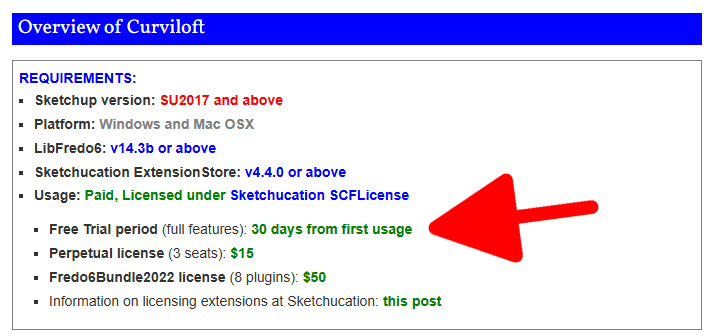
@kavi-priyan install the Sketchucation ExtensionStore and use it to search for and install LibFredo6 and Curviloft. There's a 30-day trial period for Curviloft. After the 30 days you can purchase the license if you wish to continue using it.
-
hi, i purchased the roundcorner perpetual liscense about two years ago. I am getting pop ups when i try to use it now stating that my trial period is over. Ive been going in circles trying to verify/update to the latest version of sketchucation with no clear path/luck. in my extension manager, the fredo 6 round corner extension ios signed and enabled....
HELP A BROTHA OUT
-
@zmd make sure all your extensions are the latest releases.
If they are please share the error messages you are getting so we have something to chew on
-
@zmd
Also make sure you have the latest SketchUcation toolset installed for the licensing etc [>=5.0.5], it's version is shown in the top bar of its dialog.
If you update it restart SketchUp to sync everything...
As well as the latest versions of Fredo's extensions ensure you have his latest LibFredo6 too...
PS. Don't confuse Fredo's RoundCorner and FredoCorner extensions, they are separate tools, each needing their own license...
PPS. The current toolset requires >v2017 - what's yours ? -
I keep getting this message
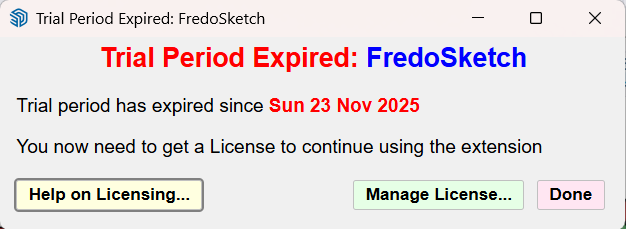
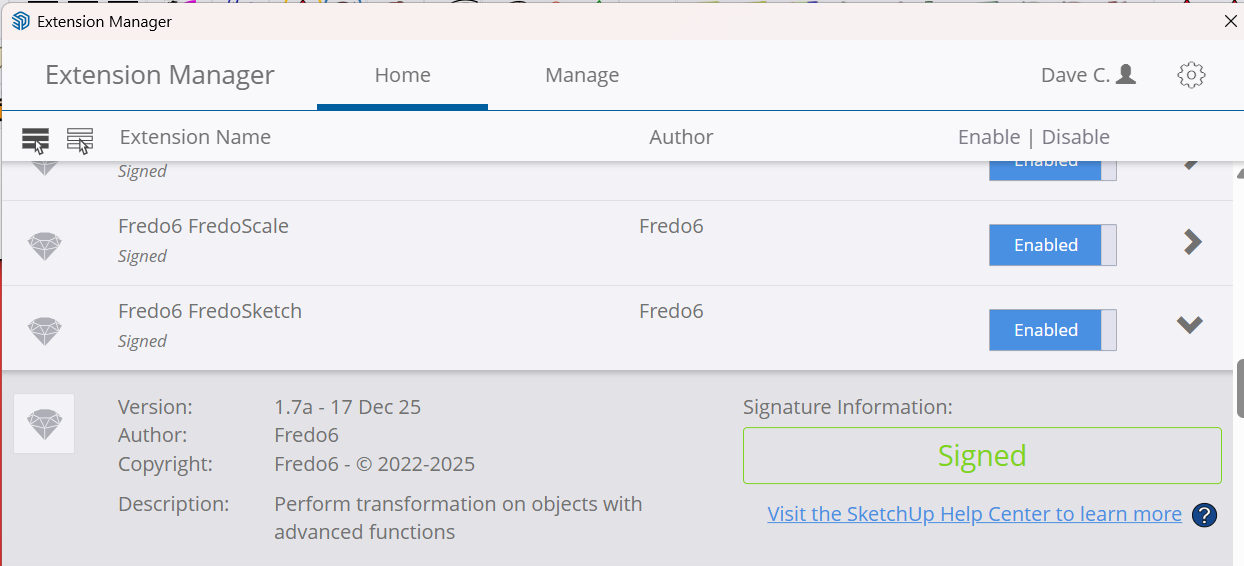
If I go to the Extension Manager here is what I see:
If I go to the SketchUcation Tools here is what I see:
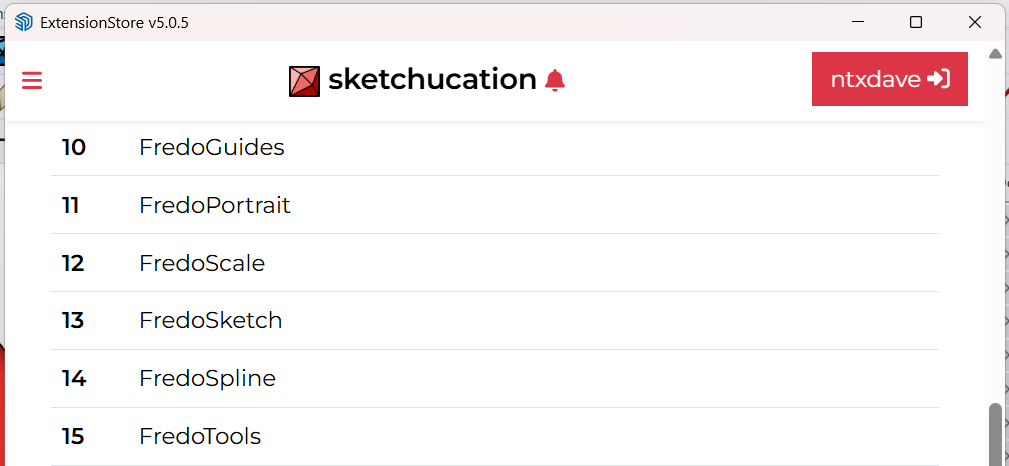
Notice item 13.NOt sure whatr I need to do to get the license updated.
-
Go to https://sketchucation.com/webshop/my-licences.php
Download your license file
Open SketchUp
Go to Tools > Fredo Collection > FredoSketch > License
Click Activate and pick your downloaded license file
-
OK, When I go to the licenses link you provided, I am not seeing the FredoSketch license so I cannot download it.
-
@ntxdave said in SCFLicense: Extension Licensing on Sketchucation:
I am not seeing the FredoSketch license
Did you purchase a license for FredoSketch?
-
@Dave-R I thought so and have had it installed for a while. If you look at this screen shot you will see that I had it placed on my toolbar.
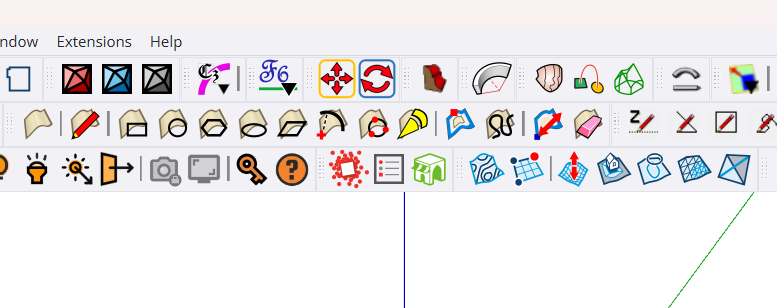
Also, If you look at the image from the SketchUp Extension Manager, you will see that I had a license.
-
The only thing I see in your screenshots is that you have the extension installed and that the trial period has expired. Nothing that shows you have purchased the license, though. The Extension Manager doesn't say anything about whether or not you have a license.
-
OK, I thought all of my Fredo6 licenses were perpetual but maybe not. I do not think I have used this one so I might just uninstall it.
BTW: When I look at the licenses, I see that they have an old email address that is no longer valid. How do I update the email address associated with my license?
Press F1...thank me later
-
@ntxdave said in SCFLicense: Extension Licensing on Sketchucation:
How do I update the email address associated with my license?
You can't but it is not affecting you using your licenses.
All your licenses are at https://sketchucation.com/webshop/my-licences.php
-
@ntxdave said in SCFLicense: Extension Licensing on Sketchucation:
OK, I thought all of my Fredo6 licenses were perpetual but maybe not.
They are perpetual but if you never purchased a license for FredoSketch then that doesn't come into it. If the license isn't showing up in the list that Rich linked to, it's probably safe to say you didn't buy a license.
-
Why wont you accept my card payment im so desperate for a license




Hello! It looks like you're interested in this conversation, but you don't have an account yet.
Getting fed up of having to scroll through the same posts each visit? When you register for an account, you'll always come back to exactly where you were before, and choose to be notified of new replies (either via email, or push notification). You'll also be able to save bookmarks and upvote posts to show your appreciation to other community members.
With your input, this post could be even better 💗
Register Login


Advertisement