sketchucation logo sketchucation
    • Login
    1. Home
    2. jgb
    3. Posts
    Oops, your profile's looking a bit empty! To help us tailor your experience, please fill in key details like your SketchUp version, skill level, operating system, and more. Update and save your info on your profile page today!
    🚨 Skimp | 25% Off until March 30 Buy Now
    Offline
    • Profile
    • Following 0
    • Followers 0
    • Topics 73
    • Posts 803
    • Groups 1

    Posts

    Recent Best Controversial
    • RE: Change lines and faces within a group to designated layer

      I learned the hard way about keeping all raw geometry on Layer0.

      Same with Grouping or componentizing EVERYTHING, that is NO raw geometry outside of a group or comp.
      Updating a few of my old drawings is almost harder than redrawing the whole thing all over.

      Layers control VISIBILITY, Groups/Components control object separation. ❗ ❗ ❗

      My rule of thumb is if the object appears only ONCE in a drawing, it can be in a group; Twice or more, it MUST be a component.

      There are several valid reasons to assign raw geometry to other layers, most are for experienced users to do special things with layer visibility.

      One exception I use routinely is for notes, labels and dimensions.

      Within the group/comp containing the raw geometry and other groups/comps, I may plant a note, label or a dimension. I do not want them to show at all times, but they must reside with the object.

      I will create a separate layer(s) called Documentation or Dimensions.

      I will then assign those raw notes, labels or dimensions to those special layers, and then turn them on or off as needed. Keeping them INSIDE the objects group/comp means that if I turn off the objects layer, the Docs or Dims turn off as well, even if the Doc/Dim layer may still be on.

      One final note; If a nested objects layer needs to be changed and you simply change its layer assignment, its visibility is still controlled by the layers it is nested within.

      To maintain its independent layer visibility, first drill down to its group/comp and select it.
      Copy it to the clipboard.
      DELETE it.
      Back out of the nesting to Layer0.
      Either stay there or enter some other group/comp nest and drill down to where you want it to be.
      PASTE-IN-PLACE, Do not Paste. This puts your object exactly in place at the layer level you want.

      You can also transfer objects between separate drawings this way.
      Open a second SU session and load the "other" drawing.
      In either drawing, select the object and clipboard copy it. Do not delete it, unless you really want to.
      Switch over to the other session and again Paste-in-Place. This will put it in the same XYZ co-ordinates as its origin drawing. It will also transfer its layer ID and any layers contained within the objects group/comp. However, it may duplicate the contained materials/colours.

      I do this a lot drawing my airplanes and stuff where I want to keep separate drawings of the internals of the airframe, wings, etc, but must maintain the spatial orientation and position consistent between drawings.

      posted in Newbie Forum
      jgbJ
      jgb
    • RE: [Plugin][$] Curviloft 2.0a - 31 Mar 24 (Loft & Skinning)

      Fredo

      Any progress on implementing a contour error check and reporting ❓ ❓ ❓

      I just spent an hour redrawing almost the entire contour, endpoint to endpoint to eliminate a single totally invisible .001 inch extra line fragment error. Yet when I first selected the lines using Skinning, I got solid yellow all around. Hitting the Checkmark either gave me a red perimeter, or nothing at all.

      I also noticed that if I am selecting edges using the Skinner, and zoom in past seeing the edges selected, when I pan or zoom out the selection (yellow) sometimes get lost and the next line selected is red or purple. If I reselect the lines they are okay, and the previous selections reappear.

      posted in Plugins
      jgbJ
      jgb
    • RE: Is it just me, or is Sketchup absolutely bloody fantastic?

      πŸ˜’

      Nuff said.

      posted in SketchUp Discussions
      jgbJ
      jgb
    • RE: Is it just me, or is Sketchup absolutely bloody fantastic?

      @gaieus said:

      @solo said:

      And then there are those days when SU just does not want to achieve the result in your head.

      Ah well, I have that with pencil (or as a matter of fact, with my wife) too.
      πŸ˜’

      The problem with comparing a wife to SU is a complex one. (Natch)

      With the proper finesse you can get either one to behave in a manner you'd expect. (Yeah, right!!!)

      SU has multiple Icons and commands that do specific tasks, and for the most part, they are documented and straight forward.

      And there are copious plug-ins to enhance SU's functionality.

      A wife.......... The buttons you push, at least the ones you know about, do things differently every time you push them. In many cases, quite unpredictably as well.

      No documentation, at least none to the specific version you got, as if you get the chance to read any documentation before you push a button.

      Forget "UNDO". It doesn't work. Really.... I've tried, many many many times.

      And don't get me started with trying to install a plug-in.

      posted in SketchUp Discussions
      jgbJ
      jgb
    • RE: "Scale" precision not good enough

      @dave r said:

      I was able to scale in between by snapping the scale handle to the intersection of two guidelines with no problem. The scale factor displays as ~1.01 but it is indeed snapping to the intersection.

      Part of the problem is the shape of the object is not uniform, although it is flat. So, the scale handles do not fall on any part of the selection perimeter.

      HOWEVER πŸ€“ You gave me an idea πŸ’­ that almost works perfectly, at least within an acceptable error.

      I needed to scale the thickness at one end of a tapered tube with a tapered thick skin from about .45inch down to .250inch (and to other thicknesses as well). The tube is about 8 feet in diameter (but squarish in shape) so the thickness changes are minute in comparison.

      I added a short line from the objects scalable (inside surface) perimeter down to where a scale handle is located. I then laid a guide line offset by that length from where the scaling should end up.

      I selected the perimeter and the tiny line then scaled (centered and uniform) down to the offset guideline.

      I got as close as .252inch after a few tries, good enough.

      Now, I gotta do that about 10 different times with different thicknesses.


      As for setting units, Model Info does not provide for setting scale precision, as it does for lines and angles.

      But still, is there any way to up the scale precision?

      I tried Fredos scale, but it didn't help, mainly I guess, due to my lack of fully knowing how to use that tool.

      posted in SketchUp Discussions
      jgbJ
      jgb
    • "Scale" precision not good enough

      I need to scale (about center and uniform) a sub section of a solid object many different times to different scale factors in relation to an external object, in order to define a range of solid volumes to feed a dynamic calculation on an EXCEL spreadsheet.

      The problem is the precision in SU scaling is .01% and my scale efforts jump to only those intervals.

      I need a precision of (at least) .001% to get close to my external reference points. ❗

      I CANNOT scale up the object 10X to accomplish this, as my external reference is lost.

      I have tried to put an artificial reference line(s) into the object to scale to, but I still cannot snap to that line if it lies between (say) .01% and .02%, nor can I estimate the exact scale and type it in.

      My question is...... Is it possible to increase the scale precision to .001% ❓

      posted in SketchUp Discussions sketchup
      jgbJ
      jgb
    • RE: Sketchup is Inacurrate???

      Using Bezier curves does create an elegant solution, BUT, NOT for real road design. You do not want a changing curve for a real road, as most drivers would not be able to accurately (and safely) negotiate the curve. That is the reason why road curves are mainly true circular arcs; they are a constant turn angle for the driver. Aside from that, road construction is easier and cheaper.

      Take a look again at Pilou's picture of the winding mountain road. All the curves are circular arcs. Using Bezier curves would have made a nicer looking road, but far more difficult to drive on (as if THAT road were easy πŸ˜† ).

      posted in SketchUp Discussions
      jgbJ
      jgb
    • RE: Sketchup is Inacurrate???

      @unknownuser said:

      πŸ™‚

      Despite of all that, what is the best connection between 2 parts of any inclined roads on a flat terrain?

      This is a standard "OGEE" Curve problem of joining 2 non parallel roads. β˜€

      Did it in High School (that's 53 years ago πŸ˜‰ ) with pencil, compass, slide rule, protractor and ruler. No such thing as a pocket calculator then, let alone Sketchup.
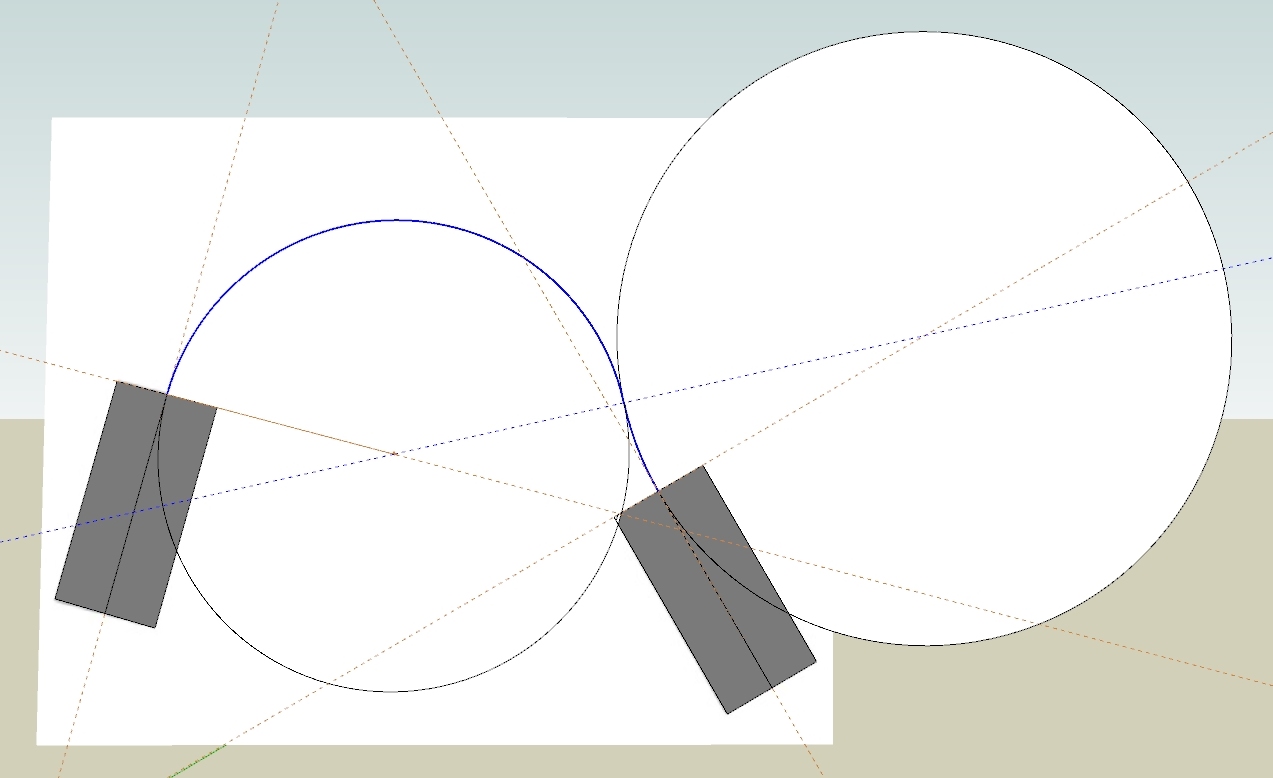
      But damned if I could remember how I did it!!! πŸ˜’ πŸ˜•

      Played in SU for 29 min and got nowhere. πŸ˜†

      So the attached drawing is a "Sketch" of what the solution would be.
      Not calculated, just by eye.
      The "road" rectangles are drawn overlaid on Pilou's ROAD.JPG.

      This is a sketch of a solution, not an accurate drawing.

      posted in SketchUp Discussions
      jgbJ
      jgb
    • RE: New 24 inch monitor a dream to work with!!

      Just a note on how I'm connected.

      My NVIDIA GeForce 8400GS card supports HDMI, DVI and VGA outputs to 2 monitors.

      The 24 HD-Monitor also supports HDMI, DVI and VGA inputs. I have it on HDMI, max res 1920 X 1080 32bit. It is my primary monitor.

      The old 19 monitor has DVI and VGA inputs. I have it on VGA 1280 X 1024 32bit. I have it as 2nd monitor but with the "extend" setting "on" in Windows Display control panel as well as "unify" in the NVIDIA control panel.

      For now I am keeping it on VGA, mainly so it will behave properly in the event I need to go into "safe mode". I'm not sure how my Boot ROM or Win XP in safe mode will handle DVI connections, as everything in boot mode or safe mode seems to be at low res VGA.

      When my PC cold boots each morning the old 19in display is where it all happens, both in ROM boot and Windows IPL, then the 24in wakes up, displaying the desktop and takes over as primary.

      Aside from physically putting both monitors up side by each on my cramped and messy real desktop, it all went way easier than I expected.

      A (long) while back I was given a 32in HD-TV with a VGA input, as well as the usual TV oriented inputs. My old ATI vid-card only had DVI and VGA. It was redundant (sort-of) as a TV in my house so I connected it to my PC. It was totally unreadable in anything over 800 X 600. Now it is an HD-TV in the guest bedroom, and is on maybe 2 weeks in any year.

      posted in SketchUp Discussions
      jgbJ
      jgb
    • RE: New 24 inch monitor a dream to work with!!

      @escapeartist said:

      Congrats! I moved up from a smaller screen too, the extra real estate is great!

      And if your Video Card supports dual monitors, you are even better off.

      Check if there is a "unify" or "merge" option in the Display Properties. That way both screens act as one very wide screen.

      posted in SketchUp Discussions
      jgbJ
      jgb
    • RE: New 24 inch monitor a dream to work with!!

      @pbacot said:

      I found going up to larger screens is a great boon to productivity. What is the model you got?

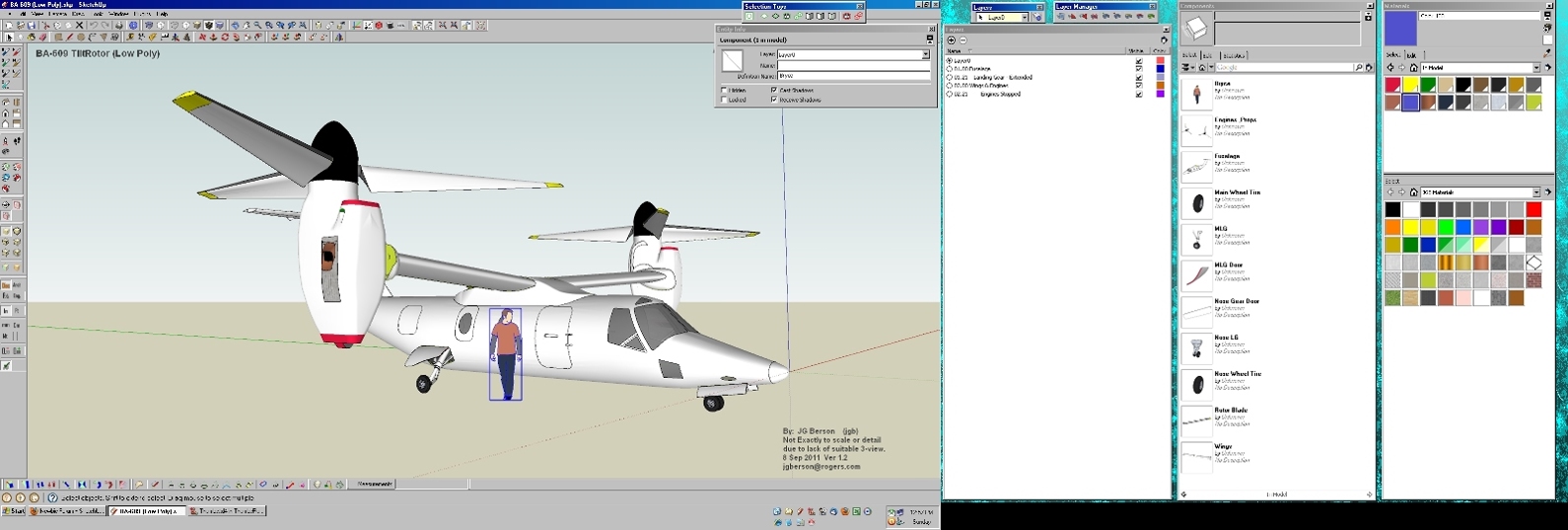
      The model is the Agusta-Bell BA-609. It is the little brother to the V-22 Osprey.

      I created this model in 2 versions, (both are on the SU Warehouse) as a full version with several interiors, and wing tilt positions, and as a low poly version with almost all internals and optional positions deleted.

      posted in SketchUp Discussions
      jgbJ
      jgb
    • New 24 inch monitor a dream to work with!!

      For some time I've wanted to get a 24in widescreen to give me more "real estate" to model in.

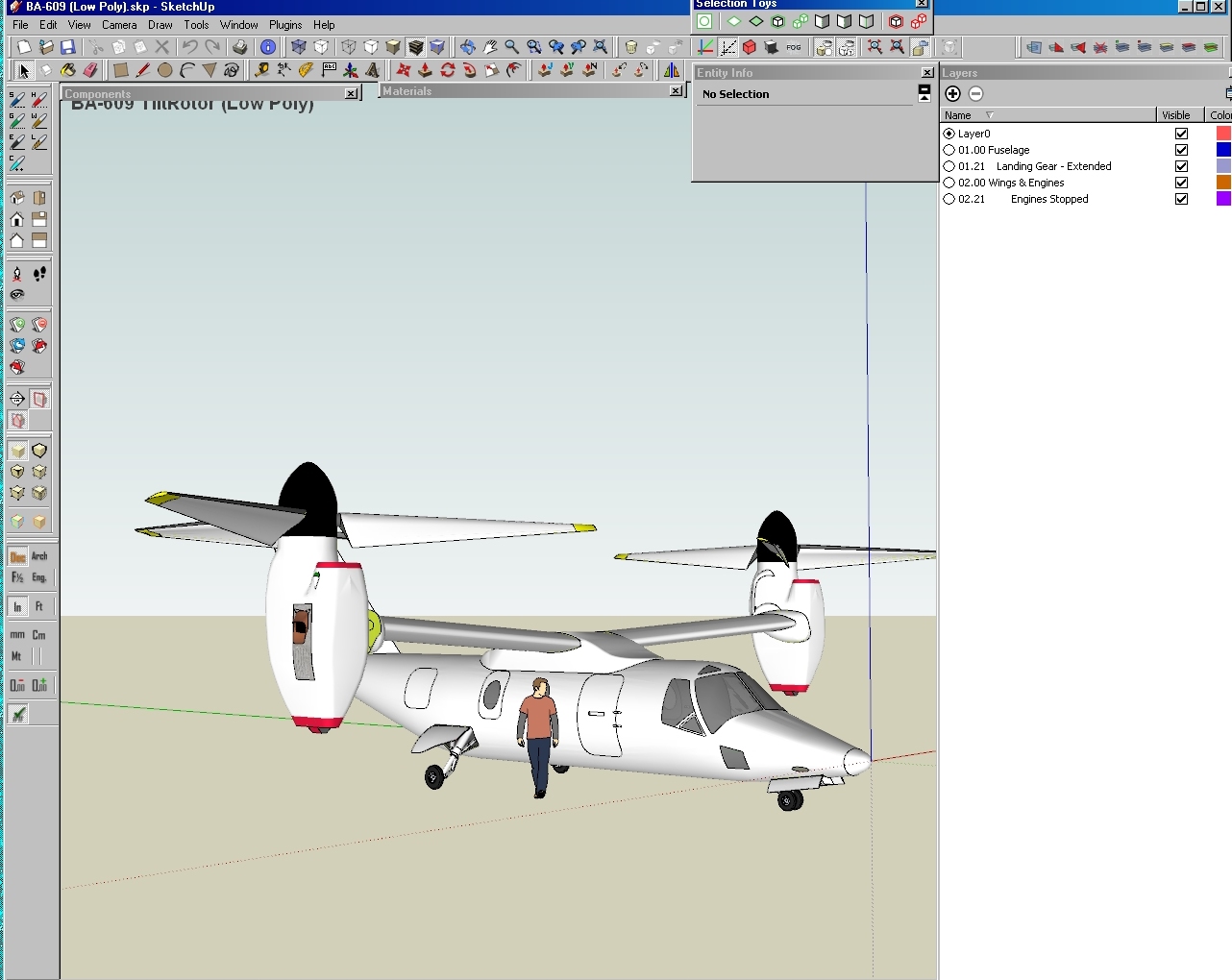
      My old screen is a 19 inches (14.5 W X 12 H) and I "Must Have" certain SU windows open all the time, specifically Layers, and Entity Info. The other major sub-windows, (Components and Materials) are on screen, but minimized, till I actually need them. They really eat into my drawing area, forcing me to be zoomed out a bit less than comfortable to work with. But I got used to it after 6 years using SU. (See 75% screen print of my "old" desktop)

      My old desktop

      Then this last Boxing Day I found an excellent 24 inch screen (20.5 W X 12 H), which by itself is no big deal. However, I found that my video card supports dual monitors, and as a sweet surprise can merge or UNIFY both monitors as one big screen 35 inches wide.

      No need to "switch" the cursor between screens, I just move the mouse. Now my Must Have sub-windows are all open on the right on the old screen and I can enjoy a wide workspace for modeling.

      Desktop is now 1 big widescreen, on 2 monitors.

      The only (minor) problems I have is trying to get the colors matched between the 2 screens, and now panning or zooming is a tiny bit "laggy" due to having to process 3 times the video data.
      Another minor problem on the widescreen is a small but apparent "parallax/perspective error" at the far left/right edges when the model fills the screen.

      But now I can also bring up my EXCEL spreadsheet (on the old monitor) for the model I'm working on (calculates weight and balance as I create components) and have it onscreen as I work, instead of flipping back and forth as before. This does so much more to my efficiency.

      posted in SketchUp Discussions sketchup
      jgbJ
      jgb
    • RE: Construction Lines Fading when on Face

      I learned to avoid this a while back, and it is very simple.

      When you create a guide (construction) line make sure you start the line ON an edge, not a vertex.

      Then when you pull the line parallel to that edge, keep the cursor ON some other perpendicular edge to that face, especially when you "drop" it.

      Or, start pulling the line along an edge, and press SHIFT to lock the direction; then you can move the cursor almost freely to some final point not on an edge, or the face, before dropping the guide line.

      This will ensure the guide line lies right on face and not slightly above/below it.

      posted in Newbie Forum
      jgbJ
      jgb
    • RE: Imported inventor files has faceted flat faces

      If the object is a solid, then "Solid Inspector" should show you where the problems lie. πŸ’­

      Then, if not too complex, "Solid Solver" might clean up much of it (and by the same token, could make it worse!!) πŸ‘Ώ

      However, I have learned that the object need not be a "solid" for SI to help. If you ignore the obvious "errors" such as an open face which is correct, SI will point out the other excess lines and faces where you should be able to determine what is error and what is not.

      posted in Newbie Forum
      jgbJ
      jgb
    • RE: Flat face becomes fragmented for no apparent reason

      This happens to me in spades. It happens most consistently when I push a face (to make a thick plate), then draw a circle and push it to make a hole. I always push the circle to "on face", and that creates a hole.

      But that alone does not create the myriad of hidden lines; it just sets the stage.

      The real problems start later in development when I intersect some other object through the plate. THEN I get all those hidden lines almost always on the pushed face. I can delete the hidden lines in small bunches, but if I select all hidden lines, and delete them, the face disappears. From that point on, whenever I do an intersect or a hole push anywhere on that whole object, all those hidden lines reappear. And I have to remove them every time, as they will interfere with any follow-on development of that object.

      Yet that face is intact. If the whole face goes, and I do a "face" command on any part of the perimeter, the face forms, but covering over the holes as well. The hole perimeters do not intersect the face at that point. I then select all the hole perimeters and the face. When I do an intersect, all the hidden lines are back, and the holes are intersected with the face. Sometimes I even get hidden lines in other parts of the object that had no connection to the problem face.

      It's as if either some the object's vertices "moved" a tiny bit, or, SU dutifully creates the hidden lines in preparation for some potential vertex move that doesn't happen, then "forgets" to remove them.

      posted in Newbie Forum
      jgbJ
      jgb
    • RE: What will SketchUp Free and Pro look like in 2013?

      Don't you just love it when people respond to a post without really reading it and....
      understanding what was stated???? πŸ˜›

      I said I only use the FREE SU version because it is now a hobby for me, and
      the PRO version is not worth the $$ TO ME for the extra features, as desirable as they may be.

      That means, I can't use LAYOUT to any useful extent.

      That also means I don't need to create shop drawings either. I'm not actually building anything.

      Well actually that's not quite true. I did do a fairly accurate model of my laundry area to find the best fit for the new washer & dryer, as well as getting rid of the dumb layout the former house owner built.
      The SU model showed me a 1 1/4 inch interference with an electrical box jutting out of the furnace. I was then able to move the box BEFORE the units were delivered. No amount of tape measurements onto paper would have clued me to that, until I would have tried to fit them in.

      Similarly, I modeled my bathroom reno. There I could have used real shop drawings for the new cabinetry, but a few JPG exports with some critical dimensions was enough for the cabinet maker to make cabinets with only 1/2 inch of installation clearance instead of the usual 1 1/2 to 2 inches.

      I used to need to make shop drawings about 20+ years ago, and I used ACAD for that. But a small part of my job was conceptual design, and ACAD could not hack it, hence a stack of paper SKETCHES.

      When I retired, before the advent of SU, ACAD drove me nuts trying to draw concepts in 3D (2 1/2 D as they termed it). And yes, I tried others as well. An example I use is one where after over 2 solid weeks of trying to conceptualize a complex airplane fuselage in ACAD, I discovered SU and within 2 hours of downloading it, my concept design was done. I've spent the last several years putting a lot of my old paper concepts into SU. New ones too. I use SU for my patent submissions as well, after educating my patent lawyer to use them instead of employing a draftsman. Now he can get and include drawings of complex ideas at any view angle in no time at all.

      SU is NOT a CAD. I know that, and I do know the difference, but I do use it as one. Of course there are better tools out there, ACAD, SolidWorx and others that cost plenty. They are NOT hobbyist tools. They are PRO tools.
      If I had the $$$$ I would buy a CATIA seat and server. πŸ€“

      There are things I can do in SU far faster and easier than with any other s/w.
      There are things any other s/w can do better than SU as well.
      Ya pays your money and you takes your choice.

      posted in SketchUp Discussions
      jgbJ
      jgb
    • RE: What will SketchUp Free and Pro look like in 2013?

      @alpro said:

      I do think Trimble will move SU from a "hobbyist" software to a "pro" modeler and cad package to eventually compete with Autodesk.
      Mike

      While I don't disagree, and I am no lover of Autocad, SU has a long way to go before it can rival ACAD at a PROFESSIONAL level. While SU can run rings around ACAD in 3D and ease of mastering, as well as user supported plugin libraries, it lacks a very fundamental ability to produce 3 view drawings on paper, true isometric drawings and true scaled "shop" drawings that ACAD started off as being quite capable.

      Keep in mind, I was using ACAD since Ver 1.2 a long time ago, up until 6 years ago when I discovered SU. Never touched ACAD again after that day, and purged it from my PC.

      SU also has some ways to go to challenge SolidWorks in the solids and mechanical assembly capabilities.

      But SU has its very own niche regarding rapid model development, ease of learning/use and specialty plugins that neither ACAD nor SW can match. As a result, it is IMHO a very high end hobbyist "semi" CAD tool and a low/medium end professional rapid CAD tool.
      And for that, I am very appreciative.

      posted in SketchUp Discussions
      jgbJ
      jgb
    • RE: Any Plugin to count "Endpoints" in a selection??

      I'll revisit this on Mon or Tues. Going out of town for w/e.

      posted in SketchUp Discussions
      jgbJ
      jgb
    • RE: Any Plugin to count "Endpoints" in a selection??

      Tig,

      Interesting stuff to try. Any chance you could make that into a plugin?

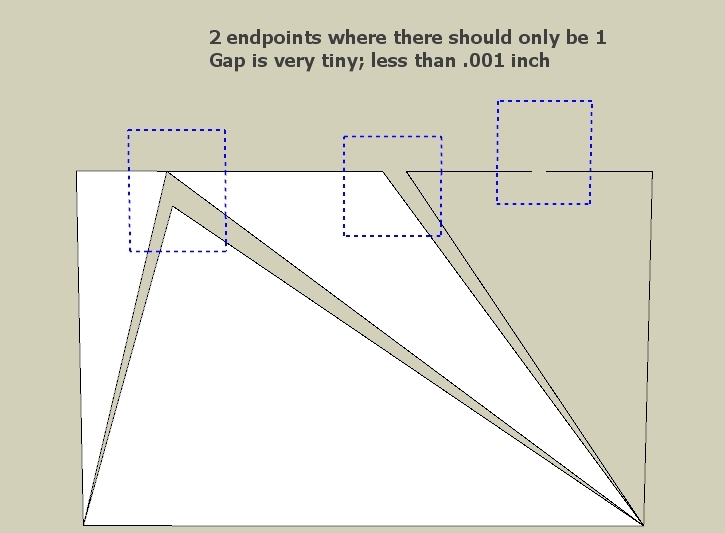
      But the attached drawing is what I am trying to solve, where there is a gap between vertices/endpoints that is minute (less than .001 inch) and cannot be seen unless zoomed in very close, perspective off. Doing this is tedious as it has to be done on any suspected vertex or line segment.

      Unless I'm missing something, I can think of no simpler way than to just count endpoints and easily deduce where the problem lies.


      Tiny gaps can be found by counting endpoints

      posted in SketchUp Discussions
      jgbJ
      jgb
    • RE: Any Plugin to count "Endpoints" in a selection??

      Thanks guys,

      Solids? Yes but not only.

      Vertex Tools looks great but a bit overkill for me at this time.

      I've d/l'd Label Open Faces and I'll see if that does the trick.

      I tried using Solid Insp but in this case it went nuts with circles and lines to the extent it was more work finding individual lines and gaps (have to select group, go in then out for each instance) and Solid Solver while great; in this case won't work. The object is not (nor is intended to be) a solid and essentially it just left me with a cupla lines in space.

      posted in SketchUp Discussions
      jgbJ
      jgb
    • 1
    • 2
    • 13
    • 14
    • 15
    • 16
    • 17
    • 40
    • 41
    • 15 / 41