Groups and components have their own local axes.
If you need to align two (say) groups with their axes according to the current models drawing axes, you can use the 'Move' tool. Each group has 4 red grips on each side of the bounding box. Its a bit tedious but by rotating a group by these grips and inputting 0 or 90 or 180, etc. (round figures, x*90 degrees), per side at least one rotation, you can get the group aligned to the current axes of the modeling space. Per group you should be able to reposition it in 3 rotations altogether. With the 'Move' tool!
Oops, your profile's looking a bit empty! To help us tailor your experience, please fill in key details like your SketchUp version, skill level, operating system, and more. Update and save your info on your profile page today!
🔌 Easy Offset | Offset selected faces in SketchUp in positive and negative offsets. Download
 Offline
Posts
-
RE: Use axis tool to reorient two groups/comps to same xyz?
-
RE: Use axis tool to reorient two groups/comps to same xyz?
@frascati said:
.........Another forum suggested the following method to me. I've tried a number of times and cannot follow the directions (as apparently simple as they appear)
@unknownuser said:
%(#FF0000)[This is such a basic thing that you should be able to do with SU 's basic tools.
Say one object is A and grouped, The other is B and grouped.
You can move an object to an absolute X,Y,Z location by grabbing it at a meaningful endpoint, moving it to arbitrary location and then type [xvalue, yvalue, zvalue] and [Enter] .
You can move an object relative to its current location by grabbing it anywhere, moving it to arbitrary location and then type <xvalue, yvalue, zvalue> and [Enter] .
You can directly move an object to a meaningful target by grabbing it at a meaningful endpoint and moving it to that target, placing ith with thge second click.
The latter can also be divided into three different moves along the three axes, using the target for inferencing and the arrow keys to constrain the move to one of the axis.
Arrow-up/down for blue, -left for green and -right for red axis.You can also use guides or existing geometry to constrain to a desired direction and to constrain to a certain distance for moving the object.]
I grab an object at a meaningful endpoint, move it to an arbitrary location (just move it a bit is what I gather from that) and immediately type in xvalue, yvalue, zvalue but when I start typing the z value the measurement window is erased and displays "field of view.. 35 degrees"
I'm not a mathematician. What "values" am I supposed to be typing by his instructions? I tried x1,y2,z3... x0,y0,y0.. and others. What am I missing?
I cannot understand the other methods described either. I know how to select a point and set it to another on another object/group/component as he describes, and how to use the arrow keys to constrain movement along set axis, but cannot intuit how that helps me to connect one object/group/component to another that exists in a slightly different set of axis points.
I simply want to reset the xyz coordinates of groupA to correspond to the xyz coordinates of groupB, so that when I drag and attach groupA to groupB they fit symmetrically.
Red is my answer in a different forum, but now completely out of its previous context!
By xvalue, yvalue, zvalue I meant numbers! if you type a z somewhere during the input you'll activate the 'Zoom' tool as you found out.
The video shows how to align geometry inside a group. It has nothing to do with what you are after with axes alignment.
-
RE: Can you make locked objects unclickable?
@gonashvili said:
...., that would just sit there and which won't 'select themselves' when you do a basic 'rectangle selection' [top left > bottom right or vice versa].
So, can you do this or?...The answer is no. Anything in the current context is always selectable, whether unlocked or locked. Locked groups and components can only be unlocked. Not manipulated in any other way.
I know it can sometimes be very distracting to constantly see these bounding boxes of locked entities when making a window selection. But nothing you can do about that.Other programs may work with locked and protected layers to exclude selecting anything with these layers assigned to them. But SketchUp uses layers differently.
If you work in a certain editing context, anything outside that context (higher level) is unselectable. Even unlocked entities outside the context can not be selected.
-
RE: Buncha bricks
@hellnbak said:
Better make that license a learner's permit - just noticed that I have four bricks trying to occupy the same space

Well Steve, nothing to be embarrassed about. Great "pile of art", an A[sup:1ca2tjek]+[/sup:1ca2tjek]
(About 16,000 past through my fingers last few years, ....still feel my back)I'm curious about the SU statistics and file size with these textures.
Could you share that with us please? -
RE: Photomatch question
@cotty said:
The background usage...
I hoped for something like this: rightclick and choose explode, unmatch, delock, ... so that the image is no longer a matched photo object.Speechless

I see no other way than a clumsy one where you try to import again and manipulate the image.
Maybe a plugin request for one that "grabs" the matched image, to be used 'as image' or as texture. How would you deal with the perspective issue in the background of such an image?
Isn't it only useful for one camera position.
Sorry for poor answer so far. -
RE: Photomatch question
@cotty said:
Is there a way to use the matched photo as a "normal" picture after the match, e.g. for rendering(background picture)?
A bit confusing. Is it for rendering the building (right click and select the rendering option) or is it meant to be used as background?
-
RE: Accurate placement of section planes?
@sfto1 said:
I searched thru the site for any info on accurately placing section planes, as opposed to eyeballing them, and I cannot find anything.
Does anyone know if this is possible?
Another method, general approach, to see where you are going with the section plane.... as a group:
You can draw on a section plane, so:- create a section plane and make it inactive (double click on it)
- draw two intersecting finit construction lines on the section plane (or one edge)
- select both construction lines (or the edge) and the section plane > make group.
- this group has a convenient grip, the intersection (or two endpoints) and can be placed, rotated etc. to fit in the geometry at the correct location/orientation. Best to do so in X-Ray.
Right click the group > Explode > double click the section plane to make it active.
-
RE: Guidelines disappear when I zoom in.
@cotty said:
Gerrit wrote about the origins for the guides groups, not the beams origin.
(@Trixta)
Yes, I was only trying to explain why guides may not be displayed in certain cases: when their insertion point is too far off screen.
Groups and components with real geometry (their edges and faces) are always displayed, even with the local origin not on screen. Just the guides may disappear.If you have things like beams that are mostly the same, start with one component. If the last 10% (or so) of the geometry of one beam slightly differs from the others, you can make this beam component unique and do the rest of the 10% editing only to this unique component.
p.s. "Make unique" also applies to more than one component, to split a bunch into two groups of components.
-
RE: Guidelines disappear when I zoom in.
Guides do have some sort of insertion point. You can make its location visible as followes:
-
first make components axes visible.
(menu Window > Model Info > Components > Component Axes > check displaying the axes) -
now select a guide > menu Edit > Make Group.
You'll see where the guide has its local origin. Its insertion point, so to speak.
If you zoom in and the insertion point is too far off screen, the guide may disappear.
The guide will show when its insertion point is somewhere in sight, on screen. (or near)When not grouped, you may spot a guide's insertion point when looking closely at the dashed line. There is a spot that has two connecting dashed lines. Hard to see but it is visible.
-
-
RE: Whats the difference....
@mics_54 said:
...between hiding elements of a model and using layers to make them invisible? Any advantages in regard to changes made?
You can rely on "hiding" (nested!) elements when working with turned off layers. Whereas hide is not saved properly in (throughout) subsequent scenes.
If you hide a nested group and save as such in one scene, and you may want to show the same group in another, you just have to do so by applying layers. Hide won't work.
-
RE: How best to design a bathroom with Sketchup.
@kghowell65 said:
..... I have a few ideas about how u could do it but I would like I hear from those with more experience.....
Don’t count me in as being an expert on designing bathrooms.
Just some ideas:
Maybe share your few ideas (good or bad, doesn’t matter) first, to inspire others to share their opinion/view/knowledge/ideas/tips.
Working inside geometry means that setting up (many) scenes will help a lot, more than when working on the outside.
Apply section cuts when saving scenes. This will ease working inside.
Look for the best low poly groups and components that are still realistic when rendered.
Relevant layering also is important. Ofthen geometry might block your view.Here’s an example I did several years ago. Far from perfect, learning SketchUp. But just to give you an idea.: http://sketchup.google.com/3dwarehouse/details?mid=7696005c59004bb485b4d93128c55283
-
Double wrong / sexual abuse punishment for the wrong person
@unknownuser said:
(*Posted: 20 March 2013)*It's hard to believe, but a 15-year-old rape survivor has been sentenced to be whipped 100 times in public! Let's put an end to this lunacy by hitting the Maldives government where it hurts: the tourism industry. .....
If you agree that this is madness, then maybe this is a good time to sign and at least try to put an end to this sexual abuse and suppressing women.
I believe in equal human rights and signed.See/read the article for yourself and sign if you agree this should be stopped:
http://www.avaaz.org/en/maldives_global/?bBCFpcb&v=23290 -
RE: The "Duh!" thread (aka the Doh! thread)
@gilles said:
Yes nobody is perfect.
How true.
Fact is, I learned it (lock vertex to edge) from someone else, .....from Anssi.
And this was also after having used SU for several years. (Doh for me at that time) -
RE: The "Duh!" thread (aka the Doh! thread)
@gilles said:
Seven years!
You should read the manual, just in case.

http://support.google.com/sketchup/bin/answer.py?hl=en&answer=94862&topic=2458142&ctx=topic
Useful reading but here it lacks the information about how to use to rotate a group or component accurately according to the current drawing axes system with angle input.
Also I couldn't find anything about moving vertices. And even more, while doing so, how to lock moving a vertex to its own edge's direction. (=hover over the edge first, press [Shift], only then move the vertex) -
RE: Time for a change for me...
-
RE: Time for a change for me...
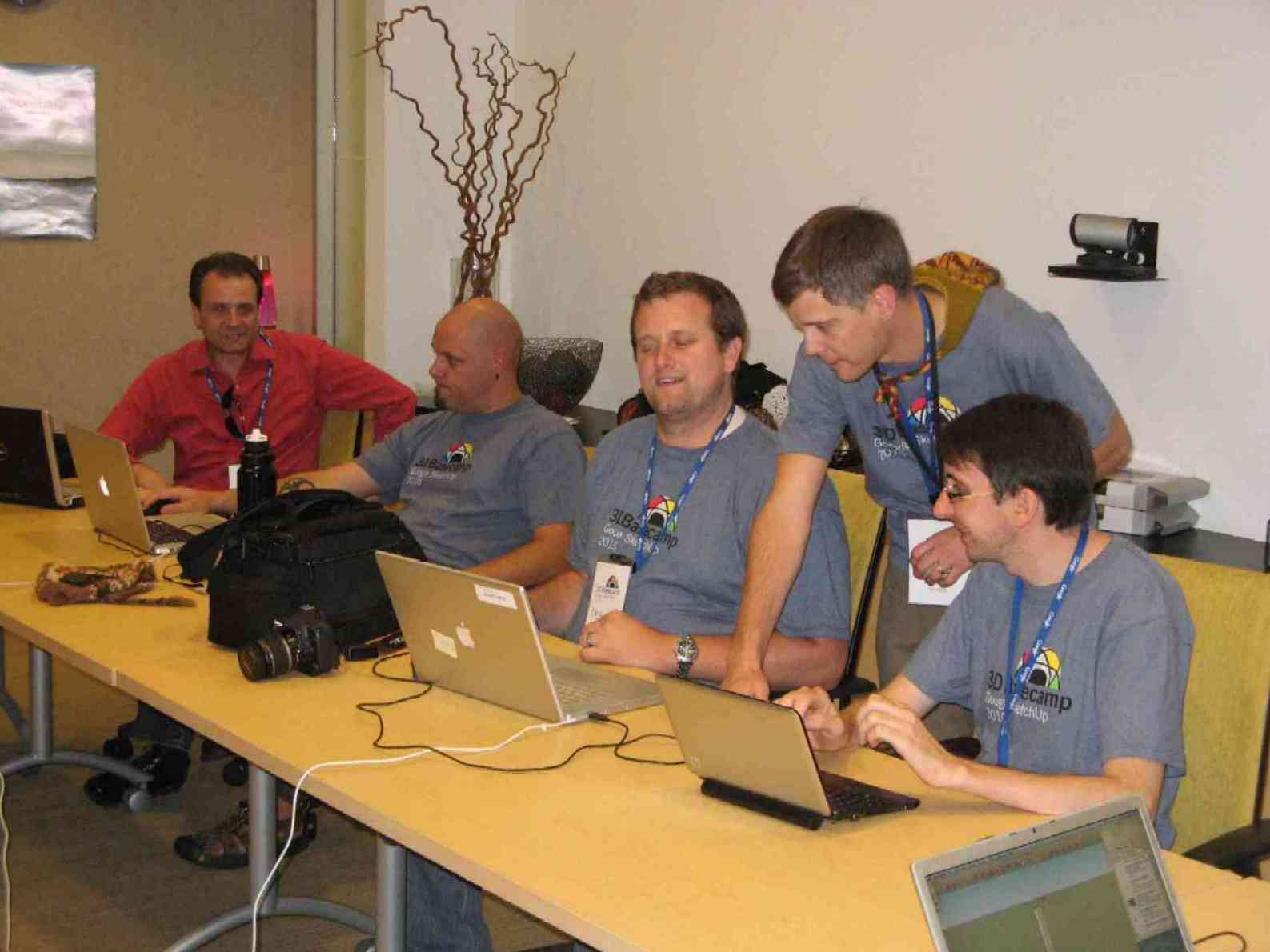
Better image of Chris in action.
(zoom in on the t shirts)
-
RE: Time for a change for me...
Congratulations!, Chris.
As we can see, (image) you were thinking ahead / are already prepaired for this job and 3D BaseCamp. Even then you knew this was going to happen.p.s. I think your "start ruby scripting" tutorials are great. Wish there were more.
All the best to you and your family in Boulder, with your new job.

-
RE: The "Duh!" thread (aka the Doh! thread)
@mikefjaguar said:
Ctrl (in Windows) while orbiting lets me turn my model every which way! Fairly useless as an architectural user but ......... Doh!
Rolling the camera (by holding down [Ctrl] when orbiting), to position your model in such a way on screen sometimes helps in order to have the selection window enclose what you want it to select. With gravity ON you might not be able to make that special selection.
-
RE: How to modify the dimensions of a rectangle
@viking72 said:
.....So can anyone tell how to modify the dimensions of the rectangle (in the box down in the lower right hand corner) once it's made ? ....
Once it's made and you applied some other tool, then (to SketchUp) that rectangle isn't a rectangle anymore, but just four lines and a face.
You can use guides from one edge over to the other side, set at a known distance. Then drag the second (in between-) edge towards the guide.
The same procedure for the perpendicular direction, to get all dimensions as desired.The fastest way here might be the 'Scale' tool. That is if edges run parallel to the axes.
Select the rectangle. Select the 'Scale' tool. Scale to arbitrary size.
Now immediately after, type the correct dimensions plus units and [Enter]
Example: Scale whatever rectangle. Then type 3750mm,4500mm [Enter]
.... to get a 3750mm by 4500mm rectangle. -
RE: Fastest rotation?
@unknownuser said:
use the move tool (at least in this particular instance)
Clever underestimated solution!
The tool lets you align to any current drawing axes with input 0, 90 etc. (degrees)