FFmpeg: Instructions for download and Install
-
@cdlea said:
I extracted the files from the .zip but i do not have a "C:\FFmpeg" pathway.. so what do i do with the ffmpeg.exe file?...
You can create the path C:\FFmpeg yourself and put the exe there.
Otherwise put the ffmpeg.exe anywhere on your PC and then, from the dialog box just designate this location.
-
Hi, I am having same issue as the others where it's not outputting the video from the photos it generates. I have placed the FFmpeg into the C:/FFmpeg directory, and directed it to there, bus still not video gets generated. Can you please let me know how to fix this?
-
Thank you for the plugin, it worked well today on a windows machine using the 2022-09-22-git-af919cf780 found at
https://www.gyan.dev/ffmpeg/builds/ -
Hi
Not sure why, but I think I managed to fix my Video Generation issue.
I am not sure if this is a universal situation, but maybe helpful to someone. Like most of the posts here, I installed the Animator plugin on my Windows 11 laptop and followed all the steps, but was unable to generate movie (MP4 or any other format).
My original Sketchup file and the folder where the animation output was being located were on my OneDrive folders. After many failed attempts, I copied the Sketchup file and the FFMPEG file to a folder on my C drive. Doing so fixed the issue. Once the "Video Generation" process is completed, after selecting "Save and Exit", a video is generated and ready to access.
It works even after interrupting and resuming video generation process.
-
I have almost the same issue as mentioned above many times. On my Mac I unpacked the downloaded file and moved it to the Applications folder (it is a 78.5 Mb doc file) . Then I specified the path to this file in the Generation the Video window, chose mpeg extension, and everything was going fine. But when checked the Animator Videos folder it was completely empty. I did the whole cycle many times, and gave permission to the ffmpeg in Privacy&Sec , restarted the SU and whole Mac many times, but it's just coming up empty-(
Would be much appreciate for any help on it
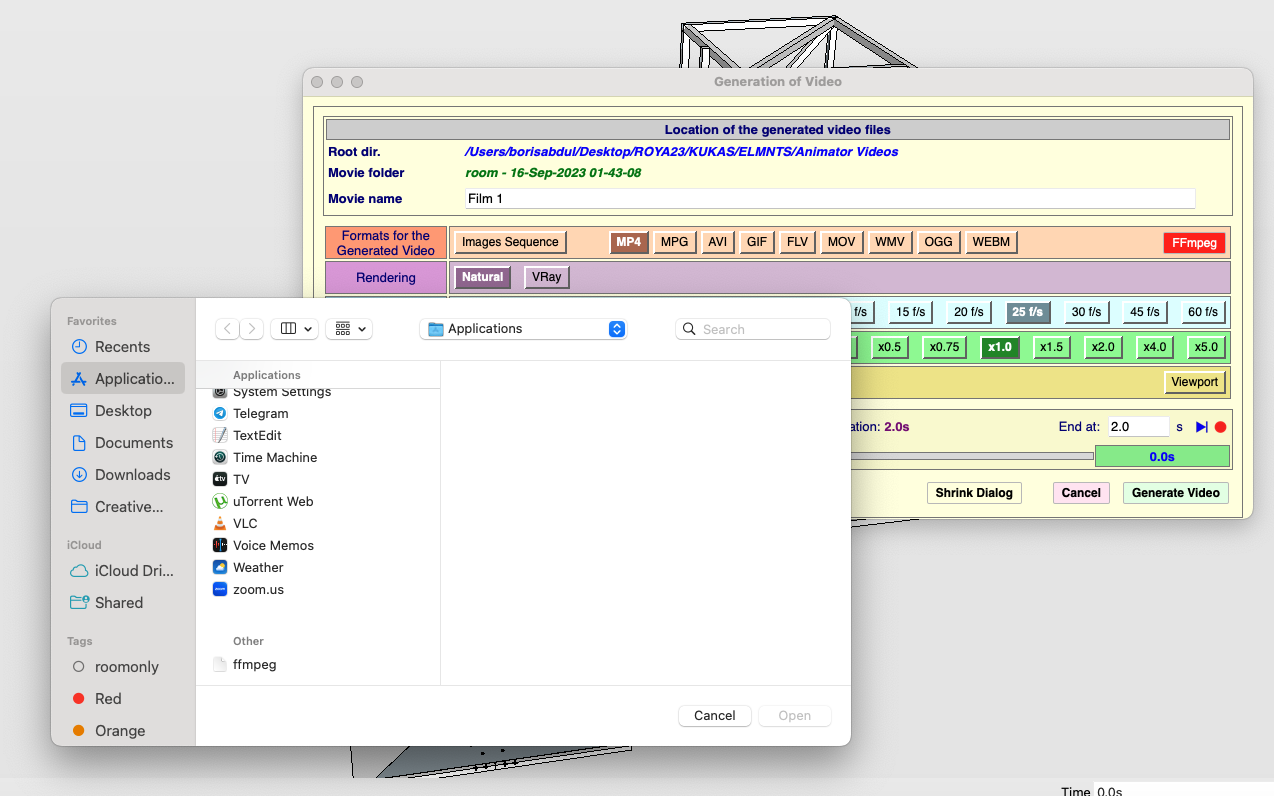
-
The videos generated by Animator are located in a folder Animator Videos located in the same folder as your model. This folder is created if it does not exist.
After the generation, you have a dialog box with 'Play' arrows under each format. Do you get the video playing when clicking on the arrow?
-
after the generation, I have this dialog only , then save and exit . Nothing appears in the Animators video , just empty folder .
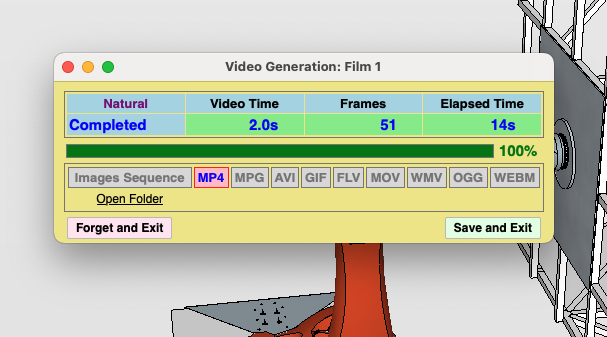
-
@quillpro said in FFmpeg: Instructions for download and Install:
It does not appear in the Control Panel nor does it ask for permission. I was able to fix the issue by using the macOS terminal to make FFmpeg executable.
shell ~ % ls -lU /Applications/ffmpeg
-rw-rw-r--@ 1 username staff  78461292 Aug 31  2020 /Applications/ffmpeg

shell ~ % chmod u=rwx /Applications/ffmpeg

shell ~ % ls -lU /Applications/ffmpeg
-rwxrw-r--@ 1 username  staff  78461292 Aug 31  2020 /Applications/ffmpeg
The Generation of Video interface is still buggy but it does now generate the video files.
Hi all, New user but have been enjoying the helpful information found here!
I too have been having a couple struggles getting the great ANIMATOR app from Fredo6 to generate a video file on my MacBook Pro. I did see that in the automatically generated folder "Animator Videos" a sting of individual images but also a .txt file that stated "permission denied". I thought it sounded like I should try the solution from quillpro to let the Mac OS open and run the file. I think quillpro is most likely better at command line instructions than me - but I couldn't get his Command Lines to work for me.
What I found online and did the trick for me was the following:
To change permissions in Terminal, do the following:
Type this command followed by a space: chmod 755.
Drag the file "ffmpeg" into the Terminal window.
Press Return.Permissions for the file or folder will be changed to read, write, and execute.
When I did this, the icon for ffmpeg changed from a white piece of paper with the top right corner folded over to a black colored icon with the words "exec" in green written on it.
I haven't tried all the different available formats but it made a .mov file that played in QuickTime with no problems.
Hopefully this helps someone!
-
Hello everyone! I have a problem with generating video on Mac OS. I installed the latest version of ffmpeg and placed the downloaded file in the application folder and pointed to it in the video export window. Available video formats immediately appeared in this window, I select the desired one and start exporting, when the indicator reaches 100%, but the video is not created (a folder with .png and .txt files appears. Please help me solve this issue, I really need to make a video animation! Thank you very much!
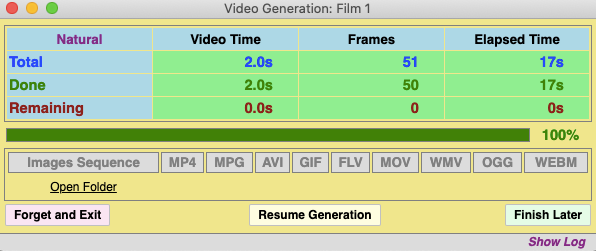

-
It seems that the FFmpeg program is not launching correctly, probably because of security restrictions that you have to configure (since you downloaded it from Internet).
Can you open the Ruby Console, copy/paste the following command and type Enter.
Kernel.system ""#{Traductor::FFmpeg.instantiate.program_locate}" -h"
This invoke FFmpeg help. The return value should be true.
If you get false, I would have a look at the previous post about giving permissions to FFmpeg.
-
Thanks for trying) None of the above worked) But I am very grateful that you answered me so quickly, because it is so important to support each other) I will briefly share my story. I tried all possible methods that can only be found on the Internet, but nothing worked, although I managed to install ffmpeg without lipsodium and everything that is downloaded further. Chat GPT helped me, he wrote me the exact command for the terminal and I converted my first video! After that, somehow everything started working in ANIMATOR! Thanks to FREDO for his work and gifts! If anyone needs the command for the terminal, I will leave it here:
ffmpeg -framerate 30 -i ~/Desktop/test/image%03d.png -c:v libx264 -r 30 -pix_fmt yuv420p ~/Desktop/output.mp4 -
This post is deleted! -
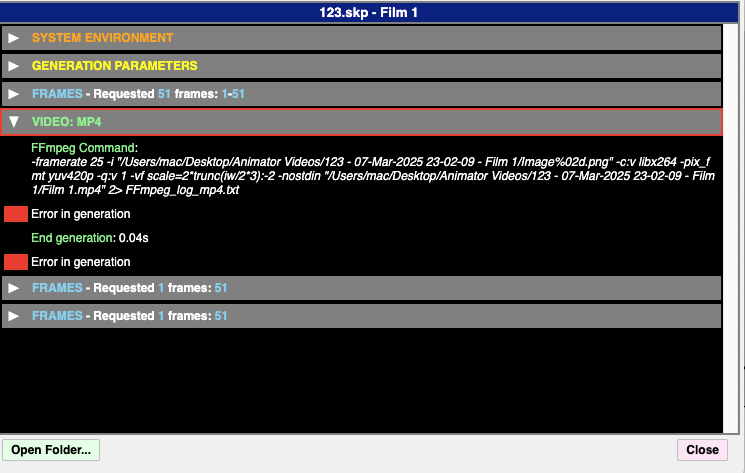
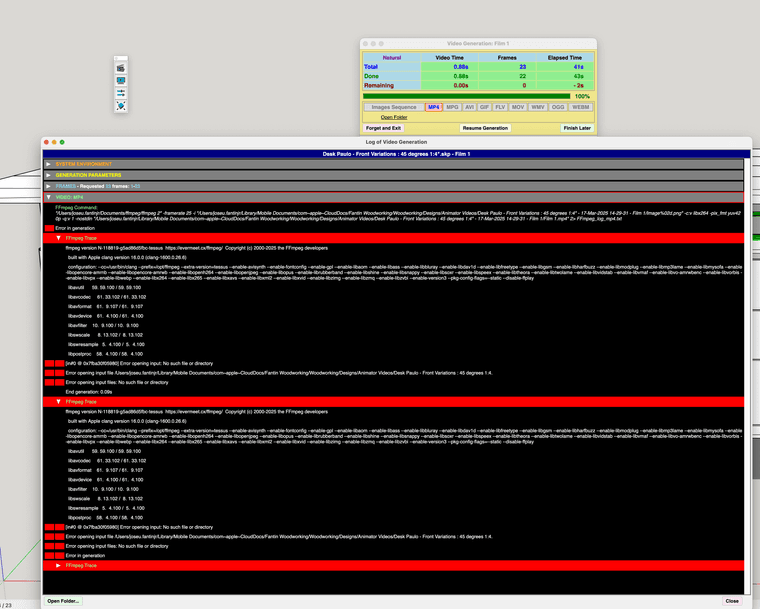
Hi I had a similar issue - tried to generate a video, and it didn't work. See the log:
-
Is there a double quote (after 1:4) in the name of the folder where Animator.
Also, if you post a trace, please use the txt file (_EventLog_video_generation.txt). This is easier to read than a screen capture.
-
ffmpeg -framerate 30 -i ~/Desktop/test/image%03d.png -c:v libx264 -r 30 -pix_fmt yuv420p ~/Desktop/output.mp4
where do I have to insert? -
Hello, FFmpeg continues to generate 25 fps videos (mp4) 1920x1080 despite of selecting different framerates. please help
-
@Scit @fredo6 I see the same issue - all MP4 videos seem to be encoded as 25FPS regardless of what is set in the Animator clip creation UI. I am using a Mac Studio with macOS 26.6.2. I am not sure what version of ffmpeg I have; I think it was "inherited" from my previous Mac when I installed this Mac Studio and migrated the contents from my prior Mac.
Edited to add: I just updated ffmpeg to a build from a few days ago (downloaded from https://ffmpeg.martin-riedl.de/) and there is no difference. MP4 clips are still encoded as 25FPS even when, for example, 30FPS is selected in the Animator GUI.
This is causing some grief in my video editor (iMovie), complicating how I time some voice-over with the video content, and also with how I have the editor dissolve from one clip to another when frame-by-frame synchronization is important.
-
Here is an update on the issue of MP4 clips always being encoded by Animator at 25 FPS regardless of what frame rate was requested in the Animator UI dialog box. I found a way on-line to use ffmpeg to create a copy of an MP4 clip file with a different encoded frame rate. In this example, I wanted to create a clip at 30 FPS. I used Animator to create a clip file called Clip.mp4 of an animation that is 10 seconds long (according to the Animator clip editor timeline); I requested 30 FPS in the Animator UI which means 300 frames in the clip. Animator created 300 frames as expected, but tagged the resulting Clip.mp4 MP4 file as 25 FPS. As a result, when the 300 frames in clip.mp4 are played back on the computer the clip lasts 12 seconds (300 frames at 25 FPS yields 12 seconds). This is not wanted; I intended the clip to play in 10 seconds at 30 FPS. Here is an ffmpeg command that will adjust the frame rate of a new copy of the clip (named Clip-30fps.mp4) to be 30 FPS:
ffmpeg -itsscale 0.83333 -i Clip.mp4 -map 0 -c copy Clip-30fps.mp4
This basic command will work to make a new copy of any clip (substituting the clip filenames as desired) to be 30 FPS, when the original clip was encoded at 25 FPS. The key switch in the command is "-itsscale 0.83333"; the number 0.83333 is the approximate ratio between 25 FPS and 30 FPS.

Hello! It looks like you're interested in this conversation, but you don't have an account yet.
Getting fed up of having to scroll through the same posts each visit? When you register for an account, you'll always come back to exactly where you were before, and choose to be notified of new replies (either via email, or push notification). You'll also be able to save bookmarks and upvote posts to show your appreciation to other community members.
With your input, this post could be even better 💗
Register Login


Advertisement