Hi SketchUcation Community,
Site analysis and architectural diagrams often require bouncing back and forth between SketchUp, Illustrator, and After Effects, especially when you want to add motion (like sun paths or wind arrows).
I recently updated my workflow to keep almost the entire process inside SketchUp. I wanted to share this step-by-step guide with you all. It’s a great way to handle shadow studies, site analysis, and dynamic presentations without leaving your favorite modeling space.

Tools we will be using:
- SketchUp (Native tools)
- Sun Diagram & Dynamic Symbols (Available on the SketchUp Extension Warehouse, or you can grab the 14-Day Free Trial, with strictly no credit card required at SketchUcation)
- Photoshop or Capcut,..(just for final video compositing)
Here is the breakdown of the workflow:
Step 1: Setting up the Terrain and Map Data
Let's start by grabbing our site context. I use SketchUp’s native File > Add Location to bring in the map, making sure to include the Terrain mesh.
- Simply enter your location or coordinates, hit Set Location, and select Add Context.
- Make sure to grab the Elevated site, Map texture, and Terrain mesh. Once you highlight your focus area, SketchUp does the heavy lifting and downloads the data for you.
Step 2: Create Contour Lines.
- First, I isolate the Terrain by turning off the House and Trees tags.
- Then, I draw vertical rectangles at 10m or 5m intervals, copy them across the site, and group them.
- By using Intersect Faces > With Model, SketchUp generates perfect intersection lines right on the terrain. Delete the flat planes, and you are left with beautiful contour lines!
- A quick tip: To make the shadows pop while keeping the map visible, I reduce the satellite map texture's opacity. Then, I place a solid white copy of the terrain just 0.2m below it. It catches the shadows perfectly.
Step 3: Create a 3D Sun Path with Sun Diagram Plugin.
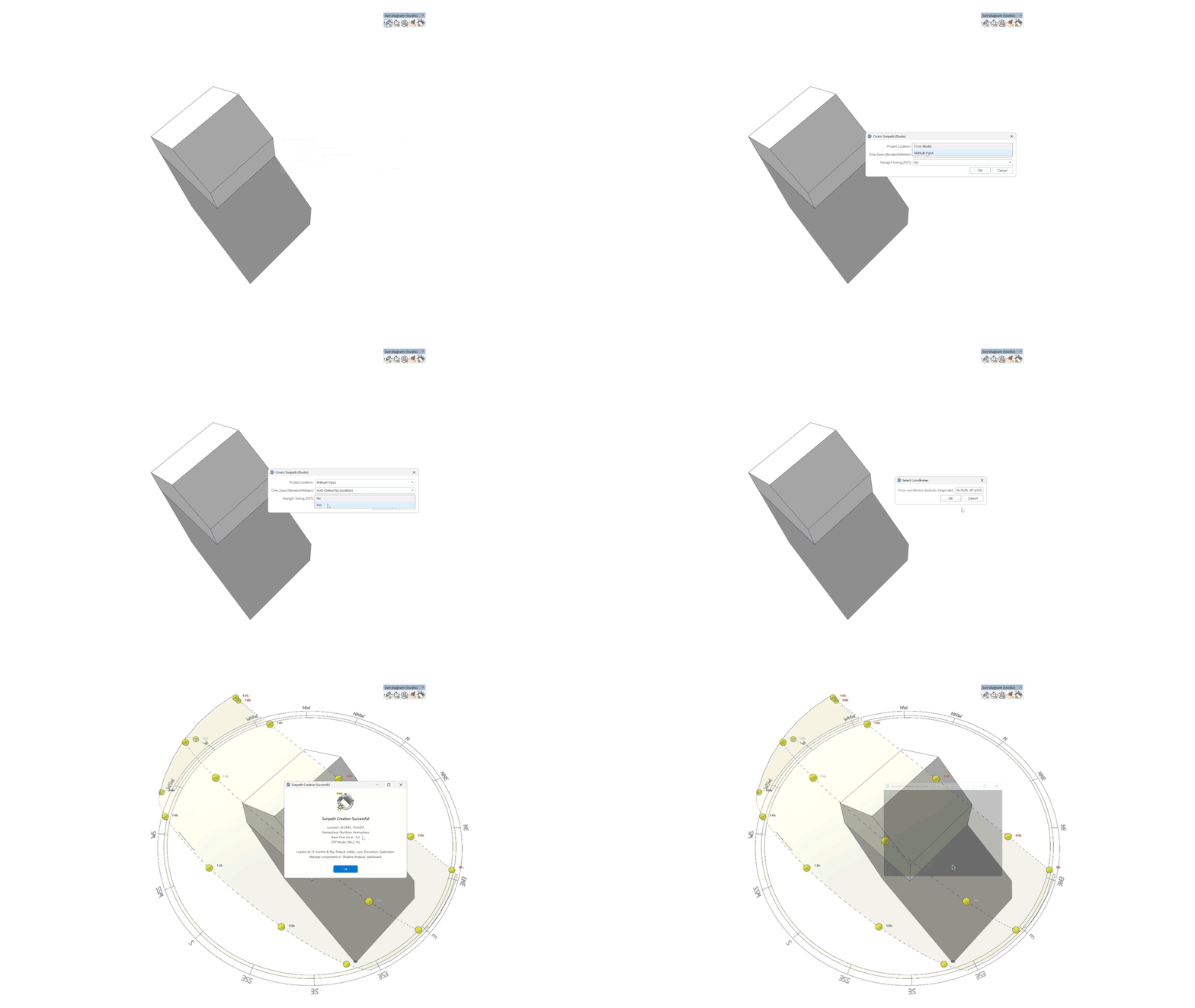
- Fire up the Sun Diagram plugin. I use its first feature to generate a full 3D Sun Path around the model.
- A crucial detail: check if your site observes Daylight Saving Time (DST) and toggle it accordingly for accurate shadows.
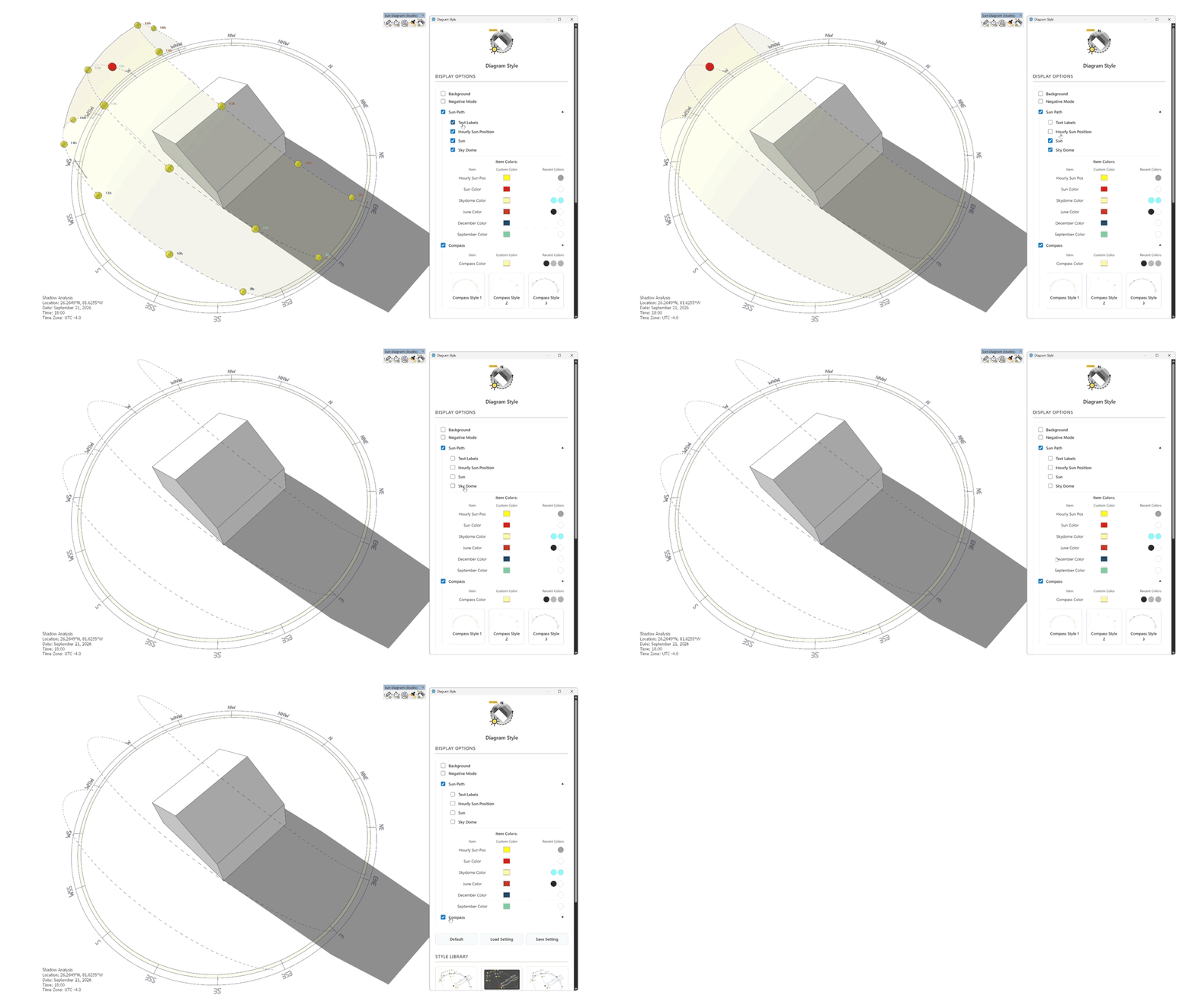
- You can easily move and scale the Sun Path to fit your viewport nicely—it won't mess up your actual shadow calculations! I usually pick "Style 01" for a clean, bright diagram look.
Step 4: Add Symbols (Wind, Views, etc.) with Dynamic Symbols Plugin.
- I open up the Dynamic Symbols plugin and click "Add" to drop in the indicators I need.
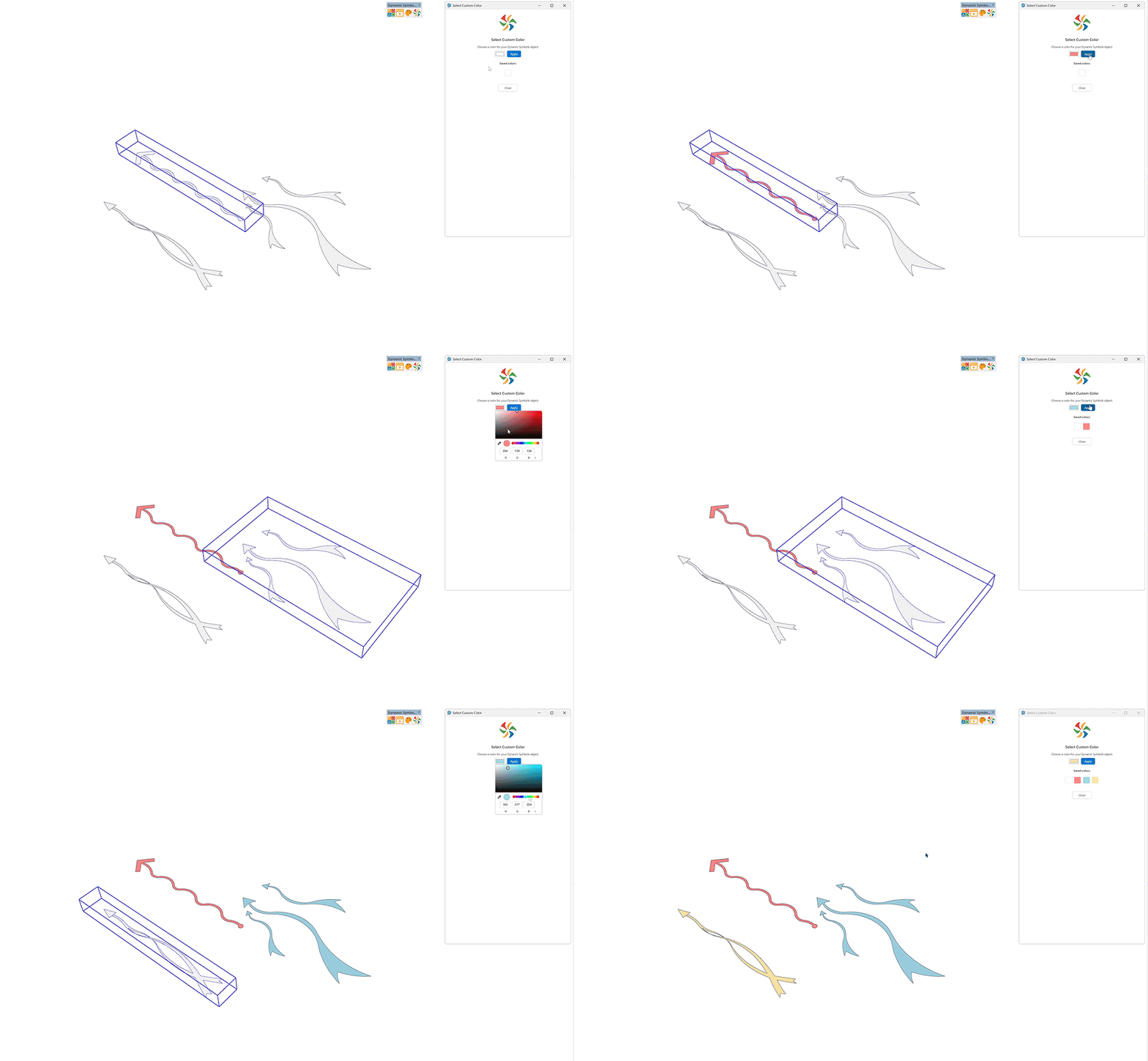
- You can scale, rotate, and place them exactly where the wind or view corridors are. The best part is you can color them directly using the plugin's 3rd feature or just slap on standard SketchUp materials.
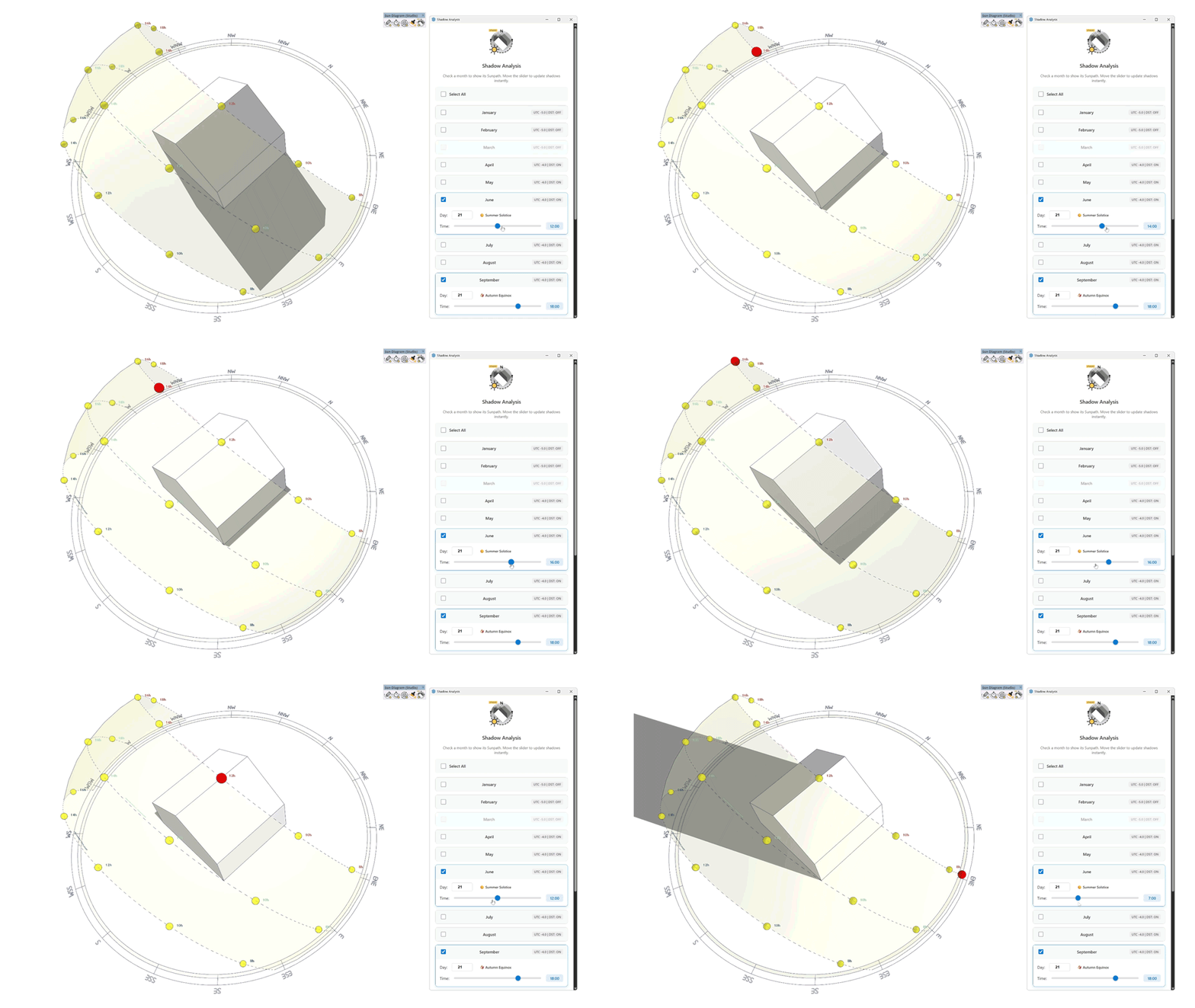
Step 5: Create a Shadow Analysis using Sun Diagram.
- Temporarily hide the Dynamic Symbols layer.
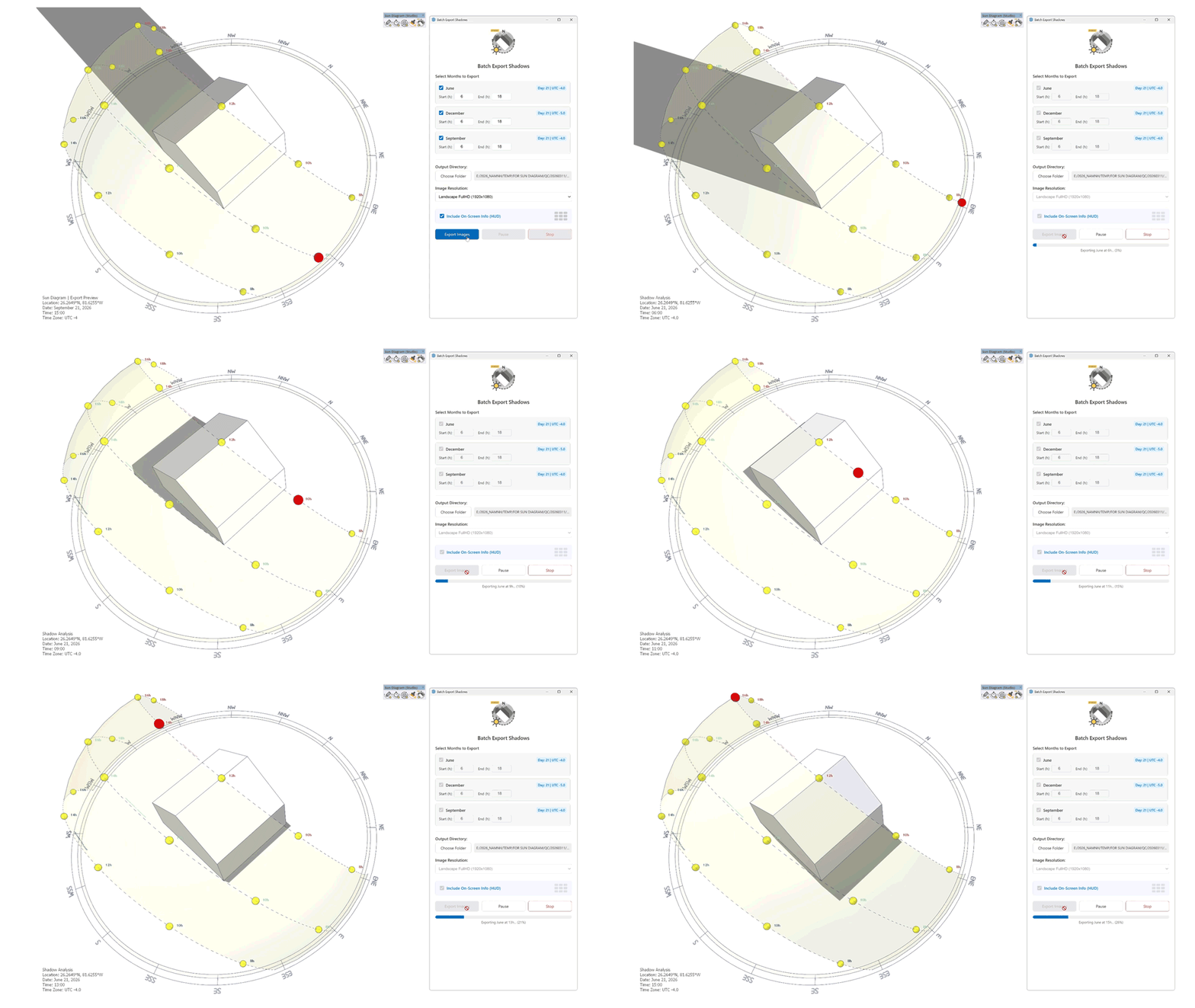
- Open Sun Diagram's Shadow Analysis tool. Pick your time range (e.g., 9 AM to 3 PM), set your image resolution, and hit "Apply." The plugin will automatically save an image sequence for that entire timeframe.
- Once done, I jump into Photoshop (or any video editor), load the image sequence (File > Scripts > Load Files into Stack), and render it out as a smooth 1-fps video. You can repeat this for different months like the solstices!
Step 6: Combine Images and Videos into a Final Animated Diagram.
- Back in SketchUp, hide everything except your Dynamic Symbols layer.
- Use the plugin’s "Create Scenes" function to animate the symbols.
- Set your Scene Transition in Model Info to about 1 second, uncheck "Loop to starting scene" in the Export Animation options, and export this symbol animation as an MP4.
- Finally, layer this symbol video on top of your shadow video in Photoshop or Capcut. Just use Blending Options (drag the white slider) to key out the background of the symbol layer, drop the opacity a bit, and export.
That’s it!  You now have a complete, dynamic architectural diagram combining precise sun paths and moving symbols.
Free download: 2D/3D Temp Files used in this tutorial
If you found this workflow useful, I’d love to hear your thoughts.
 Leave a comment or share how you handle site diagrams in your own practice!
Cheers,
Nam Nguyen - Febhouse | ArchiDiagram




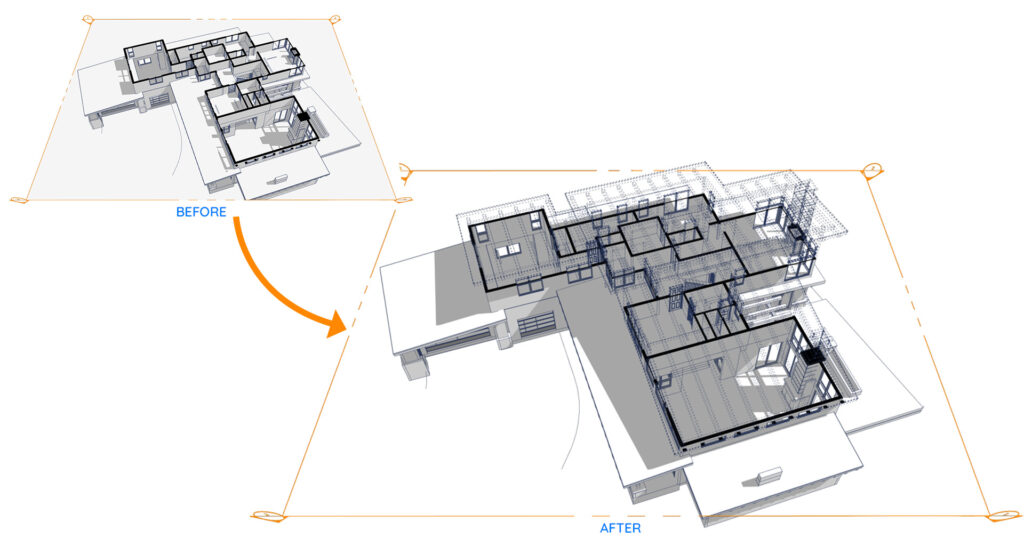
 ️ The Classic SketchUp Problem:
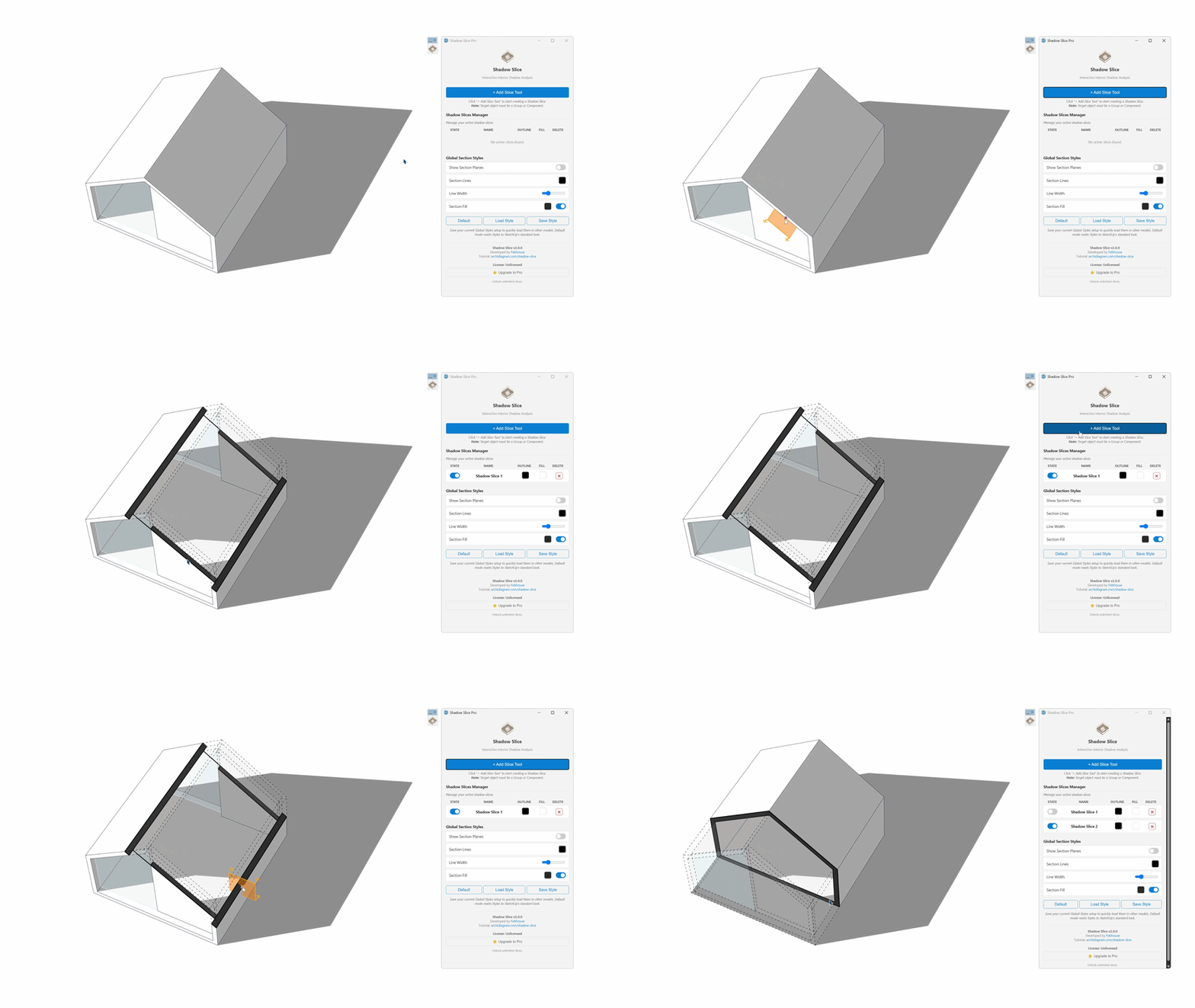
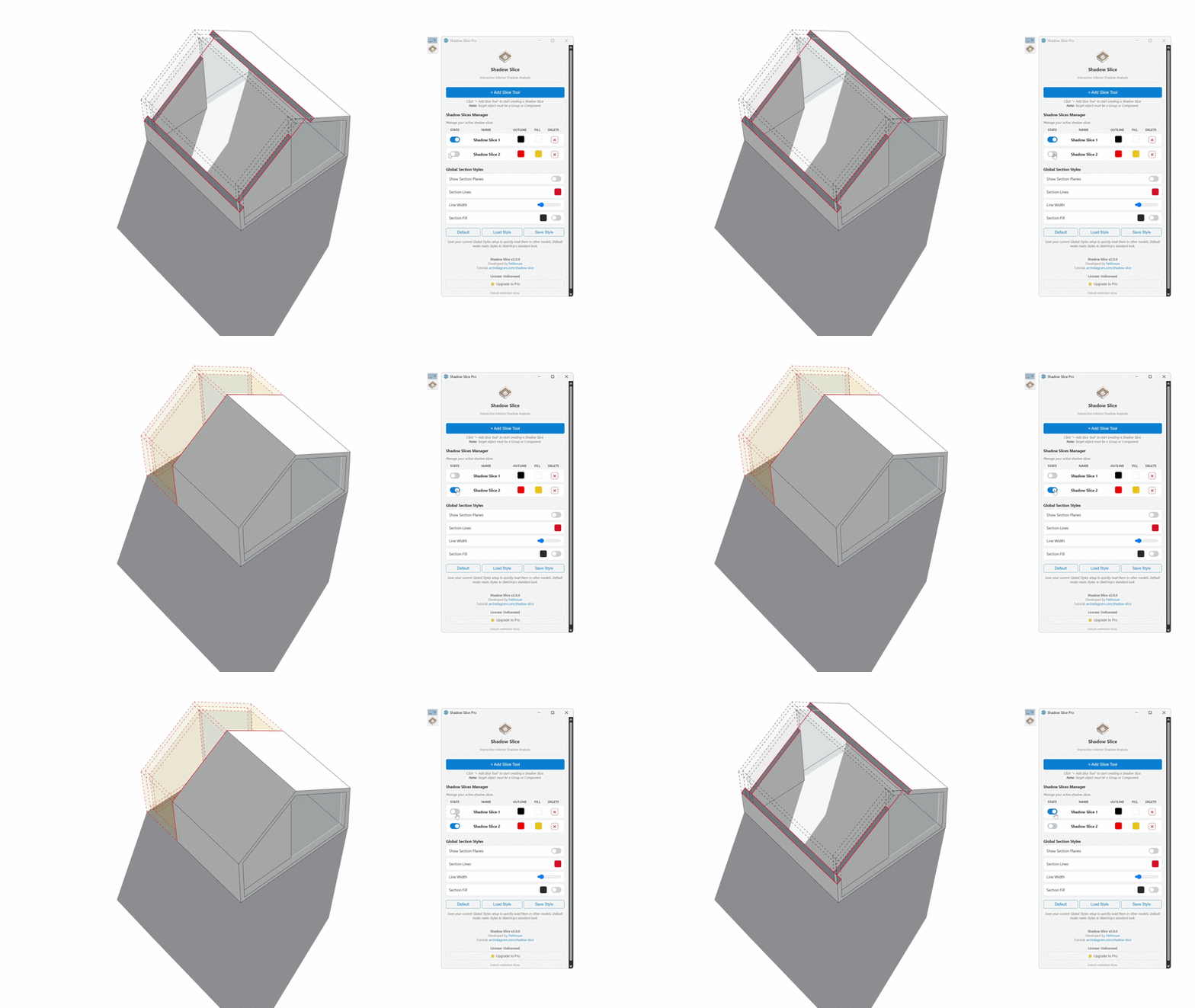
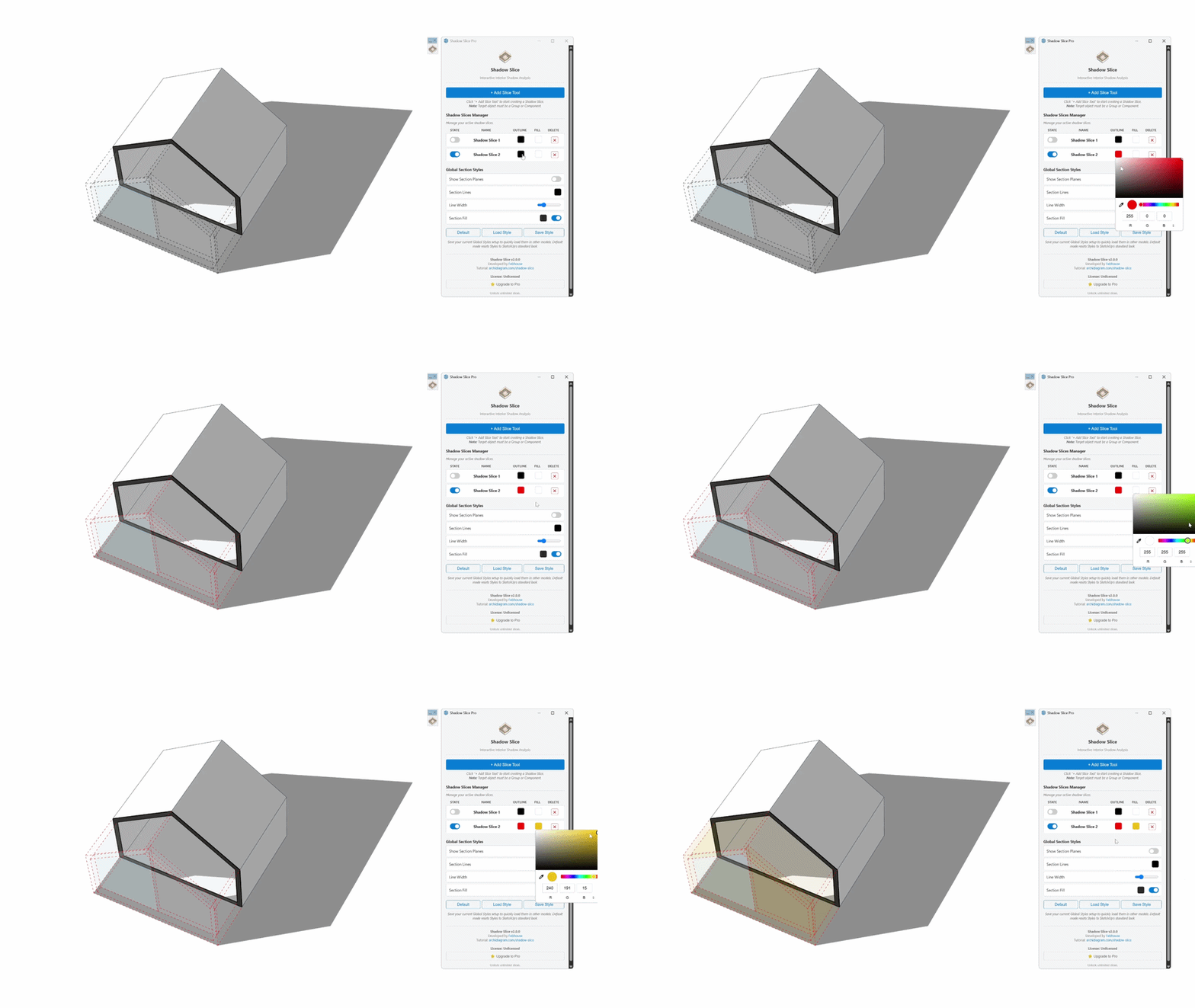
 The Shadow Slice 2.0 Solution: