FredoSection partly not working
-
Hi!
I'm a long time SKP user, currently on SketchUp 2026. Since they improved the speed both of SKP and LayOut I decided to switch to SKP totally, also with drawings. I found a plugin FredoSection that seems exactly what I need to make my drawings look professional as if from CAD.I installed the SketchUcation manager, then installed both the LibFredo and FredoSection. The plugins toolbar shows up, I can create box sections, browse patterns, but the main thing doesn't work. No matter my method and complexity of the model, the plugin does no computing (as decribed in manual) and creates no section faces to add the pattern to. I can toggle section lines of and on, add plugins own box or line sections, but my components are just simply cut and empty.
I tried what I found on the forum: reinstalling the plugins (both SketchUcation and Fredo), fixing SketchUp in run as administrator, double clicking.
On FredoSection page there is info that there will be license from April 2026 and if it worked I would gladly pay. I don't know where though, there is no link or anything.
I'm on the verge of turning to Skalp, but it is pricey and there is no trial period and I worry the problem will be the same.
Any suggestions?
-
Did you watch the videos here: https://community.sketchucation.com/post/1618372
-
-
Could you also leave the Ruby console open to catch error messages.
-
@Rich-O-Brien Yeah, first thing when I realised it doesn't work.
-
@Dave-R Doesn't matter, it won't work on any, even the simplest of cubes.
-
fixing SketchUp in run as administrator, double clicking.
In case of confusion...
Do NOT change the SketchUp exe file's Properties > Compatibility, to 'always run as administrator' - because although this can solve some incorrect installation issues, it creates new problems - like breaking drag-n-drop.To recap the correct way to install OR repair SketchUp...
Close SketchUp.
Login to Windows as your normal user-account.
Find the SketchUp installer exe file - usually in your Downloads folder [or download a fresh copy].
Select that installer's exe file's icon, right-click > context-menu > 'Run as administrator'
When prompted choose 'Repair' [as in your case].
Restart SketchUp.
This will properly reset the folder and file permissions needed to save/reuse settings, preferences, and so on.
Never install a complex app by double-clicking its installer's icon to 'Run' it - even if your user-account has admin powers it is NOT the same thing. The results can be varied - from nothing bad to all of your permissions messed up and weird issues popping up unexpectedly... -
@TIG That's exactly what I did since I found this (maybe yours) answer somewhere else. I didn't change any compatibility, just repaired.
-
@fredo6
Ok! I tried somethings with the plugin during this console writing. Pressed different options. -
@TIG Ah and by double clicking I meant there was someone that could run Fredos plugins only by double clicking its icons, and I tried that too in case my general windows setup was having a weird reaction. I didn't mean that i double click where I'm not supposed to.
Actually this is my first time here since 2013 because I excel at finding solutions online, even very deep, or somehom working them myself. But this time I just give up

-
It works so it might be how you are expecting it to work.
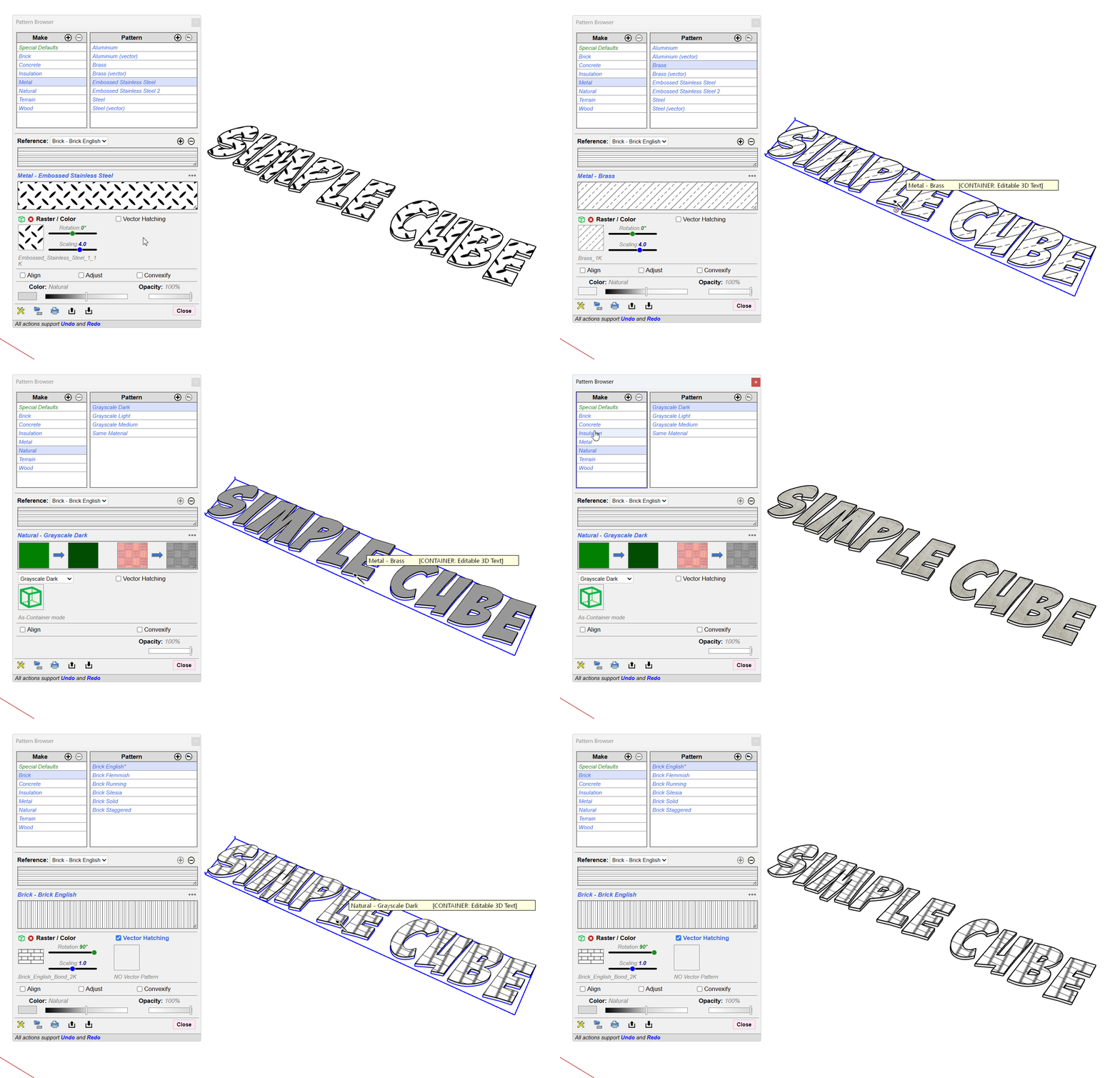
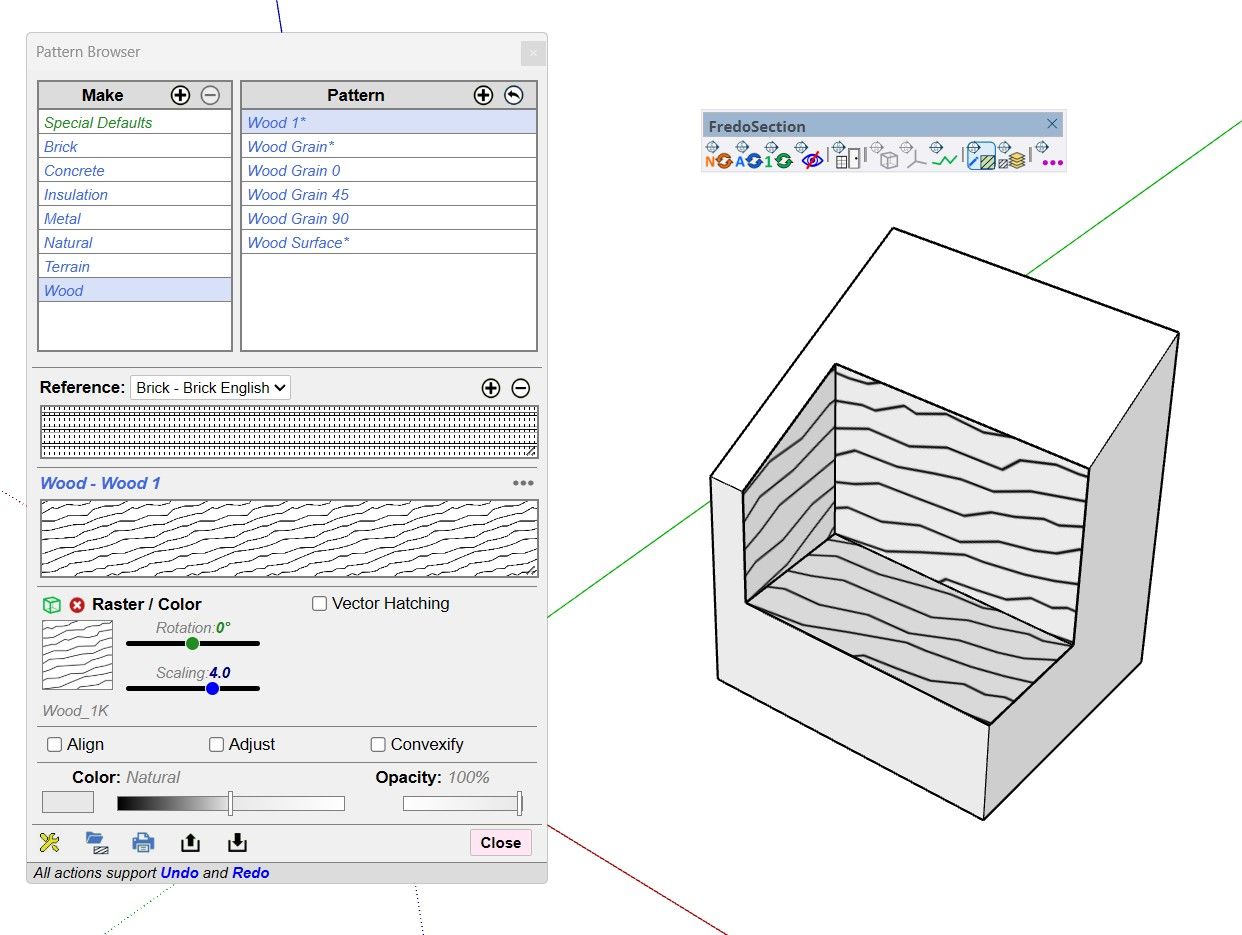
Maybe shared a simple model where it is failing for you.
-



Hello! It looks like you're interested in this conversation, but you don't have an account yet.
Getting fed up of having to scroll through the same posts each visit? When you register for an account, you'll always come back to exactly where you were before, and choose to be notified of new replies (either via email, or push notification). You'll also be able to save bookmarks and upvote posts to show your appreciation to other community members.
With your input, this post could be even better 💗
Register Login


Advertisement