Silly/Dumb Question about Guidelines
-
You can't do that in one step. Do this.
Use the Tape-measure tool to make the first at 1/2" as before click to confirm, Select the guide line, and chose the Move tool, press Ctrl to invoke Copying, make the copy off 1/2" and immediately type 9x press Enter to confirm.
Now you have 10 guides at 1/2" spacing.
You can make multiple offset copies of selected things, including guides, but you can use the Tape-measure tool to make more that one guide at a time.
You can also make radial copies at set angles using Rotate + Ctrl for Copy and entering the number needed, press enter.
It's probably best that when inputting lengths or angles to the use 9x rather than x9 as the leading letter might sometimes get confused with ab x shortcut.
To make guide copies at a set spacing, e.g. use 9x but if you want to divide between a start and end guide manually pick the start and the final one and use 9/ to divide - that way you don't need the exact dimension, but can be sure the spacings are all equal.TIG
-
-
Make your guideline.
Select the guideline.
Copy guideline.
Enter 1/2.
Then enter X10.
-
@TIG said in Silly/Dumb Question about Guidelines:
You can't do that in one step.
I tried to find where I had read that but could not find it again

Do this.
Use the Tape-measure tool to make the first at 1/2" as before click to confirm, Select the guide line, and chose the Move tool, press Ctrl to invoke Copying, make the copy off 1/2" and immediately type 9x press Enter to confirm.
Now you have 10 guides at 1/2" spacing.As several of you have mentioned, using the Move tool is the correct way to achieve what I was trying to do.
I want all of you who responded to know I really appreciate your feedback. I now have things working and hope to post something in the next couple of days using this process.
I have not been doing much with SketchUp lately (not wanting to go into a bunch details (health related) but things are getting back and participating again.
Again, thanks to all of the feedback.


-
@ntxdave get well soon
Download the free D'oh Book for SketchUp 📖
-
@Rich-O-Brien Thanks Rich……making good progress.

-
Still another silly/dumb question: I have drawn a model but in order to use some functions, I had to draw it in feet and now I want to reduce it to inches. I am having a problem rescaling the model so that it is now in inches.
Can someone give me a good way to scale the model so that it is now accurate (or as close as possible) in inches instead of feet? I tried using the Scale toll and reduced it to .0833333.
-
@ntxdave If it's to scale you don't have to scale the model. It should be easily "converted" to inches.
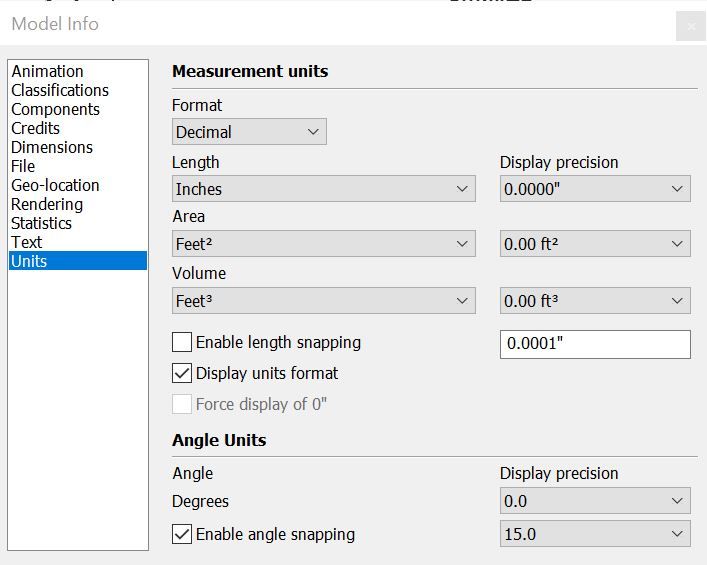
Go to Window: Model Info: Units and change it from architectural to decimal and select inches.
It's will be in decimal inches.
You can also change it on the fly using the plugin "Toggle Units."
-
Here's the link for Toggle Units.
-
@Gus-R said in Silly/Dumb Question about Guidelines:
@ntxdave If it's to scale you don't have to scale the model. It should be easily "converted" to inches.
Go to Window: Model Info: Units and change it from architectural to decimal and select inches.
It's will be in decimal inches.
You can also change it on the fly using the plugin "Toggle Units."
Yes, I can change the units in the model but what I really need is to scale the model so that it now is in inches instead of feet. Therefore, if I drew an object that was 12' x 12' i would really like to scale it so that it is now 12" x 12".
With either of the methods you suggest (which BTW I appreciate) it does show the dimensions in inches instead of feet but I really want to convert (scale) things from feet to inches. So far, I have not found a method to do that.
-
Use the Tape measure tool.
Click on both ends of a known 12' length, then type 12" and hit enter, it will ask if you want to resize the model, say yes. -
@Box said in Silly/Dumb Question about Guidelines:
Use the Tape measure tool.
Click on both ends of a known 12' length, then type 12" and hit enter, it will ask if you want to resize the model, say yes.Thanks @Box , I tried something like that earlier but did not get it to work. I think I might not have clicked twice with the Tape Measure tool. I will try again (maybe not till tomorrow) and let you know what happened.
I have used SU for several years and am suddenly having these silly issues. What I am trying right now is a good bit different than the things I have done in the past though. Never too late to continue to learn though (regardless of age).
-
Oh, thought you meant changing units.
Try placing the tape measure from start to finish on a corner. Sometimes the tape measure is finicky.
All else fails you can select all and scale it by a factor of 0.08333333333333.
-
Here's an example with the tape.
You can tap ctrl to remove the little plus icon but it is not essential. That just turns off making guides, but if you go from endpoint to endpoint it won't make a guide anyway.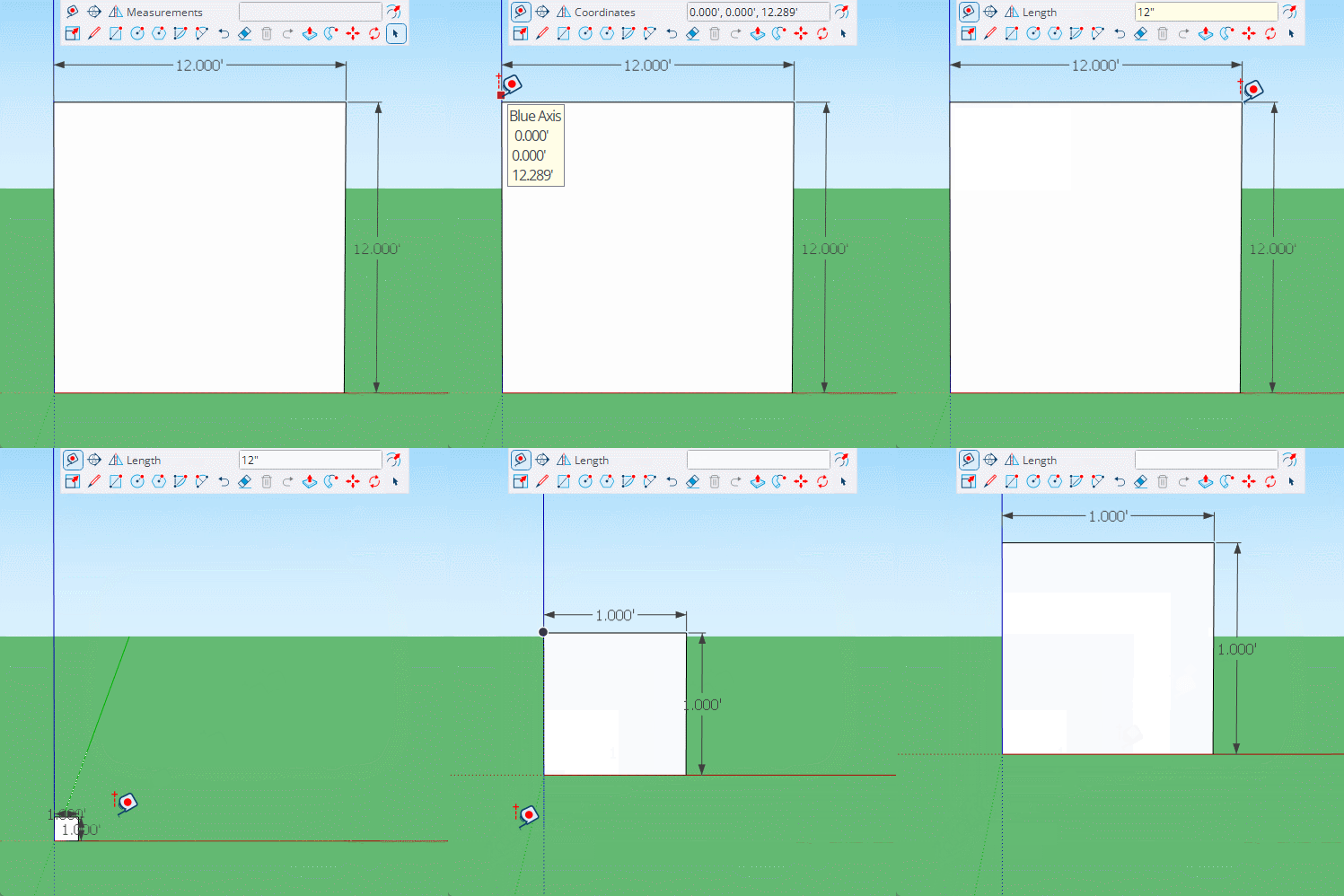
-
Once again, I want to thank all of you for your responses. As I said earlier, this is not my first model and I have been using SU for several years. Just doing things far different from what I am working on now.
@Box was right on. I finally did it correctly and it worked exactly the way I wanted it to. My dimensions are slightly off (VERY minor) but I got it to do exactly what I wanted.
. I have some other challenges but hope I can share what I am doing in a couple of days. You will all wonder what the heck was so difficult.




Hello! It looks like you're interested in this conversation, but you don't have an account yet.
Getting fed up of having to scroll through the same posts each visit? When you register for an account, you'll always come back to exactly where you were before, and choose to be notified of new replies (either via email, or push notification). You'll also be able to save bookmarks and upvote posts to show your appreciation to other community members.
With your input, this post could be even better 💗
Register Login


Advertisement