[Plugin] Work Plane
-
(c) TIG 2010-2015
Permission to use, copy, modify, and distribute this software for
any purpose and without fee is hereby granted, provided that the above
copyright notice appear in all copies.
THIS SOFTWARE IS PROVIDED "AS IS" AND WITHOUT ANY EXPRESS OR
IMPLIED WARRANTIES, INCLUDING, WITHOUT LIMITATION, THE IMPLIED
WARRANTIES OF MERCHANTABILITY AND FITNESS FOR A PARTICULAR PURPOSE.
WorkPlane.rb >>> Plugins Folder
Usage:
'WorkPlane Tools' Toolbar button
[which can be activated from Views > Toolbars]or 'Menu' > 'Tools' > 'WorkPlane...' > 'New Plane'
or right-click context-menu 'WorkPlane...' submenu 'New Plane'.
or type 'wp' in the Ruby Console.
The VCB gives prompts...
You are prompted to pick the 1st Point on the WorkPlane.
This will determine the 'center' of the WorkPlane.
The default is 'Center-Alignment'.
If you press <Tab> before picking the 1st Point the WorkPlane's alignment
will become 'Corner'.
Pressing <Tab> toggles between 'Center' and 'Corner'
alignments.You are prompted to pick the 2nd Point on the WorkPlane.
This determines the alignment of the top/bottom edges of the WorkPlane.You are prompted to pick the 3rd Point on the WorkPlane.
This determines the WorkPlane's 'plane' and the alignment of its other
side-edges.At any time you can right-click in empty space to change the WorkPlane's
Settings. These are remembered within the model across sessions.The Settings are:
Width [in direction of pt1 >> pt2] = feet/meters, depending on unit-type.
default=50'/10m
Height [in direction of pt1 >> pt3] = feet/meters, depending on unit-type.
default=50'/10m
Grid? = true/false
default=true
OK to confirm, Cancel to skip changing any Settings.If you have the Grid? option as 'true' then a second dialog opens where you
can change the WorkPlane's Grid Spacing.
The Grid Settings are:
Width [in direction of pt1 >> pt2] = feet/meters, depending on unit-type
default=5'/1m
Height [in direction of pt1 >> pt3] = feet/meters, depending on unit-type
default=5'/1m
OK to confirm, Cancel to skip changing ALL Settings.After picking the 3rd Point a 'WorkPlane' group is added to the model's
active entities.
It is sized according to the current Settings and it is oriented to the
selected 'plane' of the three picked points.
Its center is located on the 1st Point picked.The group contains a face with a very transparent material.
[called 'WorkPlaneMaterial' - which is added to the model's materials if it
doesn't exist].The face has hidden edges.
Guides [clines] are added to its four edges.
If the 'Grid?' was set a grid of guides [clines] is added across the
WorkPlane's face.
To make a grid with only one orientation you can enter a grid-spacing that
is greater than the overall Workplane's size in that direction.To 'Confirm' the WorkPlane 'double-click' or press <Enter>.
Alternatively press the 'Tab' key to toggle the WorkPlane between
'planar to the three picked points' and
'perpendicular to the plane of the three picked points'
[where the 1st and 2nd points set the axial alignment]
before you 'Confirm'.Pressing <Esc> or selecting another Tool at any point will exit without
keeping the changes.The WorkPlane does not cast or receive shadows.
The WorkPlane is put onto a layer called 'WORKPLANE'; it is made if it
doesn't already exist, and it is switched 'on' if it was 'off'.A Workplane is 'locked'.***
Therefore a WorkPlane cannot be erased or moved or rotated or edited etc.
To 'unlock' it you must Select it and then use 'Entity Info' or the
right-click context-menu...The full list of right-click context-menu submenu items "WorkPlane..." is:
Always available options:
"New Plane"
[also available on the 'WorkPlane' Toolbar and the
'Menu' > 'Tools' > 'WorkPlane...' > 'New Plane']
It makes a new rectangular WorkPlane as explained above."New Disk"
[also available on the 'WorkPlane' Toolbar and the
'Menu' > 'Tools' > 'WorkPlane...' > 'New Disk']
It make a new WorkPlane that is circular - 'disk shaped'.
Like the rectangular WorkPlane you then pick three points to determine the
disk's location and plane.
The Disk is centered on the 1st point picked.
The 2nd point sets its radius.
The 3rd point sets its plane.
Right-clicking in empty space runs a dialog that lets you change the Disk's
Settings - the defaultsa are 24 Segments(=15degrees) and 4 Rings]- these are settings remembered with the model.
The number of Segments must be >= 3 and the number of Rings >= 1.
"New Protractor"
[also available on the 'WorkPlane' Toolbar and the
'Menu' > 'Tools' > 'WorkPlane...' > 'New Protractor']
It makes a 'protractor' of three concentric wp-disks arranged at right-angles
to each other in 3D.
The Protractor is centered on the 1st point picked.
The 2nd point sets its radius/X-axis.
The 3rd point sets its plane/Y-axis.
Its Z-axis is claculated from the X/Y-axis."Lock All"
[also available on the 'Menu' > 'Tools' > 'WorkPlane...' > 'Lock All']
It 'locks' ALL WorkPlanes in the Model."UnLock All"
[also available on the 'Menu' > 'Tools' > 'WorkPlane...' > 'UnLock All']
It 'unlocks' ALL WorkPlanes in the Model."Delete All"
[also available on the 'Menu' > 'Tools' > 'WorkPlane...' > 'Delete All']
It deletes ALL WorkPlanes in the Model - so use with care.***"Hide/UnHide All"
[also available on the 'Menu' > 'Tools' > 'WorkPlane...' > 'Hide/UnHide All']
Toggles the visibility of the layer 'WORKPLANE', to hide/unhide WorkPlanes.These additional items are available if just one WorkPlane is selected:
"Adjust" [only available if WorkPlane is 'rectangular']
It brings up a 'Settings' dialog similar to the one used for a
'New Plane' WorkPlane, you can enter different values for width/height in
meters/feet etc: if 'Grids?' is set 'true' then a second dialog opens to
let you adjust the grid width/height. The original WorkPlane is then
replaced with a new one using the Settings you have entered - its
transformation [location/rotation/scaling] matches the original's.
If the original's placement - 'by center' or 'by corner' - is remembered
and the adjustment is made accordingly."Toggle Center:Corner" [only available if WorkPlane is 'rectangular']
It toggles between the selected WorkPlane being aligned by 'center' and by
'corner'. Its 'axes' in X/Y/Z are considered relocated to suit should a
'Rotate on...' option be used later on."Rotate on X"
It brings up a 'Rotation' dialog, where you can enter an Angle in degrees
[positive or negative].
The WorkPlane will rotate by that Angle about its X-axis
[as originally picked 1st point to 2nd point]
The WorkPlane remains 'locked'."Rotate on Y"
As above, but it rotates about the WorkPlane's Y-axis
[from picked 1st point to pt3 - perpendicular to pt1-pt2 on plane]."Rotate on Z"
As above, but it rotates about the WorkPlane's Z-axis
[i.e. the plane's normal at it's alignment point - center/corner]."Move"
It lets you Move the selected [locked] WorkPlane from the 1st point you
pick to the 2nd point you pick [or a typed dimension in the direction of
the cursor]. The WorkPlane remains 'locked'.
The WorkPlane moves with the cursor until the 2nd point is picked.
A temporary cline outline is drawn where the original WorkPlane was located.
Pressing <Esc> or starting another Tool will undo any move so far."Rotate"
It 'unlocks' the selected WorkPlane and then runs the built-in 'Rotate' tool.
You must 're-lock' the WorkPlane using the right-click context-menu 'Lock'"Scale"
It 'unlocks' the selected WorkPlane and then runs the built-in 'Scale' tool.
You must 're-lock' the WorkPlane using the right-click context-menu 'Lock'These additional items are available if one or more WorkPlanes are selected:
"Lock Selected"
It 'locks' the selected WorkPlanes."UnLock Selected"
It 'unlocks' the selected WorkPlanes."Delete Selected"
It deletes the selected WorkPlanes.***The creation, deletion, adjustment, rotation, move, scale etc of a
WorkPlane can be 'Undone' in one step [locking/unlocking cannot].Several WorkPlanes can be added to a Model as desired.
Tips:
Use a Style which has transparency 'on' and guides 'visible': as these are
forced 'on' anyway.
Use 'Intersect' with model/selected to 'slice' objects at the WorkPlane.
Do not use 'Edit > Delete Guides' [which is 'global'] unless you want them
all to vanish in your WorkPlane too...
Use in conjunction with 'Clines Normal at Point' [clinesaxes.rb] to add
'Normals' to the WorkPlane... [if this separate script is loaded there will
be additional toolbar buttons too]
Donations:
by PayPal to info @ revitrev.org ___________________________________________________________________________
Version:
1.0 20100925 First release.
1.1 20100925 Glitch with Plugins item fixed.
1.2 20100925 WorkPlane is now centered on 1st point.
1.3 20100925 WorkPlaneMaterial made 0.5% opaque and pale-yellow as default,
but premade 'WorkPlaneMaterial' remains unchanged.
1.4 20100925 Button icons brought in line with point picking etc.
1.5 20100926 Cosmetic tweaks. Guide/Transparency forced 'on'.
1.6 20100928 The 'Tab' key toggles new WorkPlane between 'planar to the 3
picked points' and 'perpendicular to plane of the 3 picked
points [pt1/pt2 set alignment], then press Enter or
double-click to confirm. Zero sizes trapped in dialog.
1.7 20100930 'New' and 'Adjust Selected' options added to context-menu.
Cline rectangle and axes drawn whilst picking the points.
The WorkPlane Grid is now always centered on pt-1.
1.8 20100930 'Rounding' glitch with some Adjusted WorkPlanes Grids fixed.
1.9 20100930 'Rotate Selected' option added to context-menu.
2.0 20100930 'Rotate Selected X/Y/Z' options now added for the group's 3 axes.
'Move Selected' added to context-menu.
2.1 20101001 Notes generally revised. Menu items renamed. Toolbar updated.
Main 'Tools' menu items added [allowing use of shortcut-keys].
'New Disk' option added: makes circular WorkPlane + radial lines.
'Toggle Center:Corner' option added: realigns rectangular WorkPlane.
'Rotate' option added: unlocks and rotates WorkPlane.
'Scale' option added: unlocks and scales WorkPlane.
'Lock Selected', 'UnLock Selected', 'Lock All' and 'Unlock All'
options added.
'Delete Selected' and 'Delete All' options added.
When making a 'New Plane' pressing <Tab> before picking the
1st point sets WorkPlane to align by corner rather than center.
2.2 20101003 'New Protractor' option added.
'Adjust' now applies to plane or disk - with different dialogs.
'New Disk' now has 'Segment' and 'Ring' options.
2.3 20101004 Glitch with 'Adjust'ing Disk more than once now fixed,
'Hide/UnHide All' toggle option in context-menu/tools-menu.
2.4 20140219 Module-ized. Inputs now as 1'6", 1 1/2", 1000mm, 100cm, 10m etc.
2.5 20140310 Minor cosmetic changes.
2.6 20140324 Fixed typos in code for Grid-width Set/Adjust dialogs, so grid's width can once again be different from its height.
2.7 20140325 It fixes the glitch when you tried to use the new version in an older SKP that had previously setup WorkPlanes in the old format - old floats v. new lengths.
Now of you use such a SKP it's assumed that the previous float settings were lengths - so you may need to reset for new WorkPlanes if you were using meters... [right-click in open space or using the 'Adjust' context-menu option...]
Download the latest version from the PluginStore http://sketchucation.com/pluginstore?pln=WorkPlane
- these are settings remembered with the model.
-
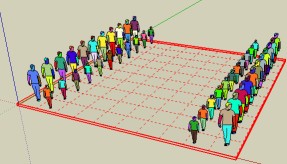
A new chees game

-
whoa, this is a good one!
having the plane come in locked is a good idea too.
one thing, i can't activate it via the plugin menu and have to use the icon (which is fine though because this one is surely going in the custom toolbar)
-
Whoa! Thanks TIG for the quick response. You are FAST!
Same as Jeff, it's not working through the plugin menu, but is working through the toolbar. One suggestion, would it be possible to align the defined grid size to center of the work plane. Currently it seems to align to the top left of the work plane, so drawing upward requires unlocking it and moving it manually.
I'm also not getting any dialog box to disable the grid and I see no VCB input. In spite of all that, I LOVE it already. THANK YOU!!!!

-
Adam, I think vcb may have been a typo on tig's part.
Those message come up in the same place as modifier options with other tools. (I don't know what it's called in SU. 'message box' maybe?)Right click in blank space to get the input window in order to set the grid size/spacing
-
great great great idea! thank you, tig.
-
@earthmover said:
would it be possible to align the defined grid size to center of the work plane. Currently it seems to align to the top left of the work plane, so drawing upward requires unlocking it and moving it manually.
+1
-
Here's v1.1 http://forums.sketchucation.com/viewtopic.php?p=274345#p274345
Glitch with the Plugins item working properly fixed - twas my stupid typo!

-
TIG
Absolutely a home run for me. Everything I needed and more.
I changed my WorkPlaneMaterial to yellow and added the new color to my material list in the template.
Again thank you.
Ken
-
Here's v1.2 http://forums.sketchucation.com/viewtopic.php?p=274345#p274345
It centers the WorkPlane on the 1st picked point - which is more logical.As Ken said, if you want to have the WorkPlane appear in a different way then make a 'WorkPlaneMaterial' in your current SKP [or default Template] before using the tool so that it's 'yellow' or whatever you prefer...
-
Here's v1.3 http://forums.sketchucation.com/viewtopic.php?p=274345#p274345
WorkPlaneMaterial are now made 0.5% opaque and pale-yellow as default, but premade 'WorkPlaneMaterial' remains unchanged. -
This looks like a nice innovation to what I usually do on a new file. I form a rectangle oriented from 0,0,0 out in the +x,+y quadrant of the ground plane. If I need it larger, I just move the sides in the xy on the zero plane.
But your script adds some interesting possibilities.
Thank you again, TIG -
Here's v1.4 http://forums.sketchucation.com/viewtopic.php?p=274345#p274345
The toolbar button icon pngs have been brought in line with the point picking, centralizing etc. -
Here's v1.5 http://forums.sketchucation.com/viewtopic.php?p=274345#p274345
There are minor cosmetic tweaks to the toolbar button icons, color of WorkPlaneMaterial and temporary drawn line [now 'orange'], also it 'Transparency' and 'Guides' are 'off' they are switched 'on' - so that you can see through the WorkPlane and see it's edges/grids... -
tig. very good idea.
thinking ...
when the plugin generates the plane.
not create a group. create a component.
-
Wow, it's just getting better and better. Any way to add a lock of some kind to force the plane to extrude perpendicular to the first two points? Perhaps holding Shift? I am having a hard time on some faces pulling the plane out perpendicular. Seems to want to go everywhere but. Even perhaps just a short Cline that appears on the second click that is perpendicular as something to snap to. (This happens moreso if the work plane is drawn in the middle of a face as opposed to an edge)
Also, is a mass "Remove all work planes" toolbar option possible? If you are using work planes to do minor tweaks or adding a lot of little details, you end up with a lot of planes on top of each other and it takes a while to try and go through and select and unlock so you can delete them.
Another thing that would be a great option would be to have a Cline drawn between the two points that work plane intersects the edges of the face it was drawn on.
Thanks again for the updates!
-
Adam
The third point will lock axially - e.g. in z/blue - hold down Shift to lock, as in other tools...
I'll have think about the 'Remove All WorkPlanes' option...
As WorkPlanes go on their own layer you can simply switch off all layers except WORLPLANE [or have a Style for it] and then use 'Ctrl+A' to 'Select All' and right-click context-menu 'unlock' and press <delete> - not so onerous ?EDIT: OR use the Outliner to select all Groups named 'WorkPlane' - then unlock/delete them that way...
-
Hello Tig.
a question.
if I unlock workplane, and edit (move, rotate or scale).
I can not draw after the workplane coplanar?
Why?
-
This is a v7/8 glitch!
You get the very same result if you just make a raking face and group it... You can snap to the grouped face's plane when making a rectangle... BUT move it the snap to face plane is lost...
If the face.plane passes through the origin and face.normal.y==0 it's OK!
Even if you group, move, explode, regroup it then fails to keep the 'snap to face property' in that case - I suspect it's a glitch in SUp v7/8 itself - I've lodged a report.
A 'raw' face [outside of a group] will always take a rectangle with its snap-to-plane as expected... -
yes. I register the same error.
generates the same error with any inclined face is grouped or component.
But generate this error with- Rectangle Tool.
- Circle generated by two points. (plugins)
Fatal Error

when they solved?







Advertisement