[Plugin] 2D Tools
-
-
@sketchydog said:
@tig said:
I starting to rewrite it to be compatible with newer SketchUps...
It was never published,
In the newer version - tTry the tapping the TAB key instead of right-clicking in open-space.
Changes to SketchUp messed with right-clicking !
Try the latest version from the PluginStore...
But I've PM'd my v8 RBZ to you and Dave R for your info...TIG
I just downloaded that RBZ. I'll let you know in a second. -
@tig said:
I starting to rewrite it to be compatible with newer SketchUps...
It was never published,
In the newer version - tTry the tapping the TAB key instead of right-clicking in open-space.
Changes to SketchUp messed with right-clicking !
Try the latest version from the PluginStore...
But I've PM'd my v8 RBZ to you and Dave R for your info...TIG
YES! Now TAB works for the menu!
Right click gives me the three items listed previously.
THANK YOU FOR THIS AND FOR YOUR AWESOME SERVICE TO OUR COMMUNITY! -
@TIG
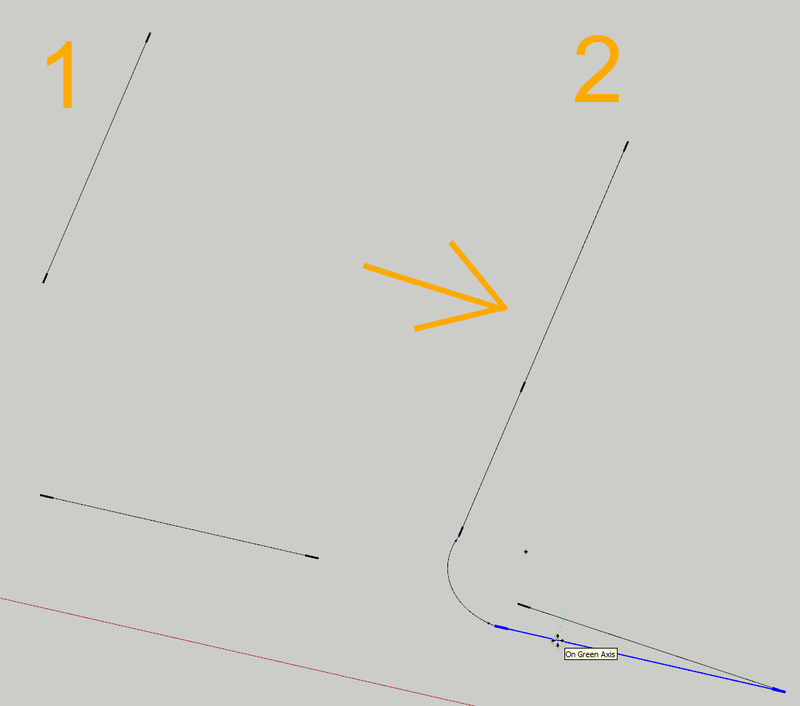
There's an annoying bug in fillet tool:
When the tool has to extend existing edges it creates new colinear overlapping
ones above existing. Ideally ONE not broken edge is expected. Any chance to fix it please?
Also, is it possible to grant an option to NOT create Cpoints at fillet centers at all?
P.S. Hereby is skp file. try to fillet the edges on the left with radius of 10.
Thanks
-
Hello ! Thank you very much for this really promising plugin and for all the others !
I'm on an 2019 i7 mbp and only the line is working with 7.7 version, rectangle and others make the wheel spins forever and I must force quit... Am I doing something wrong? Do you have any idea ?
Thank you sir,
have a nice day -
@alskaro
What is your actual OS ?
Is there any output in the Ruby Console ?
There are some issues with some of the tools in newer MAC OSs.
A fix has not yet been published. -
@TIG any possibility to fix the overlapping lines bug please (described on 7 Dec 23, 3 posts above)? Or at least any comment? Thank you in advance
-
@rv1974
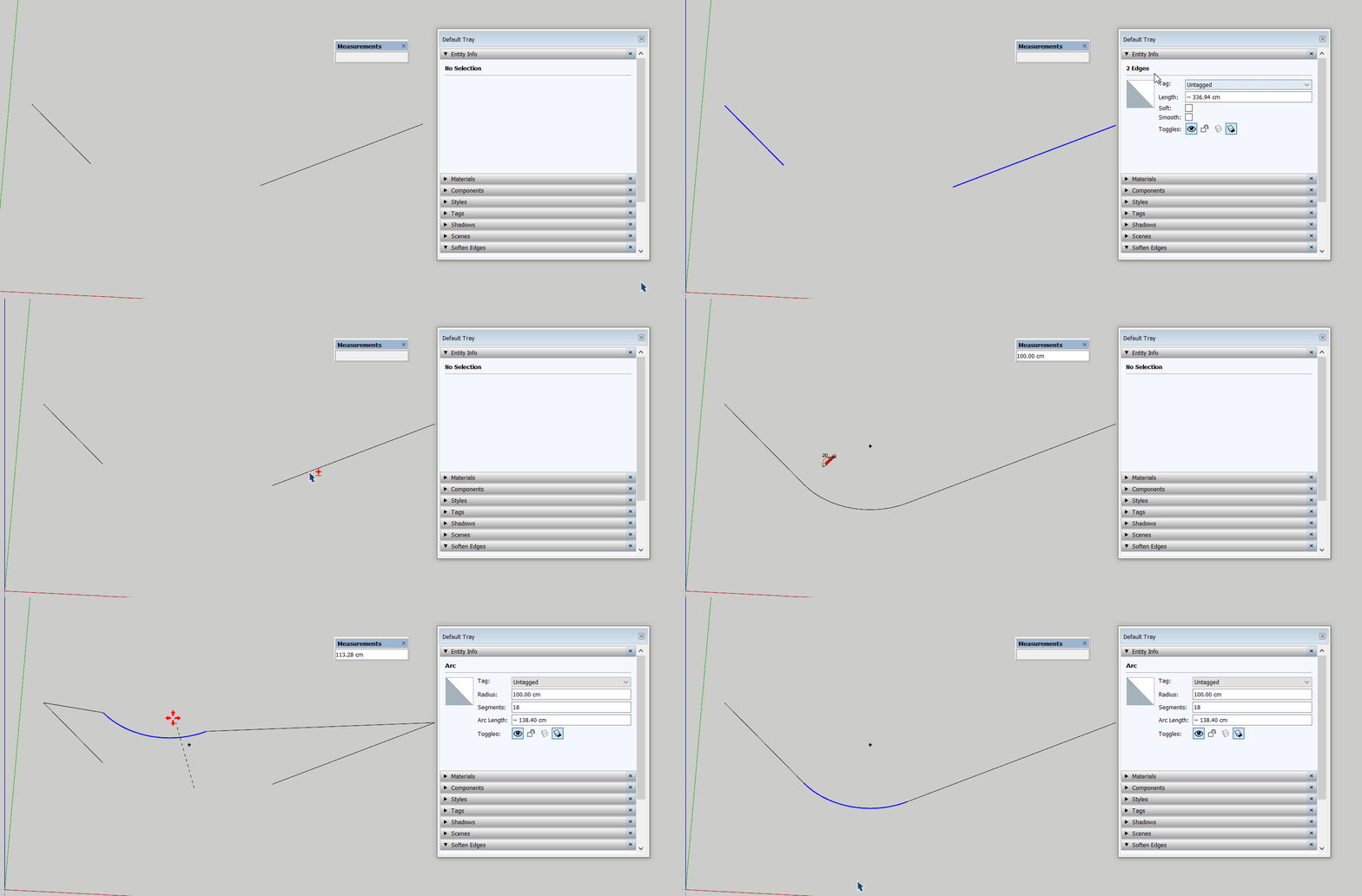
The plugin creates new (extended) edges without deleting the old (shorter) ones.
Some additional extra steps (Edge inspector) are needed every time the fillet tool was used which is ridiculous. Its important because it creates overlapping profiles if this faulty linework will serve as paths in Profile Builder. -
R rv1974 referenced this topic on
-
There's several things wrong with the 2Dtoolset in the latest SketchUp versions, but I've attached a corrected RB file, which you should substitute in the 2Dtools subfolder and restart SketchUp to sync.
It will break the 'signing' but provided your Extension Manager's Loading Policy is set to 'Unrestricted' it will load OK...
It fixes the duplicated lines issue you've reported...
2DfilletTool.rb -
thank you very much
-
You can add chamfer tool same auto cad
-
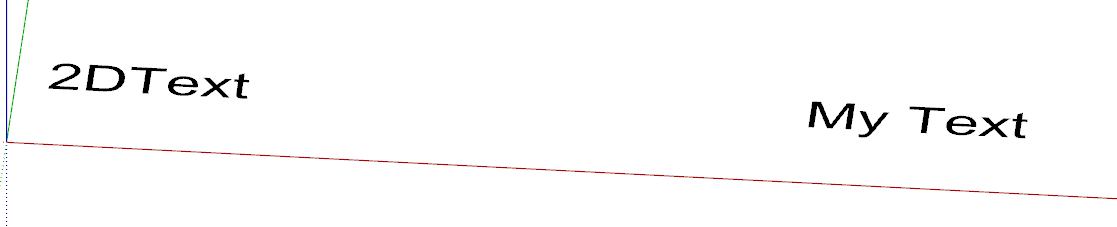
With my current version of the 2D Tools, if I try to create 2D Text, it always add "2D Text" far to the left of the text I entered. The only way I can modify it is to post the text, right click on it, got to the drop-down tool bar and then edit the text.
Am I doing something wrong or is the way the current version of the tool works?
-
Double-click on the "2D Text" in the dialog, so it is all selected, including any spaces off to the right of it.
Then delete that and type in the new text you want - read the full usage Help on the tool - e.g. how to add carriage-returns by inserting \n -
Just wanted to give you an idea of what I am getting with I use the tool.
Also, Here is what I read in the Help documentation

Here is an example where I tried to edit the text twice. I have not been able to delete the "added" text and blank spaces.

-
To edit any existing 2D Text string in its modal input dialog you can single-click to select within the string [in the dialog], OR double-click on part of it [in the dialog], OR treble-click on it to select all of it [in the dialog] - that should then include all of the string including any spaces.
When you have what you want to change highlighted you can press the delete key to clear it or simply type in new text to overwrite it...
You type in new text as desired and then OK to go the the next step of placing it - OR if you have chosen to edit settings as second dialog opens before placement.
Initially new 2D Text always starts with '2D Text' in the dialog, followed by some spaces to ensure the box is a reasonable width.
This text-string should be selected as the dialog opens, so you typing new text should replace it, but if you click in it you are editing the string, as explained above.
Any subsequent 2D Text you make during that session defaults to the last used string, as do any other settings you have used.If you select a piece of existing 2d Text, then there is an item in the context-menu 'Edit 2D Text'
This opens a modal input dialog where you can edit the text string - all as outlined above - and/or choose to alter other settings if you wish, in which case a second settings dialog opens, much like when you make new 2D Text, except that in that one the Alignment setting is not available to change... -
This post is deleted! -
OK, after more experimenting, I finally got everything to work correctly.



Hello! It looks like you're interested in this conversation, but you don't have an account yet.
Getting fed up of having to scroll through the same posts each visit? When you register for an account, you'll always come back to exactly where you were before, and choose to be notified of new replies (either via email, or push notification). You'll also be able to save bookmarks and upvote posts to show your appreciation to other community members.
With your input, this post could be even better 💗
Register Login


Advertisement