sketchucation logo sketchucation
    • Login
    Oops, your profile's looking a bit empty! To help us tailor your experience, please fill in key details like your SketchUp version, skill level, operating system, and more. Update and save your info on your profile page today!
    ⚠️ Important | Libfredo 15.6b introduces important bugfixes for Fredo's Extensions Update

    Little headache [resolved] +...

    Scheduled Pinned Locked Moved SketchUp Discussions
    sketchup
    25 Posts 6 Posters 627 Views 6 Watching
    Loading More Posts
    • Oldest to Newest
    • Newest to Oldest
    • Most Votes
    Reply
    • Reply as topic
    Log in to reply
    This topic has been deleted. Only users with topic management privileges can see it.
    • pilouP Offline
      pilou
      last edited by

      @ Roger: Valuable on a little surface and with many zoom! πŸ˜„

      Frenchy Pilou
      Is beautiful that please without concept!
      My Little site :)

      1 Reply Last reply Reply Quote 0
      • pbacotP Offline
        pbacot
        last edited by

        Turn off hidden geometry. By double clicking face to select face and outer edges, then shift-click (deselect) face, you choose only outer edges. Offset tool. Offset outer edges to inner ring (SU snaps to hidden edge). May have to do this twice to get a hard inner ring edge. Select all. Shift and double click outer face to deselect. Erase. Native tools.

        You don't have to buy tool (but it's REALLY worth it).

        OK Rich I see, exit the tool. Thanks, Peter

        MacOSX MojaveSketchUp Pro v19 Twilight v2 Thea v3 PowerCADD

        1 Reply Last reply Reply Quote 0
        • pilouP Offline
          pilou
          last edited by

          16 seconds : that's a task πŸ˜‰ πŸ‘

          Frenchy Pilou
          Is beautiful that please without concept!
          My Little site :)

          1 Reply Last reply Reply Quote 0
          • pilouP Offline
            pilou
            last edited by

            Your last solution gives me another one πŸ˜‰
            because your Offset tool seems don't snap on Outer "Vertext" or middle of segment circle! 😲 bug ?
            just snap on the inner circle at the end 😲
            So difficult to fit the 2 circles πŸ˜‰

            So Top View
            Turn off Hidden geometry
            draw a circle from the Center to the inner cirle (you must know the number of sides circle of course πŸ˜‰
            Double click on the disk between inner and outer circle
            Invert selection (By TIG)
            Erase πŸ˜„

            Frenchy Pilou
            Is beautiful that please without concept!
            My Little site :)

            1 Reply Last reply Reply Quote 0
            • pbacotP Offline
              pbacot
              last edited by

              @unknownuser said:

              Your last solution gives me another one πŸ˜‰
              because your Offset tool seems don't snap on Outer "Vertext" or middle of segment circle! 😲 bug ?
              just snap on the inner circle at the end 😲
              So difficult to fit the 2 circles πŸ˜‰

              So Top View
              Turn off Hidden geometry
              draw a circle from the Center to the inner cirle (you must know the number of sides circle of course πŸ˜‰
              Double click on the disk between inner and outer circle
              Invert selection (By TIG)
              Erase πŸ˜„

              Works OK for me to use the offset tool--but this is if the original ring is an exact offset. I don't try to snap anything. Just move in and it finds the snap. For some reason I had to do it twice sometimes.

              Rich, Maybe I'll try Screenr-- it starts out by requiring me to update system software because it doesn't recognize my java. So it'll be hours.

              OK I figured the screencast out. Not that great because I should have given audio. But my first screencast! Thanks Rich!
              http://www.screenr.com/Hh38

              MacOSX MojaveSketchUp Pro v19 Twilight v2 Thea v3 PowerCADD

              1 Reply Last reply Reply Quote 0
              • Rich O BrienR Offline
                Rich O Brien Moderator
                last edited by

                @unknownuser said:

                16 seconds : that's a task πŸ˜‰ πŸ‘

                I went slow to see the action 😎

                Download the free D'oh Book for SketchUp πŸ“–

                1 Reply Last reply Reply Quote 0
                • D Offline
                  driven
                  last edited by

                  I always use 'cut' >> 'paste in place' for this type of selection.

                  Select 'contours' >> 'Sanbox' from contours >> Select 'contours' [not new group] >> 'Cut' >> 'Edit' group >> 'Paste in Place' >> Select 'surface' between contours >> 'Cut' >> 'Select All' >> 'Delete' >> 'Paste in Place'.... Done

                  john

                  learn from the mistakes of others, you may not live long enough to make them all yourself...

                  1 Reply Last reply Reply Quote 0
                  • pilouP Offline
                    pilou
                    last edited by

                    @unknownuser said:

                    I always use 'cut' >> 'paste in place' for this type of selection.

                    A little tricky but works like a charm! πŸ‘
                    😎

                    Frenchy Pilou
                    Is beautiful that please without concept!
                    My Little site :)

                    1 Reply Last reply Reply Quote 0
                    • P Offline
                      Panga
                      last edited by

                      Something a bit like what driven said..

                      Select contours...Copy it...use sand box tool...edit created terrain...paste in place contours and then delete unwanted faces is really easy as all edges are soften except the contours you pasted in place...(make sure hidden geometry not visible of course !).

                      Cheers.

                      1 Reply Last reply Reply Quote 0
                      • pilouP Offline
                        pilou
                        last edited by

                        Seems with this last solution the erase don't works in one click! 😲
                        Some little faces stay so you must make some clicks more πŸ˜„

                        Frenchy Pilou
                        Is beautiful that please without concept!
                        My Little site :)

                        1 Reply Last reply Reply Quote 0
                        • D Offline
                          driven
                          last edited by

                          Variation.....

                          Select 'contours' >> 'COPY' >> 'Sanbox' from contours >> 'Edit' group >> 'Paste in Place' >> Select 'surface' between contours >> 'Cut' >> 'Undo' >> 'Undo' >> 'Undo' >> 'Paste in Place'.... Done

                          use Undo to remove unwanted.

                          learn from the mistakes of others, you may not live long enough to make them all yourself...

                          1 Reply Last reply Reply Quote 0
                          • P Offline
                            Panga
                            last edited by

                            @driven said:

                            Variation.....

                            Select 'contours' >> 'COPY' >> 'Sanbox' from contours >> 'Edit' group >> 'Paste in Place' >> Select 'surface' between contours >> 'Cut' >> 'Undo' >> 'Undo' >> 'Undo' >> 'Paste in Place'.... Done

                            use Undo to remove unwanted.

                            +1 Using undo and paste in place is often the better solution !

                            1 Reply Last reply Reply Quote 0
                            • pbacotP Offline
                              pbacot
                              last edited by

                              This was first made by Sandbox from Contours. If you just save the circle contours in the first place and paste into the skinned group, you have a defined outer ring face to select separately. So don't throw away the contours in the first place.

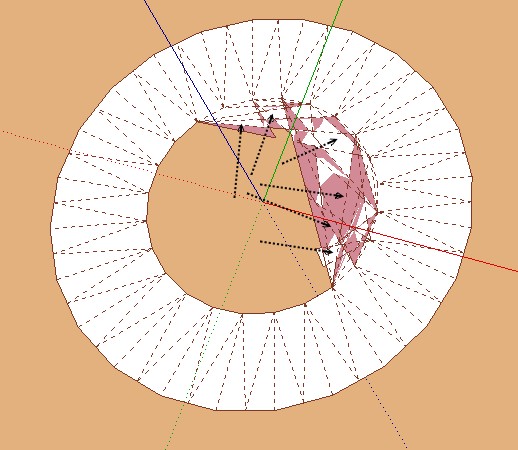
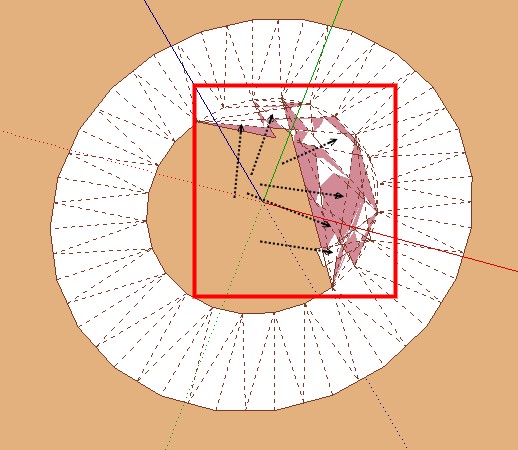
                              Another way to work with the problem is to select the outer edges by drawing a rectangle around the whole thing so you can double click the outer face of that. Once you have the outer ring alone selected you can lift it up so that the center section can be isolated-- right/left click and delete.

                              MacOSX MojaveSketchUp Pro v19 Twilight v2 Thea v3 PowerCADD

                              1 Reply Last reply Reply Quote 0
                              • pbacotP Offline
                                pbacot
                                last edited by

                                @panga said:

                                @driven said:

                                Variation.....

                                Select 'contours' >> 'COPY' >> 'Sanbox' from contours >> 'Edit' group >> 'Paste in Place' >> Select 'surface' between contours >> 'Cut' >> 'Undo' >> 'Undo' >> 'Undo' >> 'Paste in Place'.... Done

                                use Undo to remove unwanted.

                                +1 Using undo and paste in place is often the better solution !

                                Why not just select the surface between contours, copy, close group and erase, paste in place? why the undo's? Just take what you wanted and throw the rest away.

                                MacOSX MojaveSketchUp Pro v19 Twilight v2 Thea v3 PowerCADD

                                1 Reply Last reply Reply Quote 0
                                • P Offline
                                  Panga
                                  last edited by

                                  @pbacot said:

                                  @panga said:

                                  @driven said:

                                  Variation.....

                                  Select 'contours' >> 'COPY' >> 'Sanbox' from contours >> 'Edit' group >> 'Paste in Place' >> Select 'surface' between contours >> 'Cut' >> 'Undo' >> 'Undo' >> 'Undo' >> 'Paste in Place'.... Done

                                  use Undo to remove unwanted.

                                  +1 Using undo and paste in place is often the better solution !

                                  Why not just select the surface between contours, copy, close group and erase, paste in place? why the undo's? Just take what you wanted and throw the rest away.

                                  I like the undo 'cause this way I'm sure there's not unused components in the file...It's not a problem here as the created terrain is a group, but It's an habit I have.

                                  1 Reply Last reply Reply Quote 0
                                  • 1
                                  • 2
                                  • 1 / 2
                                  • First post
                                    Last post
                                  Buy SketchPlus
                                  Buy SUbD
                                  Buy WrapR
                                  Buy eBook
                                  Buy Modelur
                                  Buy Vertex Tools
                                  Buy SketchCuisine
                                  Buy FormFonts

                                  Advertisement