How to hide some elements ?
-
if I select an element (buidling) and I would like to work on it only
I will need to hide the others buidlings around
so, my question is
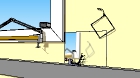
how to hide any no selected elements please ?pls see this capture for better understanding

-
Make your selection that you wish to hide. Edit> Hide. Or start working with layers. Place elements on various layers, eg Layer 1- Bldg 1, Layer 2...
In your example, make each building a named component and proceed. -
There is existing a plug "Invert selection"

In this crazzy plug Selection Toys by Thomthom
A must to have!
- Select your Building
- Inverse selection
- Hide
so you will have only your building!
-
If you make that element a group or component, when you go in to edit it, you can choose to fade or hide everything else (Window > Model Info > Components > Fade Rest of Model slider and check box). I have a shortcut key assigned to toggle this setting so I can hide everything else on the fly.
-
thanks a lot for your quick replies !
ok I will check all that -
so, I checked this hiding
it's easy to hide as you say
I didselection>right click>hide
but now my question is :
if I continue to work on buidlings I need (not hided ones)
-how can I reput in apparence the buidlings I hided before ?
in everytimethanks
p.s. about layers
it looks like the layers option seems to be a little bit to complicate
I prefere photoshop layer system
so, I hope I will no need to use it on sketchup
because all buldings I made I will transfer it to PS for colour and overthere I can put each ones on layers -
You can also use the Ouliner for select anything you want
-
Hidden geometry is maintained (by default) per Scene, so you could create a Scene with everything visible, hide some items and then add another Scene. (Window menu > Scenes dialog.)
Scenes are not only for creating Camera views - in fact you can opt for a Scene not to update the Camera, and only update hidden geometry by selecting only the Hidden Geomtry property on the Scenes Dialog.
http://sketchup.google.com/support/bin/answer.py?answer=39656
[flash=480,385:riigq1d2]http://www.youtube.com/v/qEYmiKh-sqs?fs=1&hl=en_US[/flash:riigq1d2]
-
pilou :
-what is ouliner ? do you wanna mean 'outliner' ?jim :
-layer technique is not so difficult as I see
thanks for the tip
it looks good, I think I will use it -
Windows > Outliner
Now you'll see a dialogue box that lists groups/components
-
One important thing no matter you hide things or put them on (hidden) layers; NEVER EVER hide or put geometry that is not grouped (or in a component) on to other than Layer 0. If ou want to hide something (or put onto another layer), simply select it > right click and make group. Then hide the group or put it onto any layer you wish.
You can always unhide your things from under the Edit menu > Unhide command or even view hidden geometry from the View menu.




Hello! It looks like you're interested in this conversation, but you don't have an account yet.
Getting fed up of having to scroll through the same posts each visit? When you register for an account, you'll always come back to exactly where you were before, and choose to be notified of new replies (either via email, or push notification). You'll also be able to save bookmarks and upvote posts to show your appreciation to other community members.
With your input, this post could be even better 💗
Register Login


Advertisement