[RELEASE] Smart Spline: A new organic drawing tool for professional workflows
-
After years of developing complex Dynamic Components to automate architectural and fabrication workflows, I have reached the limits of native tools. To go further, I have launched Atelier Createur Lab – a project dedicated to creating specialized plugins for makers and architects.
Smart Spline is the first module of this ecosystem. Released 8 days ago on the Extension Warehouse, it has already reached 300+ downloads.
The Tool :
Concept : A "Zero UI" approach to organic curves, focusing on the drawing gesture rather than parameter windows.
Goal : To provide a fluid, natural way to handle splines for furniture design and complex structures.
Status : Free tool, designed to be lightweight and professional.
My background in Dynamic Components development has shaped the logic of this tool: it is built to be efficient and "smart" without being intrusive.
Feedback : I am now looking for technical feedback from the SketchUcation community to refine the tool and help guide the development of my upcoming professional modules (automation, cabling, etc.).
Download it on the Extension Warehouse: https://extensions.sketchup.com/extension/cb11ca2d-a1de-4161-80d2-2f03495a1565/smart-spline-free-3d-curve-tool
Atelier Createur Lab From smart logic to specialized tools.!
-
I eventually found this post.
I was curious about it, but for some reason the download link in this banner
points to a completely different plugin which is something that probably @rich-o-brien should address.@jczt said in [RELEASE] Smart Spline: A new organic drawing tool for professional workflows:
Feedback : I am now looking for technical feedback from the SketchUcation community to refine the tool
Here you go, I tested your tool in multiple SketchUp versions:
- Studio 2026
- Pro 2021
- Make 2017
Here are my first impressions and some advice as someone with quite a few of experience in beta testing stuff

General idea: I love the overall concept that you are trying to achieve in developing a clean, simple tool for something like this.
I feel that this one is positioned somewhere in between the rudimentary/obsolete/limited/unintuitive Beziere Tool from SketchUp Team and the most advanced, but indeed more complex to use tools from Fredo such has BeziereSplines or FredoSplines (my personal favorite).
This could be a good choice for people trying to achieve smooth shapes easily without having to learn all the different parameters and options of the full-fledged existing Fredo's alternatives.
Of course this comes with quite a few limitations in therms of control and non destructiveness, so you may want to find a sweet-spot somewhere in between, but this had to be expected, I guess.Compatibility: I saw that you listed compatibility for Sketchup 2022+, but actually it's perfectly compatible with 2017-2021 (and probably even older versions which I didn't test).
The only problem, as you will see in the attached screenshots, is that the toolbar is created with an empty icon (still functional).
I guess that's because you only included an svg icon.
That could be easily fixed adding a couple of png icons and a method to check the SketchUp version and use those as a fallback if current version doesn't support svg icons.
Why this matter: your tool could be way more popular if you add full support for SU2021, which was the last version with perpetual license, not to mention SU2017, which of course was the last version usable for hobbyists.
Cutting off such a huge potential user-base just for the sake of an icon.. you are shootin yourself in your own foot IMHO.Intuitiveness/usability: the tool is objectively really straightforward and easy to use. Just a couple of notes:
-
In the vast majority of 3d tools that I used in my life, the expected/industry-standard behavior is that the "Esc" key is used to undo the last spline point.
I tried that out of habit and my spline was gone. Then I figured out that the "Esc" key is to undo the whole operation and start over, while the Backspace is to undo the last control point, but I had to look at the status bar to acknowledge that. And that leads to the next point. -
The status bar is in French.
I did a bit of research and my suspect was confirmed: French is not a language that 96% of human being can understand.
That's why I had to try a couple of option to find out what the heck "Echap" means.
And of course, in compliance to the Murphy's Law, it was not "Del/Canc", which is the next one I tried, but it was Backspace instead.
I'd recommend to stick with English, at least as an option. -
I get the point that you don't want to over-complicate your tool (and probably your life), and overall you went with a nice, robust all-rounder option
for your math (I guess it's a Catmull-Rom, or Hermite or whatever quite predictable and reliable local fit spline you are using), but I believe that (just for advanced users) you could include at least an option to control the tension and another option to create a cusp/split tangents (this kind of additions could be "transparent" and not interfere with the basic users workflow, if you put let's say degree/tension as an optional VBC formula and maybe Shift+Click to split tangents). -
It's nice to have snaps, but sometimes could be useful to disable them (You could use Alt key to cycle between different modes, like the native Sketchup pencil does, or maybe TAB). On the other hand, tapping right/left/up arrow keys to toggle axis constraint could be a nice addition. I think that those option would not ruin the "minimalistic" approach of the tool, being that they would just mimic SketchUp native behaviours.
Problems/bugs:
Problem #1 (usability)
I noticed a thing: your spline is very "geometry dense" to say the least.
Regardless the size and the curvature, the tool adds 120 segments for each node that you draw.
This leads to an INSANE amount of vertices if you need to trace a complex path (see the example below).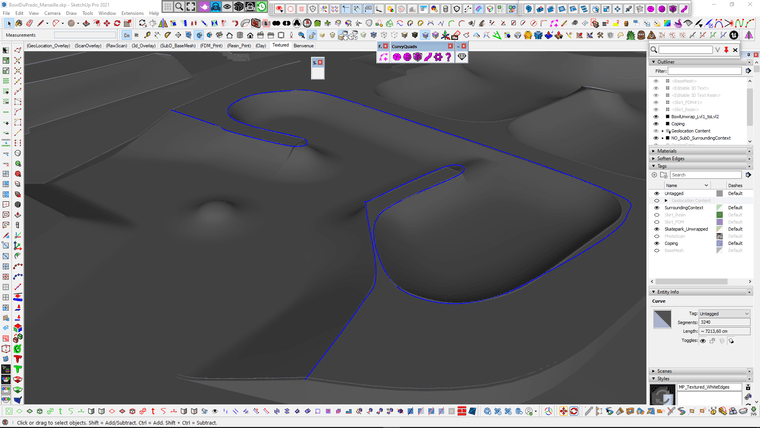
Of course an advanced user can still tackle this using Edge Tools, Curvizard, or something... BUT, since you are looking for users who dont't want to mess with complex tools and parameters, then I believe you should take this into account, in order to
protect monkeys from themselvesavoid them to get in troubles.That, again, could be easily managed in vcb (using the same native formulas of arcs and circles with a lower default value) and could be perceived as something familiar from the average Sketchup user.
I suggest to add a "Num s" option or something in vcb to adjust the spline precision.Problem #2 (cosmetics/glitches)
As you can see in the next screenshot, orbiting the model can cause the spline preview to be clipped. I can steadily reproduce the glitch in this model.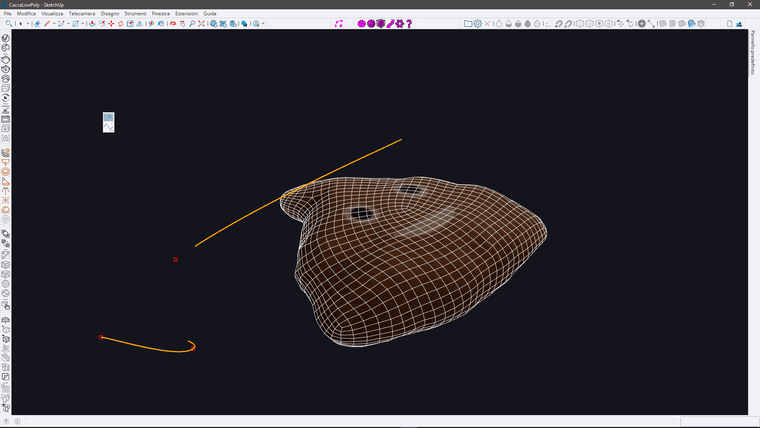
Fun fact: as you can see, I encounter this problem only in Sketchup Studio 2026. I cannot reproduce it in SketchUp Make 2017, despite the fact than in 2026 I'm drawing from a decent point of view, while in Make 2017 I'm trying my best to trigger it, even moving the camera closer and intentionally cutting the spline out of the viewport as you can see in the following screenshot.
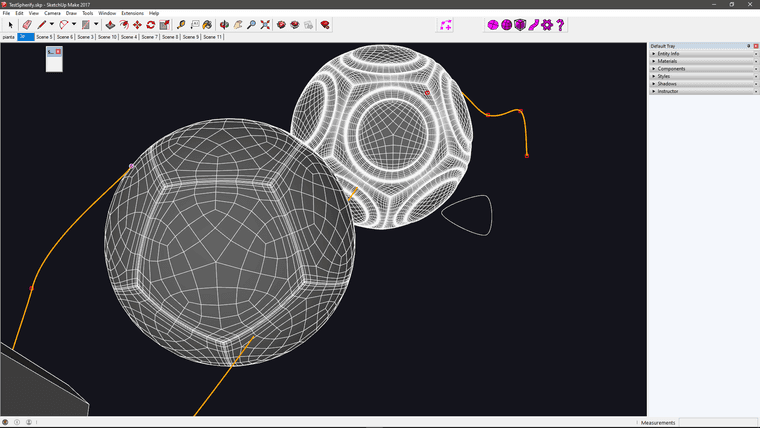
I'll investigate more on this and see if can isolate the problem better, in order to maybe help you to find the cause (and hopefully the solution).
Problem #3 (undesirable/potentially dangerous behavior)
While I was randomly playing around with the tool, I hit my right mouse button by mistake and I noticed that, not only I selected an unwanted object, but also that the context menu was triggered.
My first reaction by instinct was to quickly hit the Esc key in order to close the annoying popout. This of course closed the unwanted menu, but at the same time completely destroyed my spline. (Ctrl+T doesn't deselct stuff while the tool is active)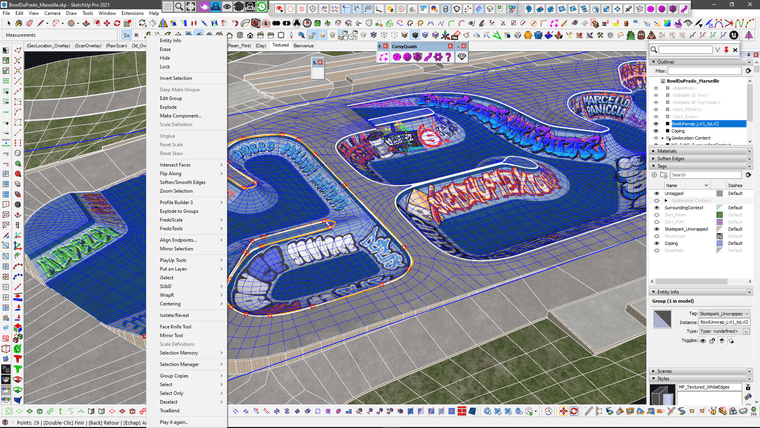
Of course this is an edge-case, but at the end of the day this is what beta testing is all about, isn't it?
At first I tried to do the same with FredoSplines for direct comparison and it was triggering his proper context menu.
So my first thought was that the problem is specific to your tool, but then I realized something that I never noticed in more than 15 years (that's one for the Doh' Book): basically every single Sketchup Tool which doesn't happen to have it's own context menu falls back to the Sketchup default right click behavior, and this can potentially cause problems.When I realized this, I was like: "Oh, sh°t.. let me doublecheck if the tool I'm developing is doing the same" ...and IT WAS.

And I discovered that this also open the possibility to launch options from the context menu which potentially break tools.
In my case, I was able to explode a subgroup, while the tool was active, completely destroying the full undo stack of the tool.
NICE ONE.
All in all, my random mistake with your tool was an "happy accident" because it gave me the opportunity to learn something new about Sketchup in general..
So I tried a few methods with the robot (by no means I'm a programmer, I'm using AI to code stuff) and none of the proposed solution worked.
Apparently, if you just try to intercept the right click/context menu and tell Sketchup "I'm taking care of this, don't interfere", but then you don't do nothing.. Sketchup will fallback to his default behaviour no matter what.Then I had an idea and asked the robot to create a fake context menu with a dummy entry greyed-out just for the sake of stealing focus from the default SU context menu.. and it somewhat worked, see below.
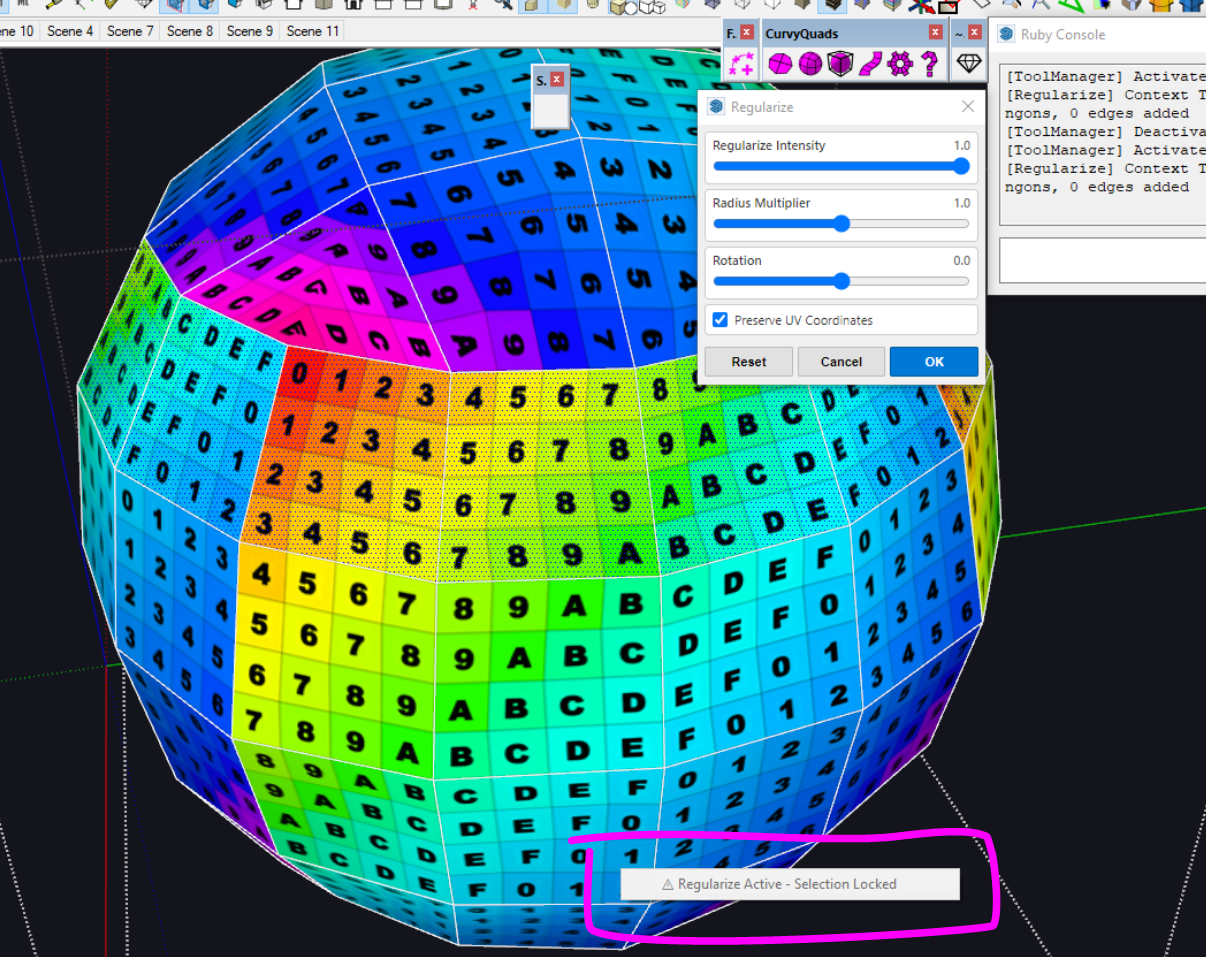
This is the pseudo-code extracted from the solution that I came up with.
I would be curious to know what actual developers like @tig, @fredo6 and @thomthom think about this solution, if it's robust enough, or may cause collateral problems (apparently is safe, at least for my use-case) and most importantly, if this can be done better#============================================================================== # HOW TO BLOCK SKETCHUP DEFAULT CONTEXT MENU IN YOUR CUSTOM TOOL #============================================================================== # Problem: When your tool is active, right-clicking shows SketchUp's default # context menu (with Erase, Explode, etc.) which can: # - Confuse users (entities appear selected but aren't) # - Break undo stack if operations are executed # - Interfere with tool's selection logic # # Solution: Implement getMenu() method in your Tool class and populate it # with a dummy entry. Returning true with EMPTY menu causes SketchUp # to show default menu as fallback. Populating prevents fallback. # # Where to add: Inside your Tool class (the class passed to model.select_tool) #============================================================================== # Example: Your existing Tool class structure class YourCustomToolInstance def initialize @tool_active = false # ... your initialization code ... end def activate @tool_active = true # ... your activation code ... end def deactivate(view) @tool_active = false # ... your deactivation code ... end # ========================================================================== # ADD THIS METHOD TO BLOCK DEFAULT CONTEXT MENU # ========================================================================== # Override context menu to prevent SketchUp default menu. # # Called by SketchUp before showing right-click context menu. # Populating menu with dummy entry prevents SketchUp from showing # its default menu (which includes Erase, Explode, etc.). # # @param menu [UI::Menu] Context menu object # @return [Boolean] true to indicate menu was handled # def getMenu(menu) if @tool_active # Add grayed-out entry to block SketchUp default menu item = menu.add_item("⚠ YourToolName Active - Right-click Disabled") {} menu.set_validation_proc(item) { MF_GRAYED } return true end false end # ===========================================================Oh, and last but not least... Yes: is THAT model.
I forgot about it until today.
I did it relatively quickly (I remodeled it at maybe 80% in a couple of hours when you gave me the base scan and then refined and textured it in the very same weekend, adding the surrounding and the printable version). I planned to share it, with proper credits to you, also in the graffiti LOL.
But before sharing I wanted to test the printable models (I did both a fdm and a resin version), but my friend which owns the printers was not available at the time.
So it went straight in my rather large "99% complete - abandoned models graveyard"More on that here


Hello! It looks like you're interested in this conversation, but you don't have an account yet.
Getting fed up of having to scroll through the same posts each visit? When you register for an account, you'll always come back to exactly where you were before, and choose to be notified of new replies (either via email, or push notification). You'll also be able to save bookmarks and upvote posts to show your appreciation to other community members.
With your input, this post could be even better 💗
Register Login


Advertisement