Locking Flyouts
-
Hi,
I have tried searching for an answer but having come back to Sketchup after a 2 year absence I am having to re-learn what little I knew before. I am a little more determined this time.
My question is I am finding it very frustrating to have to keep opening the 'Components', 'Layers', 'Entity Info' Flyouts. Is there a way of locking these well used dialogue boxes to the side of the screen. I have assigned keyboard short-cuts to keep opening these windows but there must be a way of getting them to stick open in the Workspace??
Happy Christmas to you all.
Regards,
Andrew -
Yeah, just don't close them! They don't close on their own.
-
You can also roll them up into little bars.
Maybe someday SU will address this and build a PS type UI
-
They hired a guy just before they went to Google? or sometime after they were at Google who was on the Adobe UI team. I was very hopeful that he would help develop a new UI for SU. I guess it never happened and I think he stayed with Google.
-
I guess I must be inadvertently closing them because they stay visible sometimes for a while. The key words are 'inadvertently closing'. I will try and figure out how I am doing this. My point is why can't they be locked to avoid the "inadvertent closing".
Also, I haven't discovered how to roll them up. That would be great. I thought I was reasonably proficient with computers but comments coming back are suggesting otherwise.
Soon be Christmas!
Regards,
Andrew -
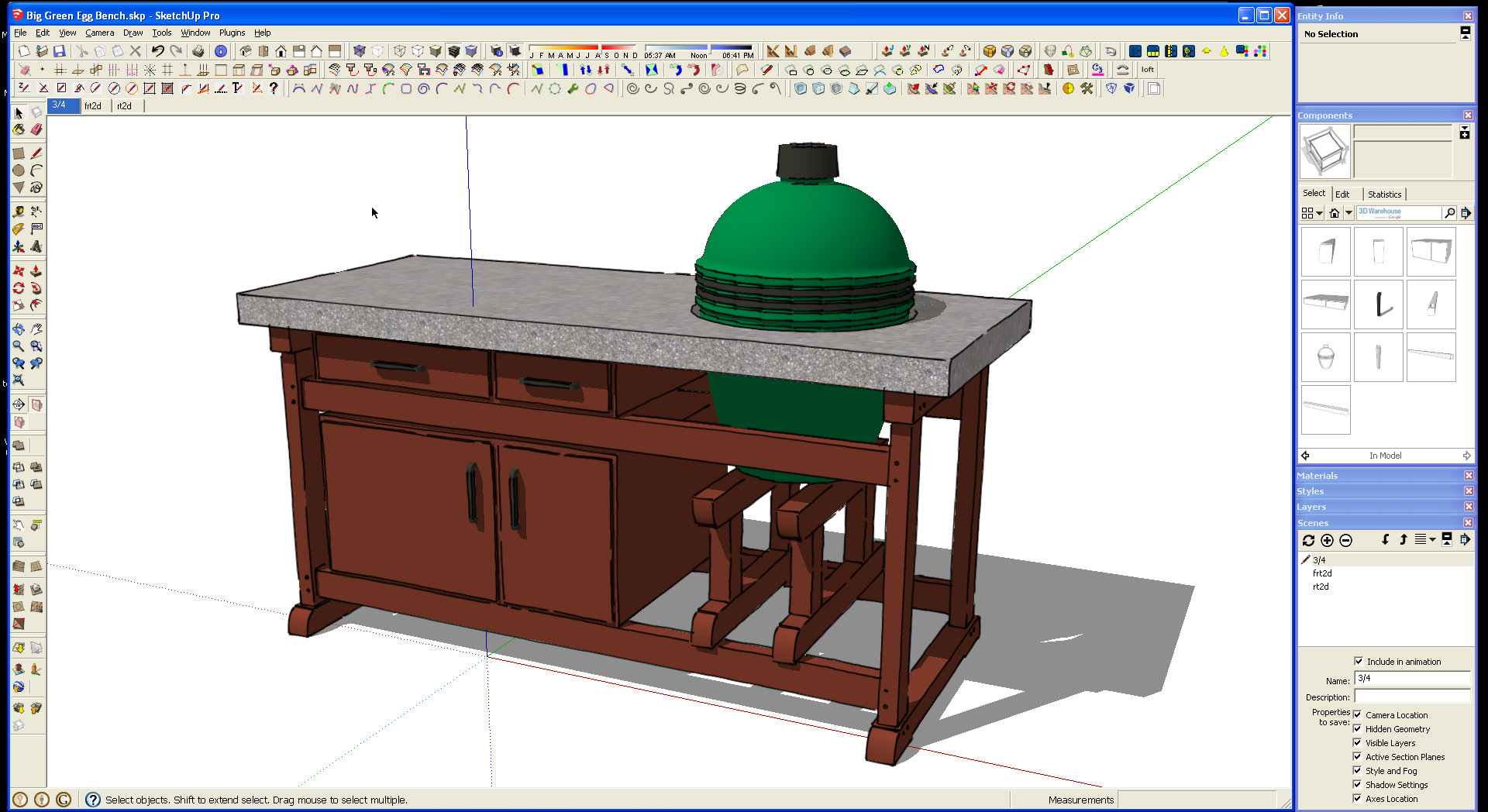
I keep my drawing window slightly narrower than my screen and leave the additional windows outside. They stay there unless inadvertently closed.
-
Clicking on any flyout's top-bar rolls that flyout up.
Any other flyouts that you have 'stuck' to the bottom of the rolled-up one will move to suit.You can simply move one flyout below another one's bottom edge, until it sticks [links] to it.
To un-stick [un-link] a flyout just drag it sideways...
Clicking its 'X-cross' closes it...
-
OK
Getting there. Roll ups useful.
I will persevere.Many thanks,
Andrew -
Please, what OS are you using? These windows especially suck on MacOS. Session to session, things get screwed up. What I do in session is stack /stick my windows together. Single click to collapse most of them. Set a proper width and stick to the right side. Then if I press the green button on the main window, it adjusts into the remaining space.
-
@dave r said:
[attachment=0]
I keep my drawing window slightly narrower than my screen and leave the additional windows outside. They stay there unless inadvertently closed.
That has to be about the single best tip I have seen. It is like working in ACAD with the properties dialogue box open. I was fully amazed when I hit 'save toolbar position' closed SU and opened it up again and the flyouts were still in same position






Hello! It looks like you're interested in this conversation, but you don't have an account yet.
Getting fed up of having to scroll through the same posts each visit? When you register for an account, you'll always come back to exactly where you were before, and choose to be notified of new replies (either via email, or push notification). You'll also be able to save bookmarks and upvote posts to show your appreciation to other community members.
With your input, this post could be even better 💗
Register Login


Advertisement