White line appearing around png render
-
yes its adding it to the final output (and isnt there previously)
this never used to happen before im fairly certain of that. or did i dream that one up? lol.i was thinking because i am saving as png that it leaves the none model covered area as a transparent thus centrering the edge on the focus of the model.
so there is no way of removing this white line? -
Is the saved PNG actually showing a transparent background though?
I've only noticed the white line around say a PNG tree right on the edge of the texture. I've not seen it on saved render before, but then again I never normally have any transparent space. It's really annoying!!! It's like edge of a PNG has a fringe in SU.
-
yup exactly that is happening.
im fairly certain this didnt happen on older versions.im taking it is an issue then?
i cant seem to find any information regarding it anywhere -
Save in a different format for the time being if you are in a rush. Or do you really need the transparent part? Use a mask preset if so.
I dunno if it's just a native characteristic of PNGs or the way SU deals with them.
-
I use PNG all the time and have never had this issue while saving from VR 1.49.01. Which version are you using?
-
if your background is very bright/ white - then anti-aliasing will combine the edge pixels of your model and your background. try to make your background darker and see if it helps. otherwise, you can try turning off AA
-
Can we see a sample output please?
-
im using version 1.49.02
and it does appear to reduce if i darken the background i am working on. but i see that more as a quick fix if nothing else lasting works.
all i want is a crisp sharp image when i save my png. the transparency is important firsnt and foremost as the images i render are to be singular entities for an isometric map.
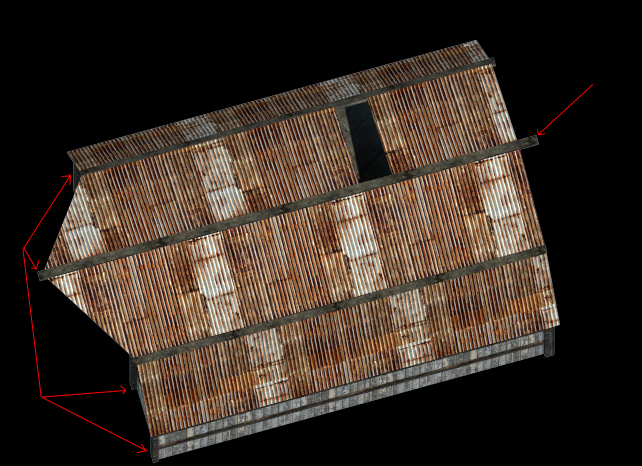
ive added a screen shot of a png render, but ive put it onto a black background to just help show up the edges better
-
looks to me like an issue with a dark material on a light background. Did you try turning off anti-aliasing (in the image sampler tab)?
-
when i turned off anti aliasing...it looked about 5 times worse

-
Well, you would have to increase your resolution if AA is off, but anyhow, sounds like that may not be the issue. Is there a model or part of a model that you can post?
-
Hello,
in your vray bitmap material render panel, try to set the "filter type" in "bitmap buffer" on "No filter". I had good results with that setting.
-
thanks chon ill give that a try tonight. if all else fails ill post up a model..but i dont see why it would be a model. this happens even on a simple square block,
i was figuring it was something to do with the rendering itself more than the model -
the idea is that with a model, we can look at your vray settings and see if there's a solution.




Hello! It looks like you're interested in this conversation, but you don't have an account yet.
Getting fed up of having to scroll through the same posts each visit? When you register for an account, you'll always come back to exactly where you were before, and choose to be notified of new replies (either via email, or push notification). You'll also be able to save bookmarks and upvote posts to show your appreciation to other community members.
With your input, this post could be even better 💗
Register Login


Advertisement