sketchucation logo sketchucation
    • Login
    1. Home
    2. Penguin2
    3. Posts
    Oops, your profile's looking a bit empty! To help us tailor your experience, please fill in key details like your SketchUp version, skill level, operating system, and more. Update and save your info on your profile page today!
    πŸ”Œ Smart Spline | Fluid way to handle splines for furniture design and complex structures. Download
    P
    Offline
    • Profile
    • Following 0
    • Followers 0
    • Topics 23
    • Posts 65
    • Groups 1

    Posts

    Recent Best Controversial
    • RE: Z fighting is knocking me out!

      Hi Cotty,

      I can't believe you produced the video just for me. So generous with your time.

      Also I tried what you suggested. Opened the group and placed the windows whilst still in edit mode. It works!! not more Z fighting.

      Thank you Cotty and to all others that have helped.

      Regards,
      Andrew (Penguin2)

      posted in Newbie Forum
      P
      Penguin2
    • RE: Z fighting is knocking me out!

      Firstly,

      Wo3Dan - Thank you. Sorry but I'm afraid you have lost me a little. I will take some time to study what you are saying and respond later.
      Cotty - Before I inserted into my model I just tried placing the windows on a vertical face. I got the Z fighting on that simple installation. The two examples are inserted onto the wall of a group (I did not edit the group) but if the problem occurs with a simple face I expect if I edit group and insert I will get the same result. Will try this though.

      My walls are all single faces.

      From the attached JPG's the second one has been placed 20mm off the wall face (my quick workaround).
      In both cases I;-
      Glue to vertical.
      Check box 'Cut Opening'.
      Check box 'Replace....'.
      Set component axis so that red and green lie on gluing plane with blue axis (cross) is perpendicular to red&green axis.

      Please excuse might basic description.

      Regards,
      Andrew


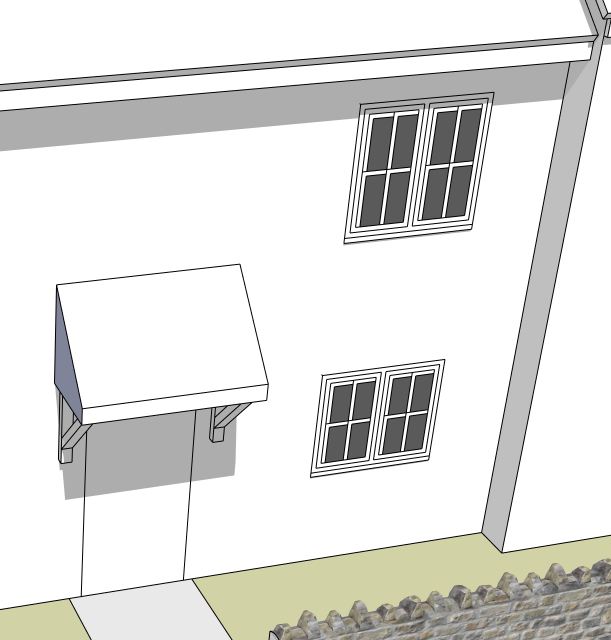
      Window components on face of wall.


      Window components placed 20mm off wall.

      posted in Newbie Forum
      P
      Penguin2
    • RE: Script Error message - 3D Warehouse

      Hi,
      I here what you are saying ...'it must be an IE problem'. Still don't understand why there are no error messages when accessing 3D Warehouse in Explorer outside of Sketchup. Suggests to me that Sketchup might possibly have something to do with it?. (Said cautiously without wanting to upset Sketchup Community).

      However, if there is no problem when using Firefox accessing from Sketchup then IE is the culprit, perhaps? I think there might be a slight Sketchup/IE hiccup.
      Just my observation.
      Thank you for your help. Believe me these Forums are extremely helpful.

      posted in Newbie Forum
      P
      Penguin2
    • RE: Z fighting is knocking me out!

      Hi,

      Before anyone comes back reminding me that Sketchup is a 3D program I have found a workaround.

      I have decided to place the window with a 20mm stand off. This is hardly noticeable and should be OK for me. I haven't applied any textures to the wall yet (probably leave plain colour) but I think what I am doing will be good enough.

      I know Sketchup is 3D. The rest of my model clearly demonstrates this. Just feel it would be useful to be able to apply some simple geometry without the Z fighting.

      Cheers from a cold and wet UK
      Andrew

      posted in Newbie Forum
      P
      Penguin2
    • Z fighting is knocking me out!

      Hi,

      Yet another plea for help.

      I am still coming to terms with Sketchup and have read up about Z fighting so I believe I basically understand what's going on. However, some of the solutions posted on previous threads don't seem appropriate for what I am trying to achieve.

      I have a Sketchup Model of 20 different houses with over a 120 windows (many different sizes). I need to keep the poly count low for obvious reasons. What I am trying to do is apply a simple window with some faces dark grey to represent glass.

      I have created my geometry on a vertical face.
      'Cut Opening' is checked.
      'Replace' is checked.
      Glue to vertical.
      Set component axis (red & green lie on gluing plane).

      Is there any way I can apply these components to the face of the houses without Z fighting.
      One post said make the components slightly smaller!! (No not for me)
      I also read somewhere to attach to the wall so that it occurs a few mm above the gluing plane. If I have to do that I will go and find the nearest high bridge.

      Surely, there must be a simple way of applying basic window geometry to vertical surfaces without this Z fighting.

      Any help much appreciated.
      Thank you
      Andrew (increasingly desperate 'Newbie')!!

      PS Have a JPG but I don't think you need to see another picture of this.
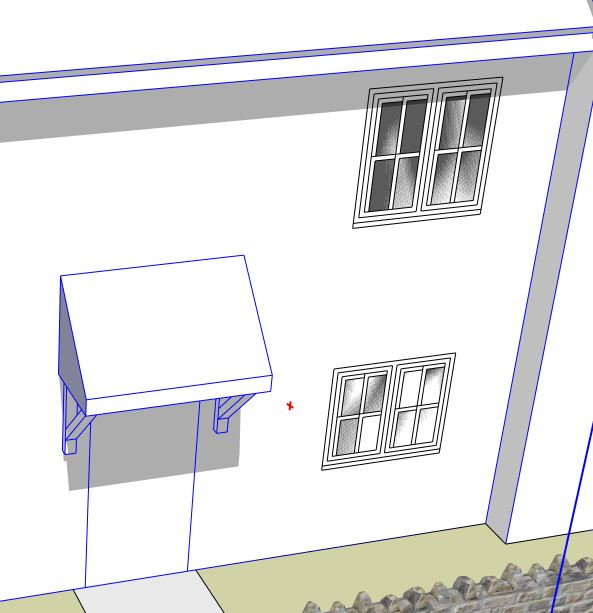
      posted in Newbie Forum sketchup
      P
      Penguin2
    • Script Error message - 3D Warehouse

      Hi,
      Can anyone help with this please?

      Every time I try to download a model from 3D Warehouse from within Sketchup 8 (Pro)
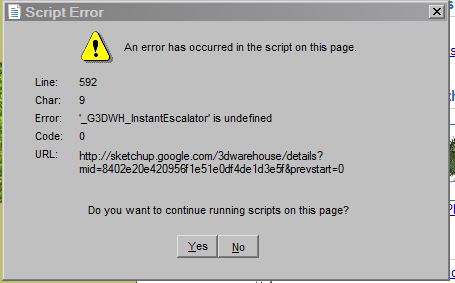
      I get the attached Error message which I ignore and continue to download.

      Points to note:

      After ignoring the message I am unable to see the file size before I download.

      The Error message does not occur if I close Sketchup and download direct from Web Browser (don't want to keep doing this though). I can also see the file size before downloading from Web browser So I believe it is Sketchup problem. Doesn't happen anywhere else.

      Have read up a little on this and despite unchecking 'Display & notification about script error' in Internet Settings the error messages still keep coming.

      I am running Windows 7 64bit and my browser is Google Chrome.

      Many thanks.
      Andrew


      Typical Error message every time I try to download a 3D Warehouse model.

      posted in Newbie Forum sketchup
      P
      Penguin2
    • RE: 3 Questions then I will go away

      Thank you TIG & Dave,

      I think my problem is stemming from using AutoCAD for nearly 20 years.

      Your help and advice has proved invaluable.

      Happy New Year to you both.

      Regards,
      Andrew

      posted in Newbie Forum
      P
      Penguin2
    • RE: 3 Questions then I will go away

      Q2.
      This is my explanation of what appears to be happening.

      I draw a chimney with a circular pot on Layer 0.
      I create a component (Chimney 01).
      I insert and attach to some houses which have been drawn on Layer 'Plots 17-20'.
      With a crossing selection (either L>R or R<L)I explode (Chimney 01).
      I then select the house including the exploded chimney & place on new layer 'Plots 17-20'.

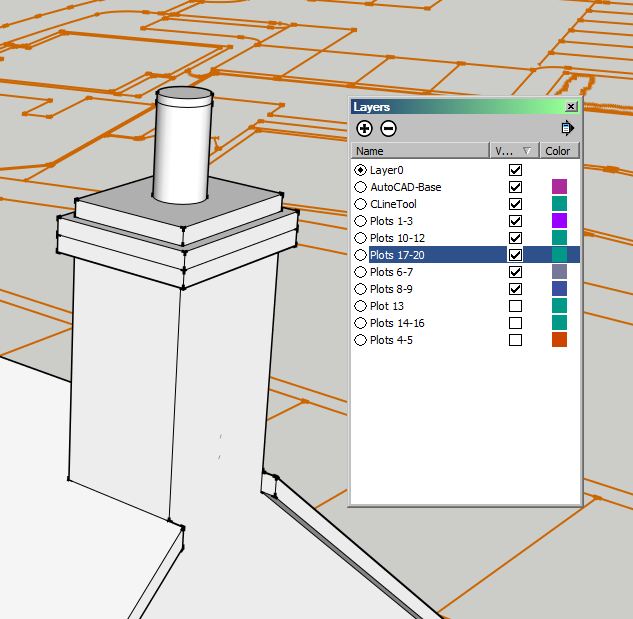
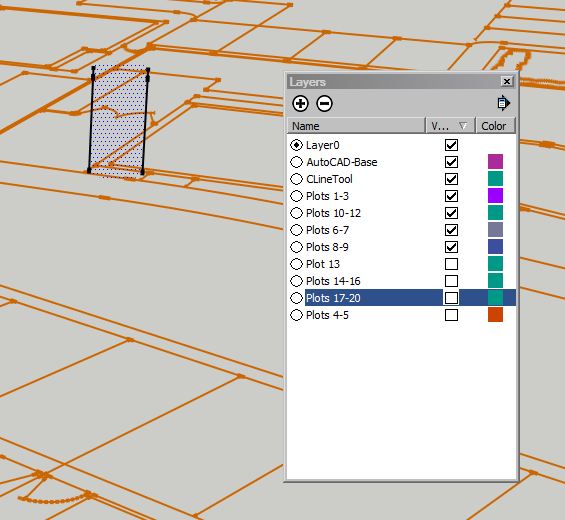
      If I un-check (deselect) this new layer everything except the vertical lines representing the chimney pot is turned off.
      If I select these leftovers, Entity Info tells me they are on the turned off layer. There is no way I can move, delete or change these. It's as though they don't exist or there locked in some way.

      Sorry for the long winded explanation.

      Regards,
      Andrew


      Chimney before


      Chimney after

      posted in Newbie Forum
      P
      Penguin2
    • RE: 3 Questions then I will go away

      Dave,

      GPU NVIDIA Quadro 600 1GB
      CPU Intel Xeon 31230 3.2Ghz
      Ram 16GB
      Windows 7 64bit (understand Sketchup=32bit)

      Thought the above was a reasonable set up. AutoCAD 2013 sings with it!

      My chimney component was drawn on layer 0. Sorry when I said freeze I meant 'hide' or 'uncheck' the layer box. The component has been exploded.
      Parts of the chimney pots are still visible despite 'Entity Info' telling me they reside in the turned off layer.
      I read somewhere that some items can be locked but I can't find anything on this.

      I shall be away a couple of days. When I get the chance I will try to post a couple of images.

      Thank you again
      Regards
      Andrew

      posted in Newbie Forum
      P
      Penguin2
    • RE: Locking Flyouts

      OK

      Getting there. Roll ups useful.
      I will persevere.

      Many thanks,
      Andrew

      posted in Newbie Forum
      P
      Penguin2
    • 3 Questions then I will go away

      Q1.
      I have a powerful PC running AutoCAD Xeon processor 16GB Ram etc. Why does my small 778KB drawing slow right down. A restart corrects this and things seem to work faster again.

      Q2.
      I have created some chimney components and Sketchup shows that I have them on my allocated layer. However when I freeze the layer some entities remain. I think they are locked somehow but even after exploding the chimney I cannot figure out how to highlight and unlock these pesky lines.

      Q3.
      What is the test for moving from the Newbie Forum? Certainly not there yet!

      Regards,
      Andrew

      posted in Newbie Forum sketchup
      P
      Penguin2
    • RE: Locking Flyouts

      I guess I must be inadvertently closing them because they stay visible sometimes for a while. The key words are 'inadvertently closing'. I will try and figure out how I am doing this. My point is why can't they be locked to avoid the "inadvertent closing".

      Also, I haven't discovered how to roll them up. That would be great. I thought I was reasonably proficient with computers but comments coming back are suggesting otherwise.

      Soon be Christmas!

      Regards,
      Andrew

      posted in Newbie Forum
      P
      Penguin2
    • Locking Flyouts

      Hi,

      I have tried searching for an answer but having come back to Sketchup after a 2 year absence I am having to re-learn what little I knew before. I am a little more determined this time.

      My question is I am finding it very frustrating to have to keep opening the 'Components', 'Layers', 'Entity Info' Flyouts. Is there a way of locking these well used dialogue boxes to the side of the screen. I have assigned keyboard short-cuts to keep opening these windows but there must be a way of getting them to stick open in the Workspace??

      Happy Christmas to you all.

      Regards,
      Andrew

      posted in Newbie Forum sketchup
      P
      Penguin2
    • RE: Importing CAD Colours

      OK

      Firstly to Dave R
      Your response "It would have been helpful to have this new information up front".
      My apologies if I gave 'new' information. I looked at my original Post and I thought it was fairly clear what I was trying to achieve. Anyway my apologies. I am a returning 'Newbie' and am finding lots of what I want to do very difficult. I will of course study your attachment.

      To TIG
      Again I will also study in detail your replies.

      To both of you thank you once again.

      I think I should close this thread now. You have both been so generous with your advice and I don't want to waste any more of your time.

      Kind regards
      Andrew

      posted in Newbie Forum
      P
      Penguin2
    • RE: Importing CAD Colours

      OK

      Yes the imported AutoCAD plan has about 800 lines and 50 polylines representing roads, footpaths buildings etc. At the moment they import as black lines and trying to draw Sketchup Models on top of all these black lines very quickly becomes confusing. What I am trying to do is have the lines in the CAD drawing a different and much lighter colour, almost like ghosting so that I can distinguish between CAD & Sketchup.

      I have made the CAD drawing a component but from what you and TIG are saying only colour can be applied to faces. I need the feint colour to be applied to the lines in the CAD drawing.

      Should I be importing in a different way do you think?

      Regards,
      Andrew

      posted in Newbie Forum
      P
      Penguin2
    • RE: Importing CAD Colours

      Hi Dave,

      Tried colour by layer but for me it didn't work.

      I'm sure you can import AutoCAD colours. I watched a video a couple of days ago and the base plan that was imported had grass, trees, roads etc. all with colours.

      Thank you for your help.
      Regards,
      Penguin2

      posted in Newbie Forum
      P
      Penguin2
    • Importing CAD Colours

      Hi,

      I have been around before but still feel I'm a 'Newbie'.

      I am importing an AutoCAD drawing as a base Site Plan.
      I would like the linework in this CAD drawing to be a different colour so that I can differentiate these lines from my new Sketchup work.
      Q1. How do I do this?

      Q2. Why do I have to save my AutoCAD 2013 dwgs to ver.2007 to enable Sketchup to import the dwg.

      PS. I am a Sketchup 8 Pro user.

      Any help much appreciated.

      Regards,
      Penguin2

      posted in Newbie Forum sketchup
      P
      Penguin2
    • Xmas Tips

      I'm not sure if there is place for this but I would just like to thank those who have put the Xmas Tips on the December Calender. I have found some useful ideas which I didn't know about so a big thank you to those responsible.

      Also Best Wishes to all the clever people writing and posting the many extremely useful Ruby Scripts. You all know who you are so a big thank you and season greetings to you all.

      Best Wishes
      Penguin2

      posted in SketchUp Discussions sketchup
      P
      Penguin2
    • RE: Help drawing lines in layout please?

      OK I think I've found a solution.

      If I turn Object Snap 'Off' I am able to draw non-contiguous lines. Perhaps someone will tell me I should have known this.

      Also I am assuming the green dashed lines are indicating the green axis. A red dashed line appears at 90deg telling me I am on the red axis. Turning object snap off also makes the red and green dashes disappear when drawing lines. I'm in Layout remember and not Sketchup.

      I will try to find some more information about some of the less obvious effects turning Object Snap On & Off.

      Feel free to comment. I can take it!!

      Regards,
      Andrew

      posted in LayOut Discussions
      P
      Penguin2
    • RE: Help drawing lines in layout please?

      Right thanks everyone but still not sorted this out. My apologies if I am not explaining myself clearly but this is what happens:-

      I have two layout drawings open.
      LAYOUT A
      I draw 1st line
      press Esc
      I draw 2nd line from end of 1st line
      press Esc
      Result>> 2 lines connected but still individual entities (This is what I requie and have been used too). I believe the Help files suggest that this is correct.

      LAYOUT B
      I do exactly the same as for Layout A but in this drawing the lines are inseparable (just like polylines). I have also noticed that when drawing the lines there is a feint green dashed line whilst stretched between the blue end points.

      Q. What settings do I change so that the lines can be drawn as in Layout A.

      Hope this is clear and look forward to being embarrased with an answer that is probably so obvious.

      Your help is appreciated.

      Regards,
      Andrew

      posted in LayOut Discussions
      P
      Penguin2
    • 1
    • 2
    • 3
    • 4
    • 3 / 4