Plugin Gradientator V1.21 on Mac
-
Re: [Plugin] Gradientator v1.21
I have read all the tricks and followed the tutorial to try and fixe the problem when trying to install the plugin (gradientator), in Sketchup Pro 2023, but I'm working on a Mac, and so all the pathways described do not work in my environment.
Can anybody tell me precisely how on Mac I can "recode" the famous "@" in that one line of code ? I've searched online to teach myself how to change the code of a plugin on a Mac and can't find anything useful. I'm not a computer Wiz, so I'm looking for something simple if possible.
Thank you so much !

Mary Eve
-
@MarieEve-Martel
If you read the old 'help' posts...
Open the RB file in your Plugins folder, using a plain-text editor [not a wordprocessor]
Find the line...
@grad_dialog.add_action_callback("get_data") do | @grad_dialog, action_name |
change it to
@grad_dialog.add_action_callback("get_data") do | grad_dialog, action_name |
Save it back into your Plugins folder.
After a restart SketchUp should load the good code... -
So yeah, like I said, I had already read the posts about changing the "magical phrase". Problem is, no one explained how to find the plugins folder on a Mac (in the Library, but not following the pathways described at all). I ended up finding it, and changed the code with "TextEdit", saved the change, and reopened SKP again, but this is what I get, a one colour flat "gradient" (when I chose 3 colours - and before anyone asks, I had pressed "ok" to get the green colour, I only reselected the same colours agains because when you click "ok" the gradientator boxe dissapears):
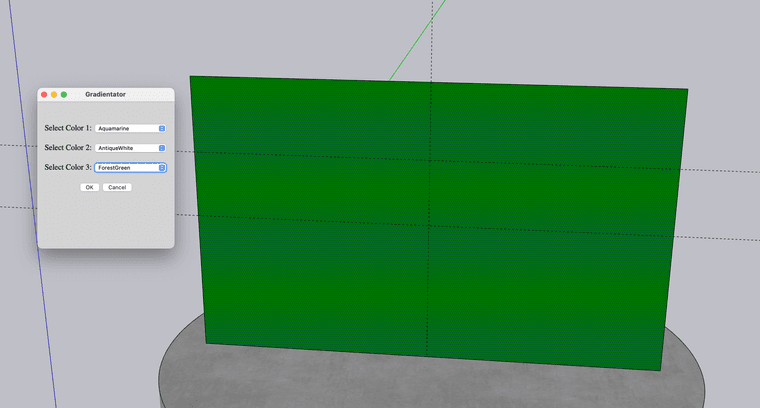
If anyone nows what's going on, I would greatly appreciate to know and how to fixe this.
Many thanks !
-
To find your Plugins folder do the following...
Open the Ruby Console from Extensions > Developer...
In its bottom a pane type or copy/paste this line of code.
Sketchup.find_support_file('Plugins')
It should return the path to the folder...
Use that to find/navigate to your Plugins folder...If you have the SketchUcation tools installed there is a submenu item...
Extensions > SketchUcation > Open Plugins Folder...
Clicking on this opens your Plugins folder - so it's less of a hassle...

Hello! It looks like you're interested in this conversation, but you don't have an account yet.
Getting fed up of having to scroll through the same posts each visit? When you register for an account, you'll always come back to exactly where you were before, and choose to be notified of new replies (either via email, or push notification). You'll also be able to save bookmarks and upvote posts to show your appreciation to other community members.
With your input, this post could be even better 💗
Register Login


Advertisement