How to Import a Dynamic Block from AutoCAD
-
I often need to insert screws into a model. I found an AutoCAD Dynamic Block (http://cadsetterout.com/autocad-dynamic-block-wood-screw/) which works great (I can change the diameter and length easily), but I can't figure out how to get it into SU. I have access to AutoCAD but only very, very basic working knowledge of the program.
I want to be able to open the block in AutoCad, change the dimensions of the screw, and then save that specific size screw to a file that can be imported into SU.
Any one have experience with this sort of thing?
Thanks,
Tom -
You want to save the resulting drawing as a "dwg" or "dxf" file from AutoCAD. That can be imported to SketchUp
-
Import the file into a blank drawing, change its settings to what you want, then explode it. You can then make it a new block, or just import it directly into SKUP. SKUP doesn't understand dynamic blocks.
-
@jga said:
Import the file into a blank drawing, change its settings to what you want, then explode it. You can then make it a new block, or just import it directly into SKUP. SKUP doesn't understand dynamic blocks.
Autocad wont let me explode this block for some reason. After a few hours.... I alter the block to what I need, select the block, right click, "edit block in place", right click again and "close REFEDIT > SAVE REFERENCE EDITS", save file as dwg, import, and all looks okay. It does import all hidden geometry, but this works for me. Any screw I need.
That being said, I'm an idiot for not checking the 3d warehouse first. Someone way smarter than me already uploaded a screw as dynamic component! https://3dwarehouse.sketchup.com/model.html?id=uf108e08a-9de2-4953-9584-0ac6e0e56fb9
Thanks for the replies and putting up with a damn Autocad question.
-
I don't know if this will help but I'll just put it out there. I frequently need to show screws and/or bolts in project plans I create for Fine Woodworking. A long time ago I drew an "adjustable" wood screw component and an adjustable bolt component. For the wood screws I started with the longest commonly available #12 flat head screw and saved that component to a local collection. I only made that one screw, though. As new sizes of screws are required, I bring out a copy of the larger screw component and adjust it to suit. I use the Tape Measure tool to scale by head diameter and adjust the length by removing unneeded threads and resizing the shank to suit. If I need a round head screw, it only takes a minute or so to draw a new head. Once the new screw component is created, I give it an appropriate name and save it to my screw collection in case I need it again.
[url=https://flic.kr/p/9CqceY]

For some screws such as lag screws, they don't get used without a flat washer so I create a component of the screw and flat washer.
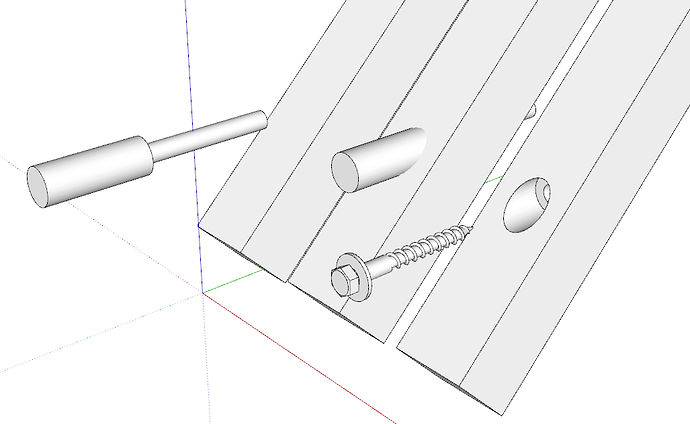
I figure there's no point in having screw components I wouldn't use so I just make them as I need them.
I also locate their insertion points so they can just be dropped into place without any screwing around.

-
For future
Block that will not explode in Acad you have to go into block editor and bring up preferences and turn on the edit block check box.


Hello! It looks like you're interested in this conversation, but you don't have an account yet.
Getting fed up of having to scroll through the same posts each visit? When you register for an account, you'll always come back to exactly where you were before, and choose to be notified of new replies (either via email, or push notification). You'll also be able to save bookmarks and upvote posts to show your appreciation to other community members.
With your input, this post could be even better 💗
Register Login


Advertisement