Model turned inside-out glitch
-
Hi there first time poster. Im using sketchup 2026 waw working on a model. It is set up with components and everything looked and was working fine until i used 3D text.
all of a sudden, all objects have graphical gliches and you can see parts of the inside/backside.
ive already triede switching the graphical settings to classic and the other way around.- you can see i have a lot of extentions but they have not been used the entire time (and i have had these forever). i havent used the 3D text fuction in quite a while though.
- you can see back edges is not activated
- the last picture is from windows 3d viewer. i had exported one of the parts to an stl a while before this hapened. ive added it to give an impression of what you are looking at.
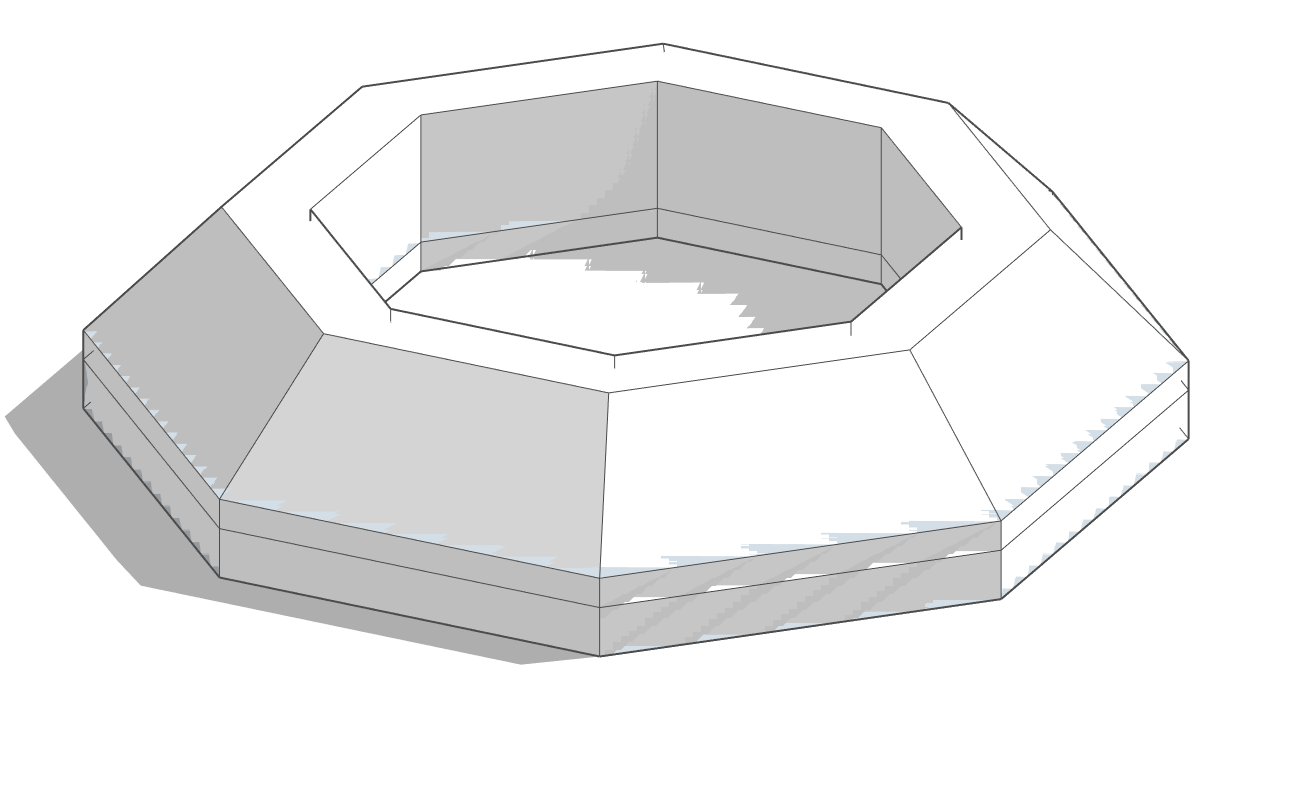
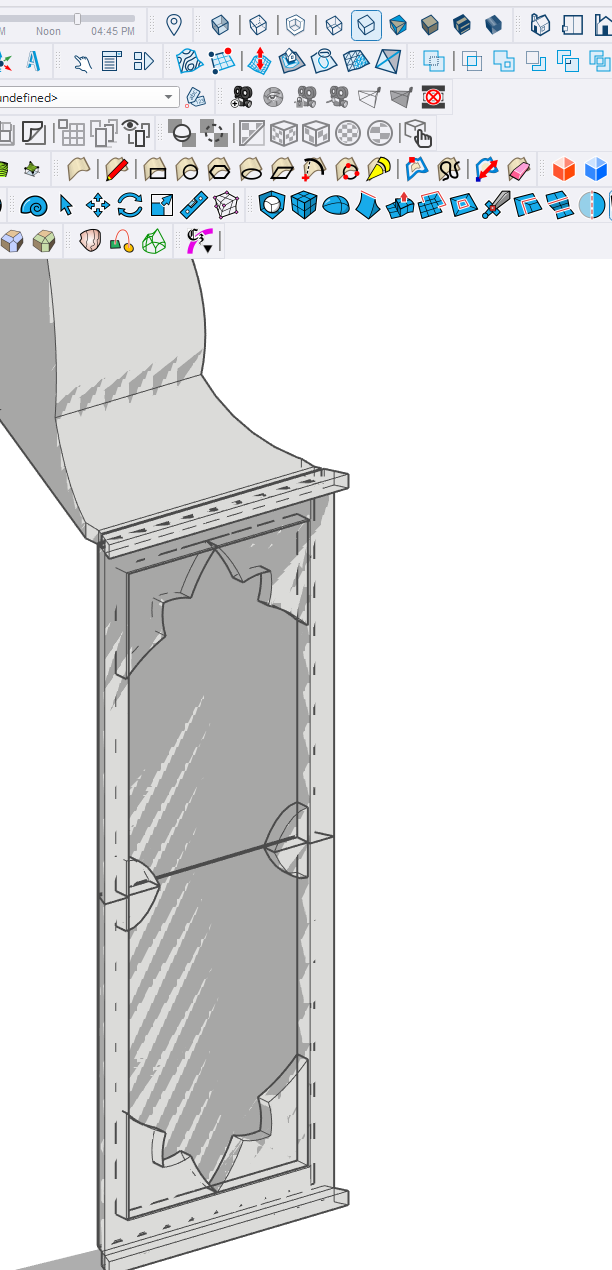
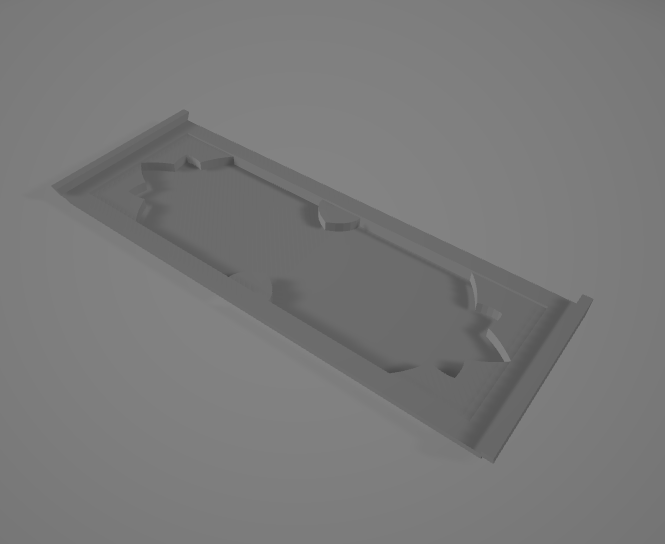
-
I'd say that's hardware related. Maybe a low end GPU or integrated GPU?
Have a look at Preferences > Graphics
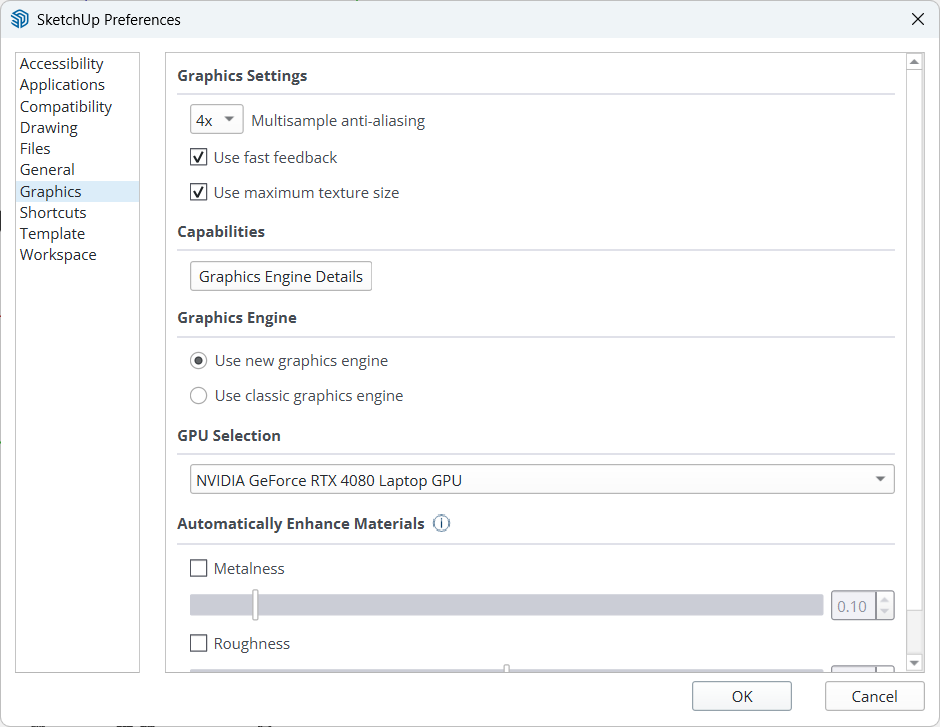
See if switching the engine remedies things.
Download the free D'oh Book for SketchUp 📖
-
It's 99,9% related to clipping planes tolerance
To troubleshoot this you can type in Ruby console
Sketchup.send_action 10624Then in the windows which will pop up, check the "Force" flag and try to play a bit with "Near" and "Far" parameters.
If the "Model Far" is a really huge number compared to the actual expected size of the model (causing the "Far" clipping plane to be REALLY FAR, then you can have that kind of floating-point-precision-related z-fights happening like in your screenshot).
There are a few reasons that can trigger this kind of behavior (which is the pretty much the opposite of the well known "clipping problem").
Usually there's something REALLY FAR from axes origin (maybe a tiny stray segment miles away from world 0,0,0 or possibly you accidentally created a misplaced copy of your 3d text which for whatever reason ended up at light years distance from model space).
In that case you can try to select whatever should actually be in your "intended" model (maybe temporarily group & lock it for added safety), then invert the selection and erase whatever else is in the model (this will clean up accidentally misplaced geometry that you can't see because it ended up into some different solar system) and everything should be fine.Another possible reason is that some of the objects in the model is actually in the right place, but its internal coordinate system has the origin miles away from model origin. In that case you can troubleshoot that looking at object bounding boxes or if you want to fix that super-fast, just install the "Axes Tool" plugin from Thomthom and recursively select components and sub-components and run the tool in order to place the object's axes in the center of the bounding box. Being that you apparently have just a few objects, you could just try to explode and regroup them one by one and that could fix the problem.
Another reason which comes into my mind that can trigger this kind of glitches, is when you have some "giant" component and you scaled it insanely small compared to the original size.. in that case you can try to "scale definition" (or, again, just explode and regroup it) and that should fix the problem in such specific case. If you created your 3d text insanely big and you scaled it a lot, that could be the culprit.
If none of this fixes works, maybe you can share the model and I could try to see what's goin'on exactly.

Hello! It looks like you're interested in this conversation, but you don't have an account yet.
Getting fed up of having to scroll through the same posts each visit? When you register for an account, you'll always come back to exactly where you were before, and choose to be notified of new replies (either via email, or push notification). You'll also be able to save bookmarks and upvote posts to show your appreciation to other community members.
With your input, this post could be even better 💗
Register Login


Advertisement