Automated GIF file Creator
-
Can some recommend free/cheap software for generating automated gif files to post in the forum to show/explain things I have done and how to show them in this forum.
BTW: I have the Microsoft Snipping Tool installed but:
-
It only creates MP4 videos
-
It does not allow you to edit the video (like add comments or information about the keys used)
-
-
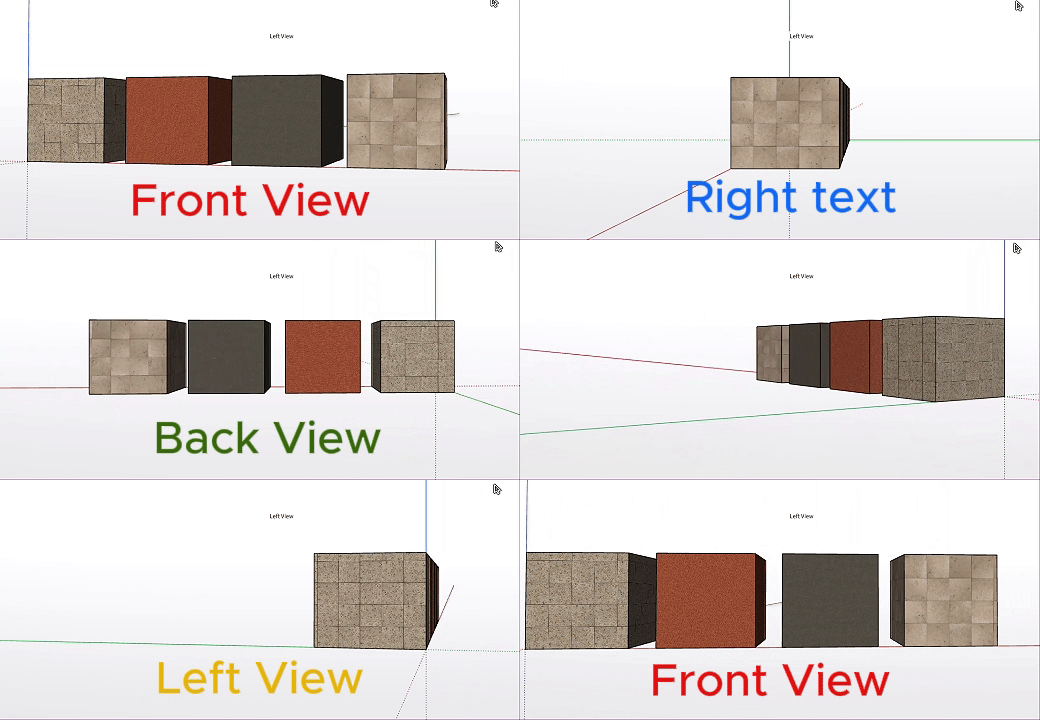
OK Everyone, here is my first trial at creating an animated gif to present in this forum.
-
in Photocraft:
Method for several images
-
Create or open a document in PhotoCraft.
-
Import all your images so that each one is on a separate layer:
- Image 1 → Layer 1
- Image 2 → Layer 2
- Image 3 → Layer 3
- etc.
-
Make sure all images have the same canvas size and are correctly aligned.
-
Open:
Window → Timeline -
Create a timeline if one does not already exist.
-
Arrange the images in sequence on the timeline so that only the required image is visible during each section.
For example, with four images:
- 0–1 sec → Image 1
- 1–2 sec → Image 2
- 2–3 sec → Image 3
- 3–4 sec → Image 4
-
Set the document frame rate / duration in the Timeline. PhotoCraft currently uses one global timeline frame rate, rather than a separate delay for every GIF frame. PhotoCraft
-
Press Play in the Timeline to preview the sequence.
-
When the animation is correct, choose:
File → Export → Render Video…
- Select Animated GIF / GIF as the output format and export the file. PhotoCraft’s Render Video function can create animated GIFs. PhotoCraft
For example, if you want 5 images, each displayed for 1 second, the animation would be:
Image 1 → Image 2 → Image 3 → Image 4 → Image 5 → repeat
If you specifically want the much easier workflow “one layer = one GIF frame”, Photopea currently makes that process simpler than PhotoCraft.
-


Hello! It looks like you're interested in this conversation, but you don't have an account yet.
Getting fed up of having to scroll through the same posts each visit? When you register for an account, you'll always come back to exactly where you were before, and choose to be notified of new replies (either via email, or push notification). You'll also be able to save bookmarks and upvote posts to show your appreciation to other community members.
With your input, this post could be even better 💗
Register Login


Advertisement