How to modify the dimensions of a rectangle
-
Hi
I made a rectangle which I would like to edit the dimension on.
So can anyone tell how to modify the dimensions of the rectangle (in the box down in the lower right hand corner) once it's made ? - I simply cannot figure it out.
I tried the way I felt was the most intuitive: Using the 'Select'-tool and then dragging a selection box around the rectangle, but to my huge surprise the dimensions of the rectangle didn't appear in the measurement box.
I hope anyone can help me out on this one.
-
You can't edit it the way you are trying to do. Instead, select an edge of the rectangle and use the Move tool to move it to make the desired dimension change. Of you can use the Scale tool to do it.
If you draw a new rectangle you can re-enter dimensions and change its size if you haven't started a new rectangle or chosen another tool. This same sort of feature applies to many other tools as well.
-
@viking72 said:
.....So can anyone tell how to modify the dimensions of the rectangle (in the box down in the lower right hand corner) once it's made ? ....
Once it's made and you applied some other tool, then (to SketchUp) that rectangle isn't a rectangle anymore, but just four lines and a face.
You can use guides from one edge over to the other side, set at a known distance. Then drag the second (in between-) edge towards the guide.
The same procedure for the perpendicular direction, to get all dimensions as desired.The fastest way here might be the 'Scale' tool. That is if edges run parallel to the axes.
Select the rectangle. Select the 'Scale' tool. Scale to arbitrary size.
Now immediately after, type the correct dimensions plus units and [Enter]
Example: Scale whatever rectangle. Then type 3750mm,4500mm [Enter]
.... to get a 3750mm by 4500mm rectangle. -
Hi
Thank you both for replying so quick.
I'll guess I just have to get used to how this works - even though I still find it very odd.
-
-
I thought about mentioning that plugin, Bep, but it is important for beginners to get familiar with the native tools and how they work.
It never ceases to amaze me when I see requests from beginners for plugins to do what the native tools do. They make those requests because they've never actually learned all that can be done with the tools that come with SketchUp.

-
@bep said:
Try http://drivingdimensions.com/SketchUp/overview/
Bep
That is a really cool plugin which seem to have the feature I was asking about, so thank you very much.
However, I'll agree with @Dave R that it is important to get familiar (or at least somewhat familiar !) with the native tools before installing plugins as they probably require one to learn even more which will only lead to more frustration and confusion.
-
Hi Sketchman, hi folks.
@viking72 said:
@bep said:
Try http://drivingdimensions.com/SketchUp/overview/
Bep
That is a really cool plugin which seem to have the feature I was asking about, so thank you very much.
However, I'll agree with @Dave R that it is important to get familiar (or at least somewhat familiar !) with the native tools before installing plugins as they probably require one to learn even more which will only lead to more frustration and confusion.
Excellent writing from you.
IMHO, it is much efficient to learn and get a strong knowledge of the native tools before plunging into the universe of plugins. Once you know all native tools and use them to their utmost possibilities you will get a very good understanding of SketchUp (SU) and then will be more apt at judging which plugin can better help you to perform complex tasks. This will avoid loading too many plugins of which a lot might be used very infrequently and will only bloat SU, slow startup and fill your screen with way too many icons.
Just ideas.
-
a cool thing about units
You can type any units in the Numeric Box Enter even these are different of your general settings!
Another method maybe more natural (can be useful also for rezise all the project ! )
Make your rectangle as a Group (will be the same with a component)
Select the rectangle / Right Click / Edit the Group (or component) or Double Click on it
Use the Tape Measure tool
Measure one edge of the rectangle with 2 clicks
And Type the measure wished with any Units (or not, so current units by default will be used)Say Yes at the Info Alert Dialog box!

Repeat again for the other edge if necessary!
If the rectangle was not a Group or a component, that will be the all project that will be resized!
PS You can of course measure a diagonal or anything on the surface!
(always 2 clicks ! )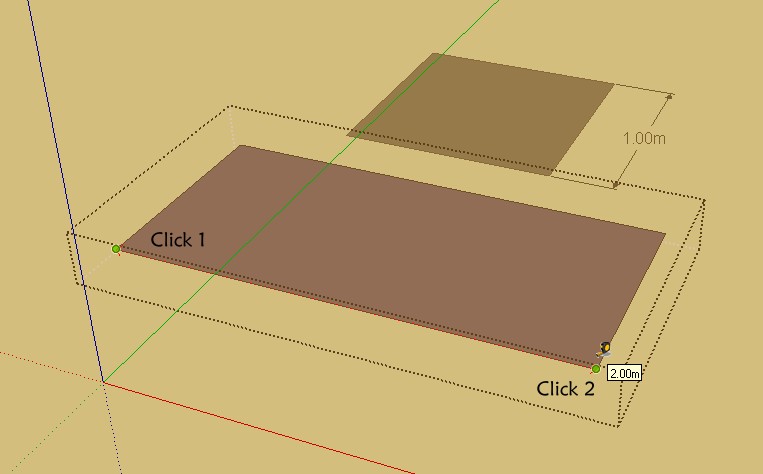
-
Hi Pilou, hi folks.
The resizing inside a group or component definition is a good idea but it will work on all directions.
So, if you resize the length of a rectangle, the width also changes. Then, if you resize the width, the length changes.
Just ideas.
-
Indeed!
It's a proportional resizing -
this is how I do it, bearing in mind I am just a beginner with sketchup so of course there are many ways to skin a cat! I had already drawn out my rectangle to as close to the measurememts as I could get with my untrained hand. I then used "tape meaure" tool to select one edge of the rectangle and measured across until close to the desired measurement, I then typed in the exact meaurement in the text info box below the model window. I repeated this for the perpendicular axis to the required measurement.
This then leaves 2 dotted guides which I can then snap to using the "scale" tool.
Obviously making sure the snap on feature is selected in preferences. NOTE: when using the scale tool you will only be able to scale down or up on one plane at a time i.o.w. if you kept scaling until both planes had scaled to the right dimensions you will notice that this is virtually impossible because the scale tool seems to work almost the same as electric gates (as in they never open/close at the same speed if you get my meaning)So just scale on one axis until required dimension is reached then select the other axis and scale that in as equired, Easy as that!The red Lines indicate the original size, the chevrons indicate the direction of scaling (obviously) and the arrows indicate the meaured guides.The Blue Arrow on the left points to the tape measure tool and the orange triangle towards the top of the window indicates the scale tool, this is a post to be read and applied by other novices like me, probably just read by the pros
However if you are a pro and you know of an easier and/or more logical quicker way please do tell. I know you can change the dimensions in a similar manner while still drawing lines but Ive not tried doing this while pulling out a geometric shape yet, sorry my experience is limited. Hope this helps?
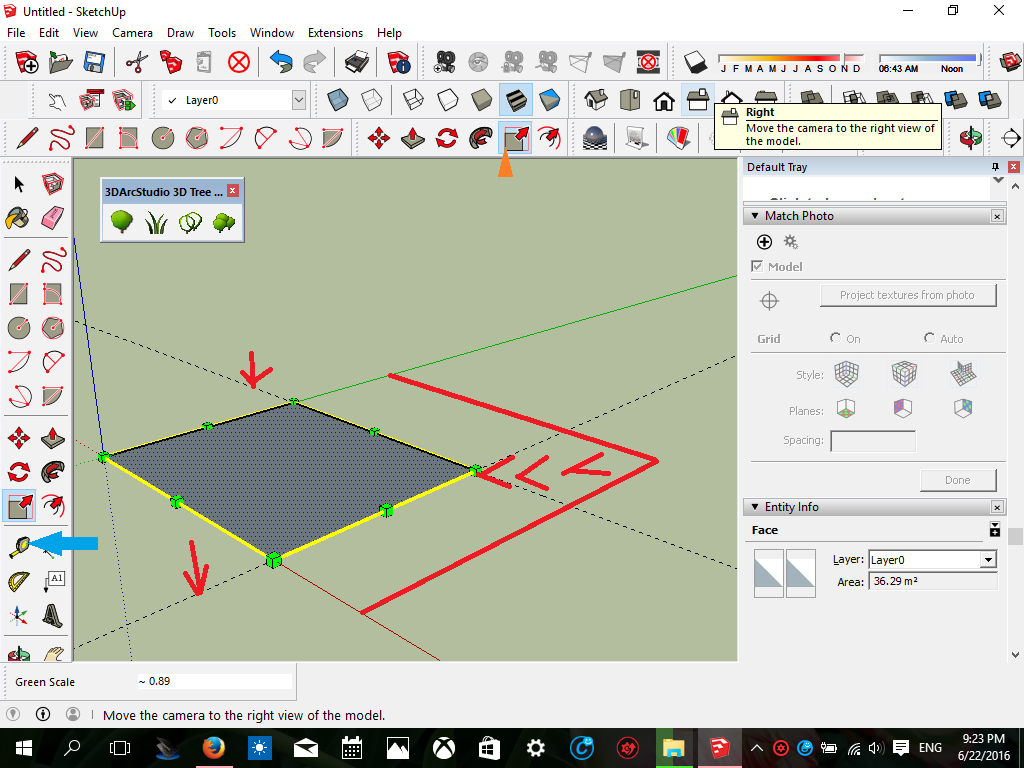
-
In Response to my own response about changing dimensions of geometric shapes, I just drew a rectangle and edited the dimensions even after I'd drawn it, so long as I still seemed to have it selected and havent moved onto another part of the model, and I did it like in the example here: (0.23, 5.5m) NB. leave a space after the comma and type in your next dimension. Again I have not yet tried a 3D object yet with this same method, just learning as I go a long, cheers
-
@infinitekiff said:
.......and you know of an easier and/or more logical quicker way please do tell........
You already applied the 'Scale' tool, snapping the green grid point(s) to guide(s).
Try the same tool but after dragging to arbitrary size type in the new dimension(s) plus units and [Enter]. See third post in this thread.





Hello! It looks like you're interested in this conversation, but you don't have an account yet.
Getting fed up of having to scroll through the same posts each visit? When you register for an account, you'll always come back to exactly where you were before, and choose to be notified of new replies (either via email, or push notification). You'll also be able to save bookmarks and upvote posts to show your appreciation to other community members.
With your input, this post could be even better 💗
Register Login


Advertisement