[Plugin] Scale Face to Target Area - TIG
-
The one who causes is like the one who does .Teşekkür ederim tig
-
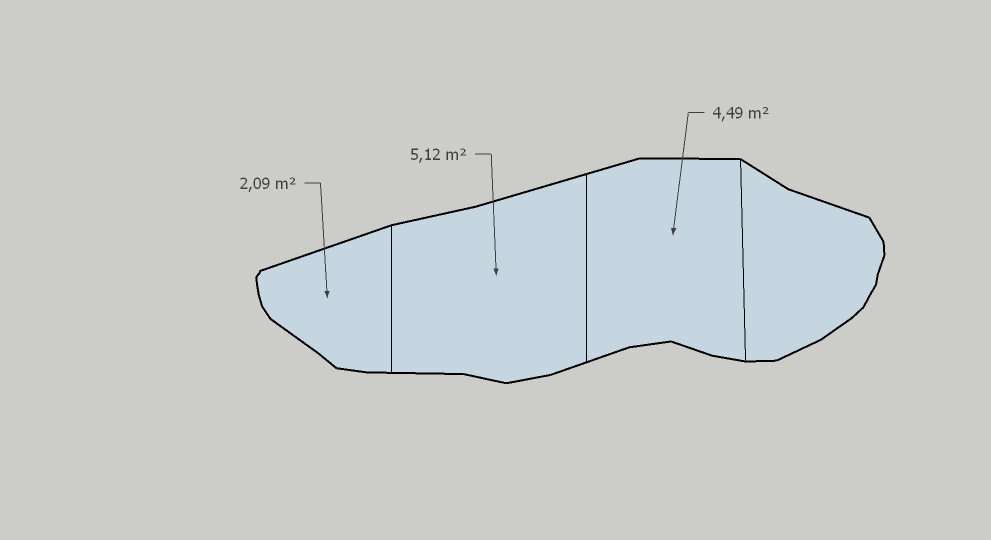
Hello, thank you for the plugin. It's great.How can I equalize the areas in the photo I sent? Equal area
-
The plugin isn't intended for that use.
I assume you ask how to add lines across a single face to end up with four faces of equal areas...How about this for an idea...
Get my CofG tool.
Delete any edges that spit the face, so that it's now one.
Give that face a thickness with PushPull, so it's a solid volume, then group it.
Now use CofG on the group, and the center of the volume is marked.
Edit the group and add a line across it through this center marker.
This should now have equal areas for the two parts.
Copy the group to one side and now re-edit the group and PushPull one side till it disappears.
Now you have a part with the half-area.
Repeat the edit on the group copy, this time erasing the other half.
Now you have two groups containing equal area parts.Repeat the whole process on each group to end up with four groups containing 1/4 area parts.
Edit the groups and delete the unwanted faces/edges so you end up with single faces.
Viewing sideways and selecting by fence is a quick way to leave just the top face.Arrange the 4 groups so that they align on the cut edges.
If desired, explode the 4 groups so that the 4 faces join along the cuts.
You can total/measure the whole starting area, the 1/4 parts are easily calculated and then checked against this.
-
@tig said:
The plugin isn't intended for that use.
I assume you ask how to add lines across a single face to end up with four faces of equal areas...How about this for an idea...
Get my CofG tool.
Delete any edges that spit the face, so that it's now one.
Give that face a thickness with PushPull, so it's a solid volume, then group it.
Now use CofG on the group, and the center of the volume is marked.
Edit the group and add a line across it through this center marker.
This should now have equal areas for the two parts.
Copy the group to one side and now re-edit the group and PushPull one side till it disappears.
Now you have a part with the half-area.
Repeat the edit on the group copy, this time erasing the other half.
Now you have two groups containing equal area parts.Repeat the whole process on each group to end up with four groups containing 1/4 area parts.
Edit the groups and delete the unwanted faces/edges so you end up with single faces.
Viewing sideways and selecting by fence is a quick way to leave just the top face.Arrange the 4 groups so that they align on the cut edges.
If desired, explode the 4 groups so that the 4 faces join along the cuts.
You can total/measure the whole starting area, the 1/4 parts are easily calculated and then checked against this.
tig, excellent explanation, I will try and work on it, thank you, I follow you closely, your help is invaluable, thank you for your interest, best regards, tig
-
@TIG said in [Plugin] Scale Face to Target Area - TIG:
The plugin isn't intended for that use.
I assume you ask how to add lines across a single face to end up with four faces of equal areas...How about this for an idea...
Get my CofG tool.
Delete any edges that spit the face, so that it's now one.
Give that face a thickness with PushPull, so it's a solid volume, then group it.
Now use CofG on the group, and the center of the volume is marked.
Edit the group and add a line across it through this center marker.
This should now have equal areas for the two parts.
Copy the group to one side and now re-edit the group and PushPull one side till it disappears.
Now you have a part with the half-area.
Repeat the edit on the group copy, this time erasing the other half.
Now you have two groups containing equal area parts.Repeat the whole process on each group to end up with four groups containing 1/4 area parts.
Edit the groups and delete the unwanted faces/edges so you end up with single faces.
Viewing sideways and selecting by fence is a quick way to leave just the top face.Arrange the 4 groups so that they align on the cut edges.
If desired, explode the 4 groups so that the 4 faces join along the cuts.
You can total/measure the whole starting area, the 1/4 parts are easily calculated and then checked against this.
After a lot of experimentation, the mobile areas are close to each other but not exactly the same.
-
Each of the 'splitting' lines must be drawn exactly through the CofG AND parallel to one of the 'axes' of the CofG [i.e. suspension-point markers].
If you are not very careful, then the results won't be exactly 1/2 or 1/4 of the whole.
What are you dividing, and how accurately does it then need to be split up ? -
@TIG I am thinking of using it in land drawings, it is an equitable distribution, Autocad lips meet the current situation at this address, dear,Tig. I probably can't use this in Sketchup.https://www.dropbox.com/s/0ptateu3rkrh9mo/Separate Area.VLX?dl=1
I will work again as you described, I kept you busy, thank you. Dear tig.
-
This post is deleted! -
This post is deleted! -
This post is deleted! -
This post is deleted! -
This post is deleted!
Hello! It looks like you're interested in this conversation, but you don't have an account yet.
Getting fed up of having to scroll through the same posts each visit? When you register for an account, you'll always come back to exactly where you were before, and choose to be notified of new replies (either via email, or push notification). You'll also be able to save bookmarks and upvote posts to show your appreciation to other community members.
With your input, this post could be even better 💗
Register Login


Advertisement